

Editor’s note: This article was last updated by Chizaram Ken in October 2026. Every library was tested against React 19; bundle size, accessibility, and performance results were added; React Toast Notifications was replaced with Base UI Toast; and code that no longer works in the latest versions was fixed.
In app development, it’s common to show important messages to users based on their actions or conditions. Toast notifications are a great way to do this because they’re lightweight and don’t disrupt the user experience.
While you can create your own custom React toast notifications, using a pre-built library with a wide range of features and customization saves you time and effort.
In this article, we’ll learn about toast notifications, understand their significance, cover the problem with toast notifications, and compare some of the most popular React toast libraries. We will dive into their features and benefits, so you can choose the best option for your project.
This table provides a quick summary of what we’ll discuss in this article:
| Library | Version tested | Gzip size added | TypeScript | React 19 | Keyboard access | Key features | Best use cases | Status |
|---|---|---|---|---|---|---|---|---|
| React Hot Toast | 2.6.1 | 4.7 kB |  |
|
 |
Promise API, headless Hooks, multiple toasters | Small, simple toasts with the lightest bundle | Active |
| Sonner | 2.0.8 | 9.2 kB | |
|
Alt+T |
Stacked design, rich colors, actions, promise API, multiple toasters | A polished look with almost no setup | Active |
| React-Toastify | 11.1.0 | 9.5 kB | |
|
Tab |
Auto-injected CSS, themes, RTL, swipe to close, custom transitions | Apps that need lots of built-in features | Active |
| NotiStack | 3.0.2 | 8.3 kB | |
|
|
Built-in queue, stackable snackbars, no Material UI needed | Showing many notifications one batch at a time |  Quiet, last release January 2025 Quiet, last release January 2025 |
| Base UI Toast | 1.9.0 | 12.1 kB | |
|
F6, then Tab |
Unstyled, anchored toasts, global manager, built-in dedupe | Design systems and accessibility-first apps | Active |
We dropped React Toast Notifications from this list. It has not been updated since 2022; it only supports React up to version 17, and on React 19 it crashes with findDOMNode is not a function the moment you trigger a toast. Its own README tells you to use React Hot Toast instead, so if you still have it in a project, now is a good time to move on, but I doubt you do.
Toast notifications are a type of UI element commonly used in app development, including React applications. They are used to display brief, unobtrusive messages or notifications to users. These messages typically appear on the screen for a short period of time and then disappear, similar to how a slice of toast pops up from a toaster and then disappears.
The significance of toast notifications in React and other app development contexts lies in their ability to effectively communicate important information to users without disrupting their overall experience. Here are some key points highlighting the importance of toast notifications:
Given that React is the most popular choice for app development, there is a wide range of options available for implementing toast notifications. In the rest of this article, we will list and compare a number of popular React toast libraries that offer a diverse set of features and customization options.
We will compare these React libraries based on their features, usage, variants, configuration, and style options, as well as the developer experience they provide. Each library comes with a working demonstration to help you kickstart the implementation.
React Hot Toast is a lightweight and high-performance toast notification library. It has a straightforward API that makes it easy to use, and it is customizable so that you can style and configure the notifications to match your needs: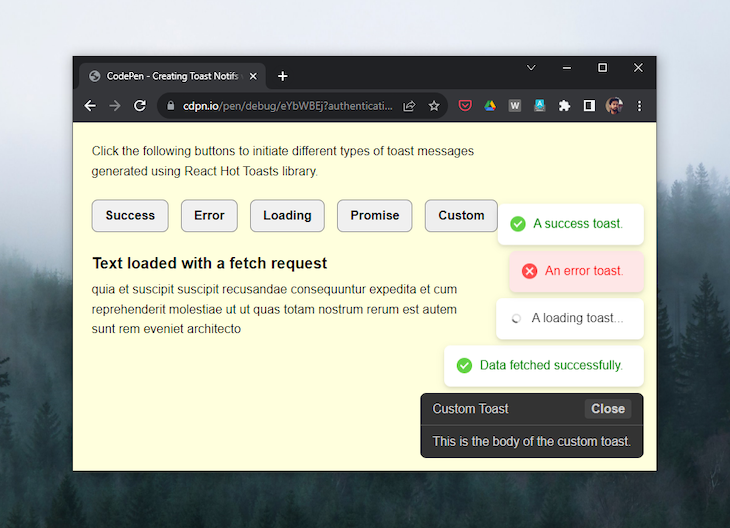
role="status" and aria-live="polite", so screen readers announce it. Keyboard users get less love, though. In our test, pressing Tab never reached the toast, and there is no shortcut to jump to it<Toaster /> and send each toast to the one you wantuseToaster()Setting up basic toast notifications with React Hot Toast is straightforward. The library provides a range of methods through its toast API, such as success(), error(), and more, to handle different toast variations.
The Toaster component serves as the container for all toast messages and is responsible for rendering them through the API.
Here’s how simple it is to display a toast message using the API. Just pass the message as an argument to the toast() method and attach it to the event modifier of a triggering element:
import toast, { Toaster } from "react-hot-toast";

const App = () => {
  return (
    <div>
      <button
        onClick={() => toast("This is a simple toast.")}>Show Toast</button>
      <Toaster />
    </div>
  );
};

export default App;
React Hot Toast offers five different toast variants: success, error, loading, custom, and promise. The success, error, and loading methods are used to show toast variations with a success message, an error message, or a message with a loading spinner icon, respectively:
import toast, { Toaster } from "react-hot-toast";

const successToast = () => toast.success("Success toast.");
const errorToast = () => toast.error("Error toast.");
const loadingToast = () => toast.loading("Loading toast...");

const App = () => {
  return (
    <>
      <button onClick={successToast}>Show Success Toast</button>
      <button onClick={errorToast}>Show Error Toast</button>
      <button onClick={loadingToast}>Show Loading Toast</button>
      <Toaster />
    </>
  );
};

export default App;
The toast.promise() method updates a toast when a promise resolves or rejects, such as after fetching data from an API. Since v2.5, you can pass an async function instead of a promise, and you can leave out the messages you do not need:
import { toast, Toaster } from "react-hot-toast";

function fetchData() {
  return new Promise((resolve) => {
    setTimeout(() => resolve("Data loaded successfully"), 1500);
  });
}

const App = () => {
  const promiseToast = () => {
    toast.promise(fetchData(), {
      loading: "Fetching data...",
      success: "Data fetched!",
      error: "Failed to fetch data.",
    });
  };

  // You can also pass an async function
  const asyncFunctionToast = () => {
    toast.promise(
      async () => {
        const result = await fetchData();
        return result;
      },
      {
        loading: "Running async function...",
        success: (data) => `Done: ${data}`,
        error: "Async function failed.",
      }
    );
  };

  return (
    <div>
      <button onClick={promiseToast}>Promise</button>
      <button onClick={asyncFunctionToast}>Async function</button>
      <Toaster />
    </div>
  );
};

export default App;
The second argument of the toast method is an options object that allows you to customize the behavior of each toast. You can specify the toast’s duration, alter its style, provide custom icons from an icon library, define its accessibility properties, and modify the theme of its icon:
toast.success("All options combined", {
  duration: 4000,

  // icon is a top-level option, not a style property
  icon: "✅",

  // icon config
  iconTheme: {
    primary: "#10b981",
    secondary: "#ecfdf5",
  },

  // ARIA config
  ariaProps: {
    role: "status",
    "aria-live": "polite",
  },

  // toast styles
  style: {
    borderRadius: "8px",
    background: "#18181b",
    color: "#fafafa",
    padding: "12px 16px",
  },
});
There are different ways to dismiss toasts with the React Hot Toast library. You can dismiss a single toast individually by using the toast.dismiss() method and passing the reference to the toast you want to close as an argument. If you don’t pass a specific toast reference to the dismiss method, it will dismiss all toasts simultaneously:
const successToast = toast.success('This is a success toast');
toast.dismiss(successToast);

toast.dismiss(); // this will dismiss all toasts at once
Since v2.6, you can have more than one toaster on the page. Give each <Toaster /> a toasterId, then pass the same ID when you fire a toast:
import { toast, Toaster } from "react-hot-toast";

const App = () => {
  return (
    <div>
      <button onClick={() => toast.success("Success up top!", { toasterId: "top" })}>
        Top toast
      </button>
      <button onClick={() => toast.error("Error down below!", { toasterId: "bottom" })}>
        Bottom toast
      </button>

      <Toaster toasterId="top" position="top-right" />
      <Toaster toasterId="bottom" position="bottom-left" />
    </div>
  );
};

export default App;
React Hot Toast offers simple yet extensive customization options that allow you to tailor your toasts based on your project’s requirements.
In addition to its high customizability, React Hot Toast also has well-structured documentation, which provides more information about API usage, other components like Toaster and ToastBar, custom Hook creation, and the internal API state, which is definitely worth exploring.
Sonner is an opinionated toast component for React created by Emil Kowalski. Built with performance and user experience in mind, it offers a clean API with minimal setup requirements while maintaining excellent accessibility standards:
aria-live="polite", and pressing Alt+T jumps straight to it// Available positions: // top-left, top-center, top-right, bottom-left, bottom-center, bottom-right <Toaster position="top-center" />
<Toaster /> and route each toast with toasterIdSetting up Sonner requires minimal configuration. Add the Toaster component to your app root and start using the toast function anywhere in your application:
import { Toaster, toast } from 'sonner';

function App() {
  return (
    <div>
      <Toaster />
      <button onClick={() => toast('My first toast')}>
        Give me a toast
      </button>
    </div>
  );
}

export default App;
Sonner provides multiple toast variants for different use cases. Each of these variants comes with default styling and icons:
import { toast } from 'sonner';

// Basic variants
toast.success('Successfully saved!');
toast.error('Something went wrong');
toast.warning('Please check your input');
toast.info('New update available');
toast.loading('Saving changes...');

// With descriptions and actions
toast('Event created', {
  description: 'Sunday, December 03, 2023 at 9:00 AM',
  action: {
    label: 'Undo',
    onClick: () => console.log('Undo'),
  },
});
The toast.promise() method handles async operations by updating the toast state based on promise resolution:
const saveData = async () => {
  const promise = fetch('/api/save', { method: 'POST' });

  toast.promise(promise, {
    loading: 'Saving...',
    success: (data) => 'Data saved successfully!',
    error: 'Failed to save data',
  });
};
Sonner offers extensive customization options through the Toaster component and individual toast options:
// Global configuration
<Toaster
  position="top-center"
  richColors
  closeButton
  visibleToasts={5}
  expand={true}
/>

// Individual toast styling
toast.success('Success!', {
  duration: 5000,
  position: 'bottom-right',
  style: {
    background: 'green',
    color: 'white',
  },
  className: 'my-toast',
});
Since v2.0.7, Sonner also supports more than one toaster. Give each <Toaster /> an id, then point your toast at it with toasterId:
import { toast, Toaster } from "sonner";

function App() {
  return (
    <div>
      <Toaster id="primary" position="bottom-right" />
      <Toaster id="secondary" position="top-center" />

      <button onClick={() => toast("Bottom-right toast", { toasterId: "primary" })}>
        Primary toaster
      </button>
      <button onClick={() => toast.success("Top-center toast", { toasterId: "secondary" })}>
        Secondary toaster
      </button>
    </div>
  );
}

export default App;
Sonner stands out with a simplified API that doesn’t require Hooks or any other setup. Unlike some toast libraries that tie notifications to React state, Sonner’s approach allows users to trigger toasts from anywhere in your application without additional configuration.
The library includes comprehensive TypeScript definitions and well-structured documentation with live examples, making integration straightforward for both beginners and experienced developers.
maxSnack limits how many snackbars show at once (three by default), and the rest wait their turnTo use NotiStack, render a <SnackbarProvider /> once, then call enqueueSnackbar from anywhere. You can import it directly, with no Hook needed:
import { SnackbarProvider, enqueueSnackbar } from "notistack";

const App = () => {
  return (
    <SnackbarProvider>
      <button onClick={() => enqueueSnackbar("This is a notification.")}>
        Display notification
      </button>
    </SnackbarProvider>
  );
};

export default App;
There is one catch with the direct import. enqueueSnackbar only starts working after <SnackbarProvider> mounts, so calling it at the top level of a module, before your app renders, will throw. Inside click handlers, you will never notice.
If you prefer Hooks, useSnackbar() gives you enqueueSnackbar and closeSnackbar. Just make sure the component using it sits inside the provider:
import { SnackbarProvider, useSnackbar } from "notistack";

const SnackbarButtons = () => {
  const { enqueueSnackbar, closeSnackbar } = useSnackbar();

  return (
    <div>
      <button onClick={() => enqueueSnackbar("Snackbar via useSnackbar hook")}>
        Show snackbar
      </button>
      <button onClick={() => closeSnackbar()}>Close all</button>
    </div>
  );
};

const App = () => {
  return (
    <SnackbarProvider>
      <SnackbarButtons />
    </SnackbarProvider>
  );
};

export default App;
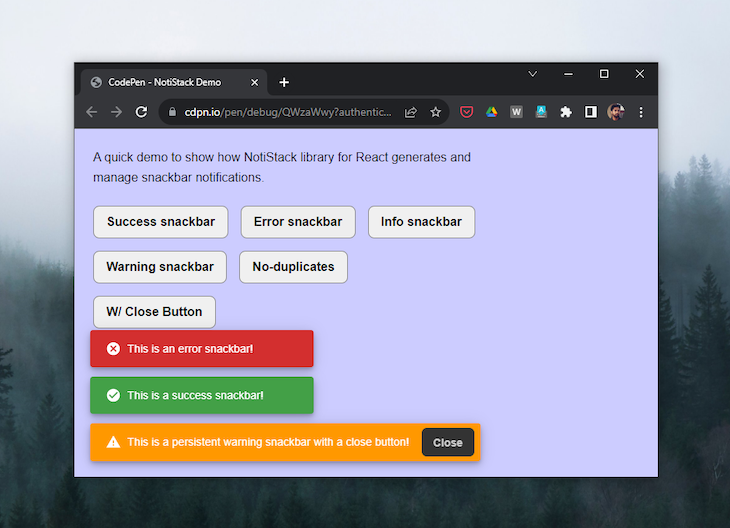
NotiStack supports a variety of notification variants, which can be used to change the appearance of the notification, including notifications for success, info, warning, error, and the default one. The example below covers the implementation of each of the variants:
import { SnackbarProvider, enqueueSnackbar } from "notistack";

const VariantButtons = () => {
  return (
    <div>
      <button onClick={() => enqueueSnackbar("Default snackbar")}>Default</button>
      <button onClick={() => enqueueSnackbar("Success!", { variant: "success" })}>Success</button>
      <button onClick={() => enqueueSnackbar("Error occurred", { variant: "error" })}>Error</button>
      <button onClick={() => enqueueSnackbar("Warning!", { variant: "warning" })}>Warning</button>
      <button onClick={() => enqueueSnackbar("For your information", { variant: "info" })}>Info</button>
    </div>
  );
};

const App = () => {
  return (
    <SnackbarProvider>
      <VariantButtons />
    </SnackbarProvider>
  );
};

export default App;
NotiStack provides versatile configuration options for notifications, applied globally via SnackbarProvider or individually with enqueueSnackbar(). Global settings standardize behavior and appearance. For example, anchorOrigin controls position, autoHideDuration sets display time, and maxSnackbars limits concurrent notifications:
import { SnackbarProvider, useSnackbar } from 'notistack';

const App = () => {
  const { enqueueSnackbar } = useSnackbar();

  return (
    <SnackbarProvider
      anchorOrigin={{ vertical: 'top', horizontal: 'right' }}
      autoHideDuration={3000}
      maxSnack={3} // Updated to maxSnack
    >
      <button onClick={() => enqueueSnackbar('This is a notification!')}>
        Show notification
      </button>
    </SnackbarProvider>
  );
};

export default App;
For a single snackbar, pass options like anchorOrigin, autoHideDuration, and action to enqueueSnackbar. Note that dense only works on SnackbarProvider. If you pass it to a single snackbar, TypeScript will reject it:
import { SnackbarProvider, useSnackbar } from 'notistack';

const App = () => {
  const { enqueueSnackbar } = useSnackbar();

  const showCustomSnackbar = () => {
    enqueueSnackbar('This is a custom notification!', {
      anchorOrigin: { vertical: 'bottom', horizontal: 'left' },
      autoHideDuration: 5000,
      dense: true,
    });
  };

  return (
    <div>
      <button onClick={showCustomSnackbar}>Show custom notification</button>
    </div>
  );
};

export default App;
The NotiStack library offers an uncomplicated and user-friendly API, facilitating an easy start. It features comprehensive documentation, complete with examples and tutorials, and is actively developed and maintained to address feedback and bug reports.
Here’s a quick demo for using the NotiStack library:
See the Pen
NotiStack Demo by Rahul (@c99rahul)
on CodePen.
React-Toastify offers unique features such as enhanced customization, bidirectional (RTL) language support, and additional mobile interactions.
These features empower users to finely customize animations, positions, and durations; display notifications in different languages; and enable actions such as swiping to dismiss and tapping to open: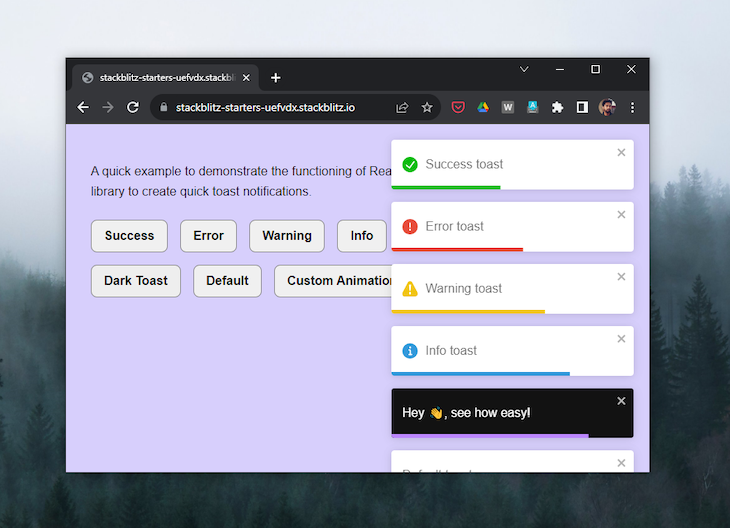
React-Toastify has a similar API to React Hot Toast, with a toast method for each variant. The ToastContainer component holds and renders the toasts. Since v11, you no longer need to import the CSS file. The styles get injected automatically, and while writing this article, I noticed toasts looked the same with or without the import:
import { ToastContainer, toast } from "react-toastify";
import "react-toastify/dist/ReactToastify.css";

const App = () => {
  const successToast = () => toast.success("This is a success toast!");
  return (
    <div className="App">
      <button onClick={successToast}>show success toast</button>
      <ToastContainer />
    </div>
  );
}

export default App;
React-Toastify offers six toast variants: success, error, warn, info, dark, along with a default variant, all of which are self-explanatory. The following code shows their straightforward implementation in a React component:
import { toast, ToastContainer } from "react-toastify";

const App = () => {
  return (
    <>
      <button onClick={() => toast.success("Success toast")}>
        Show Success Toast
      </button>
      <button onClick={() => toast.error("Error toast")}>
        Show Error Toast
      </button>
      <button onClick={() => toast.warning("Warning toast")}>
        Show Warning Toast
      </button>
      <button onClick={() => toast.info("Info toast")}>
        Show Info Toast
      </button>
      <button onClick={() => toast.dark("Dark mode toast")}>
        Show Dark Mode Toast
      </button>
      <button onClick={() => toast("Default toast")}>
        Show Default Toast
      </button>
      <ToastContainer />
    </>
  );
};

export default App;
toast.warn() and toast.warning() are the same thing, so use whichever reads better to you. There is no toast.default(); just call toast() directly. toast.dark() still works in v11, but the cleaner way to get dark toasts is the theme prop on ToastContainer, which accepts "light", "dark", or "colored":
<ToastContainer theme="dark" />
Similar to React Hot Toast, we can pass an options object as the second argument to a React-Toastify toast to define different behaviors for it:
toast.success("This is a success toast!", {
  position: "bottom-right",
  autoClose: 2000,
  pauseOnHover: true,
  draggable: true,
});
The allowed positions are "top-right", "top-center", "top-left", "bottom-right", "bottom-center", and "bottom-left".
Additionally, we have the option to customize the default toast animation using the cssTransition method, which accepts an object where we can specify the enter and exit animations for the toast:
import "animate.css/animate.min.css";
import { ToastContainer, toast, cssTransition } from "react-toastify";

const bounce = cssTransition({
  enter: "animate__animated animate__bounceIn",
  exit: "animate__animated animate__bounceOut",
});

const customAnimationToast = () => {
  toast.dark("Hey 👋, see how easy!", {
    transition: bounce,
  });
};

const App = () => {
  return (
    <div className="App">
      <button onClick={customAnimationToast}>show bounce toast</button>
      <ToastContainer transition={bounce} />
    </div>
  );
}

export default App;
To update a toast later, store the ID that toast() returns. A ref keeps it safe across re-renders. Toast types are plain strings now, so use "info" instead of toast.TYPE.INFO:
import { useRef } from "react";

export default function App() {
  let toastId = useRef(null);

  const successToast = () => {
    toastId = toast("Fetching data...", { autoClose: false });
  };

  const updateToast = () => {
    toast.update(toastId, { type: toast.TYPE.INFO, autoClose: 5000 });
  }

  return (
    <div>
      <button onClick={successToast}>show success toast</button>
      <Button onClick={updateToast}>update toast</Button>
      <ToastContainer ref={toastId} />
    </div>
  );
}
Base UI is a library of unstyled React components from the team behind Material UI, and Toast is one of them. “Unstyled” means you get all the hard parts, like stacking, swipe to dismiss, timers, and accessibility, but zero CSS. You bring your own looks. It is also the engine behind the new shadcn/ui Toast, which is why it is showing up in more and more projects.
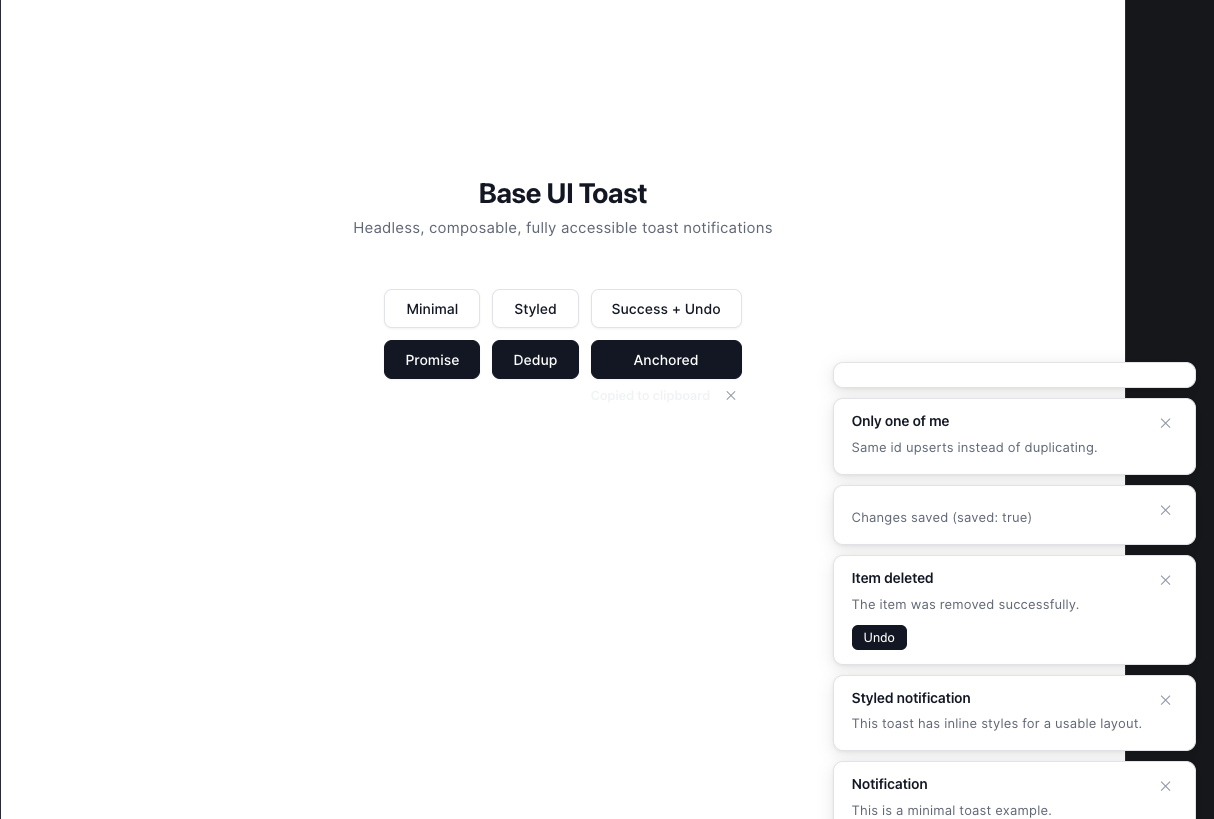
priority: "high" makes screen readers announce urgent toasts right awayToast.createToastManager() lets you fire toasts from plain functions outside Reactid that already exists updates it instead of stacking a copypromise() and supports action buttons and custom dataInstall it with npm install @base-ui/react. You build a toast from parts: Toast.Provider holds the state, Toast.Viewport is where toasts appear, and you render each toast yourself with Toast.Root. The useToastManager Hook gives you add, close, update, and promise:
import { Toast } from "@base-ui/react/toast";

function ToastButton() {
  const toastManager = Toast.useToastManager();

  return (
    <button
      onClick={() =>
        toastManager.add({
          title: "Notification",
          description: "This is a minimal toast example.",
        })
      }
    >
      Show toast
    </button>
  );
}

function ToastList() {
  const { toasts } = Toast.useToastManager();

  return toasts.map((toast) => (
    <Toast.Root
      key={toast.id}
      toast={toast}
      style={{
        background: "#1a1a2e",
        color: "#eee",
        borderRadius: 8,
        padding: "12px 16px",
        minWidth: 280,
      }}
    >
      <Toast.Content
        style={{
          display: "flex",
          alignItems: "flex-start",
          gap: 12,
        }}
      >
        <div style={{ flex: 1 }}>
          <Toast.Title
            style={{
              fontWeight: 600,
              fontSize: 14,
              margin: 0,
            }}
          />
          <Toast.Description
            style={{
              fontSize: 13,
              opacity: 0.8,
              margin: "4px 0 0",
            }}
          />
        </div>
        <Toast.Close aria-label="Close">✕</Toast.Close>
      </Toast.Content>
    </Toast.Root>
  ));
}

export default function App() {
  return (
    <Toast.Provider>
      <ToastButton />
      <Toast.Portal>
        <Toast.Viewport
          style={{
            position: "fixed",
            bottom: 16,
            right: 16,
            display: "flex",
            flexDirection: "column",
            gap: 8,
            zIndex: 9999,
          }}
        >
          <ToastList />
        </Toast.Viewport>
      </Toast.Portal>
    </Toast.Provider>
  );
}
There are no built-in variants because there are no built-in styles. Instead, you pass a type like "success" or "error", and Base UI adds it to the toast as a data-type attribute that you can style. You can also attach your own data, such as an Undo button:
function DeleteButton() {
  const toastManager = Toast.useToastManager();

  return (
    <button
      onClick={() =>
        toastManager.add({
          title: "Item deleted",
          description: "The item was removed successfully.",
          type: "success",
          data: {
            actionLabel: "Undo",
            onAction: () => console.log("Undo action triggered"),
          },
        })
      }
    >
      Delete item
    </button>
  );
}

// Inside your ToastList, render the action when it exists
{toast.data?.actionLabel && (
  <Toast.Action onClick={toast.data.onAction}>
    {toast.data.actionLabel}
  </Toast.Action>
)}
For async work, toastManager.promise() works just like the other libraries:
toastManager.promise(saveChanges(), {
  loading: "Saving changes...",
  success: (result) => `Changes saved (saved: ${result.saved})`,
  error: (err) => `Failed to save: ${err.message}`,
});
Toast.Provider takes a limit for how many toasts show at once (three by default) and a timeout for how long they stay (5000ms by default). To fire toasts from outside React, like in an API helper, create a global manager and hand it to the provider:
import { Toast } from "@base-ui/react/toast";

const manager = Toast.createToastManager();

// A plain function outside React
export function showToast() {
  manager.add({ title: "Hello from outside React!" });
}

export default function App() {
  return (
    <Toast.Provider toastManager={manager}>
      {/* your app, Toast.Portal, Toast.Viewport, and ToastList */}
    </Toast.Provider>
  );
}
To stop duplicates, give the toast an id. Calling add again with the same id updates the toast that is already on screen:
toastManager.add({
  id: "save-status",
  title: "Draft saved",
});
Base UI Toast asks more of you up front than any other library here. Nothing shows up on screen until you write your own CSS, and the parts-based API takes a few minutes to click. If you use shadcn/ui, you can skip that work with npx shadcn@latest add toast, which gives you a styled version with a simple toast.add() call. Once it is set up, you get the best accessibility in this list and full control over how every pixel looks.
I see two common issues with toast notifications in the wild that could negatively impact the user experience.
When you click a button in the center of your screen or at the top of the screen, seeing confirmation in a distant corner breaks the natural interaction flow.
Most toast libraries place notifications in the corner of the screen, where it is hard to locate. Gmail fails on this, too.
It shows this issue perfectly: delete an email on a large screen, and the “Conversation deleted” message appears in the bottom-left corner:
As users interact more with the application, they become more used to expecting toast notifications in the corners. But for a better user experience, the solution is straightforward: keep feedback close to where actions occur.
Base UI Toast is the only library here with a built-in way to do this. Its Toast.Positioner pins a toast to the element that triggered it, like a small “Copied” bubble right next to a copy button.
Another UX problem with toast notifications is the replacement of loading states or spinners with a toast. Some things do not require a toast notification at all.
Not every notification needs a toast; some should be displayed directly in the element that was interacted with. After a submission button is clicked, users remain focused on that button as it changes state from Submit to Loading to Submitted.
You can easily display the success message within the button itself, then redirect the user or proceed to the next step. If you must use toast notifications, position them close to where they can be seen and noticed. These approaches respect natural attention patterns while providing clear, accessible feedback that users actually notice.
Toasts are tiny, but they still have to work for everyone. We triggered success and error toasts in each library, scanned them with axe, tried to reach them with the keyboard, and turned on “reduce motion” in the browser:
| Library | How it announces toasts | Toast-related axe issues | Keyboard reaches toast | Close button reachable | Respects reduced motion |
|---|---|---|---|---|---|
| React Hot Toast | role="status", polite |
0 | No | No | Yes |
| Sonner | Polite live region | 1 (colorcontrast) | Yes, Alt+T | No | Yes |
| React-Toastify | role="alert" inside a polite region |
0 | Yes, Tab | No | Yes |
| NotiStack | role="alert", no live region |
1 (colorcontrast) | No | No | Partly, a 225ms transition still runs |
| Base UI Toast | Polite live region | 0 | Yes, F6 | Yes | Yes |
Base UI Toast wins this one clearly. NotiStack has the most gaps: no live region wrapping the snackbars, failed color contrast, and an animation that keeps running when the user asks for less motion.
For performance, we fired 50 toasts in a row, ran each test five times on the dev server, and took the median:
| Library | Median time for 50 toasts | Long tasks | Toasts visible by default |
|---|---|---|---|
| NotiStack | 518ms | 0 | 3 |
| React Hot Toast | 530ms | 0 | 20 |
| React-Toastify | 541ms | 0 | No limit |
| Base UI Toast | 564ms | 2 (223ms total) | 3 |
| Sonner | 787ms | 0 | Up to 49 in our run |
Take this table with a pinch of salt. NotiStack looks fastest mainly because it only draws three snackbars and queues the rest. Base UI was the only one that blocked the main thread, and Sonner was the slowest overall. But then, nobody fires 50 toasts at once in a real app, and for the usual one to five toasts, all five libraries are perfectly fast enough that users will not notice.
Install LogRocket via npm or script tag. LogRocket.init() must be called client-side, not
server-side
$ npm i --save logrocket

// Code:

import LogRocket from 'logrocket';
LogRocket.init('app/id');
// Add to your HTML:

<script src="https://cdn.lr-ingest.com/LogRocket.min.js"></script>
<script>window.LogRocket && window.LogRocket.init('app/id');</script>
See how Tecovas built a patching agent that turns LogRocket’s Galileo AI issue analysis into GitHub PRs, with a developer reviewing every fix before it ships.
Explore OctaneJS, a compiler-first alternative to React. Build a task dashboard and learn about rendering, hooks, asynchronous UI, and React compatibility.
Explore Vercel’s vgpu, a WebGPU library for AI agents. Learn to build a dynamic shader in Next.js and validate rendering output with headless testing in Node.js.
Compare some of the best Node.js unit testing frameworks in 2023, including Mocha, Jest, Supertest, and Webdriver.
Hey there, want to help make our blog better?
Join LogRocket’s Content Advisory Board. You’ll help inform the type of content we create and get access to exclusive meetups, social accreditation, and swag.
Sign up now
 Learn more →