

Authentication is an inevitable discussion in the world of software development. It acts as the front door to your product and determines what benefits your subscribers have while they use it.

In React Native, it could feel simple at first if you’re building an email-password flow with an API. Add OAuth, cookie management, secondary storage, account linking, and the like, and it gets considerably harder to manage yourself.
This is why third-party hosted providers like Clerk are appealing to developers. They handle common pain points upfront, so you are not building an auth system from scratch. This can be an effective productivity boost in the development cycle. The tradeoff, however, is concerning; you have less control over your user data, which in my opinion, is your most important business asset.
Better Auth sits in an interesting position because it’s open source under the MIT license. It can be self-hosted, and gives you full legal control over your data. It also has an Expo plugin that makes mobile development considerably smoother. In this guide, we will build a working Expo app with email and password authentication, Google OAuth, persistent sessions, and protected routes.
If you have used Auth.js (formerly NextAuth.js), Better Auth will feel familiar. They share a similar philosophy. In fact, in September 2025, the Better Auth team took over maintenance of Auth.js, with the goal of converging the ecosystem over time. Simply put, Better Auth is where new projects should start.
To follow along, make sure you have the following in place:
This walkthrough uses Expo SDK 55 with an Android emulator running a development build of the application. Expo Go, on its own, runs your code inside Expo’s native shell, so it cannot register the app’s custom scheme or support the native modules that the Google OAuth flow depends on.
At the time of writing, Expo Go remains on SDK 54 while SDK 55 awaits App Store review. You can use Expo Go with SDK 54 by running the command below without the --template flag, but you will only be able to follow the email/password sections:
npx create-expo-app@latest react-native-better-auth --template default@sdk-55
cd react-native-better-auth
npm install better-auth @better-auth/expo @better-auth/mongo-adapter expo-network expo-secure-store mongodb
This creates a fresh Expo project using the SDK 55 default template, which ships with the New Architecture enabled, React 19 support, and a /src directory structure. The packages we installed alongside it do the following:
better-auth: the core auth library@better-auth/expo: the Expo plugin that handles deep link callbacks and cookie storage for the mobile auth flow@better-auth/mongo-adapter mongodb: the MongoDB adapter for Better Auth and the MongoDB Node.js driverexpo-secure-store: used by expoClient() to persist session tokens securely on the deviceexpo-network: used internally by the Expo plugin to detect the current network address in developmentIf you are adding Better Auth to an existing project rather than a fresh template, you will also need expo-linking, expo-web-browser, and expo-constants.
Before writing any auth code, set up your environment variables. Create a .env file at the root of the project:
BETTER_AUTH_URL=https://your-server-url
BETTER_AUTH_SECRET=your-secret
MONGO_URI=your-mongodb-connection-string
GOOGLE_CLIENT_ID=your-google-client-id
GOOGLE_CLIENT_SECRET=your-google-client-secret
BETTER_AUTH_SECRET is used to sign sessions and encrypt tokens. You can generate a secure value with:
openssl rand -base64 32
Without a stable secret, every server restart will invalidate all active sessions. BETTER_AUTH_URL is the public base URL your Better Auth server runs at. For local development with Google OAuth, this needs to be a publicly reachable HTTPS URL. The OAuth section covers how to get one, but keep it in mind as you set things up.
Before we go deeper, it helps to understand how this project is laid out. Expo Router uses file-based routing. That means every file in src/app/ maps to a screen or a group of screens, similar to Next.js. Here is the relevant structure:
src/app/
  _layout.tsx          ← root layout, wraps every screen
  index.tsx            ← sign-in screen (public)
  sign-up.tsx          ← sign-up screen (public)
  (tabs)/
    _layout.tsx        ← tab layout, redirects if no session
    home.tsx           ← protected home tab
    explore.tsx        ← protected profile tab
  api/
    [...auth]+api.ts   ← Better Auth API route handler
The (tabs) folder is a route group. Its _layout.tsx acts as a gate: if no session exists, it redirects to the sign-in screen. The root _layout.tsx wraps everything in an AuthProvider, which makes the current session available to any screen through a context hook.
Here is what the root layout looks like:
// src/app/_layout.tsx
import {
  DarkTheme,
  DefaultTheme,
  ThemeProvider,
} from '@react-navigation/native'
import { Stack } from 'expo-router'
import React from 'react'
import { useColorScheme } from 'react-native'
import { AnimatedSplashOverlay } from '@/components/animated-icon'
import { AuthProvider } from '@/components/AuthProvider'
export default function RootLayout() {
  const colorScheme = useColorScheme()
  return (
    <ThemeProvider value={colorScheme === 'dark' ? DarkTheme : DefaultTheme}>
      <AuthProvider>
        <AnimatedSplashOverlay />
        <Stack>
          <Stack.Screen name='(tabs)' options={{ headerShown: false }} />
          <Stack.Screen name='index' options={{ headerShown: false }} />
          <Stack.Screen name='sign-up' options={{ title: 'Create Account' }} />
        </Stack>
      </AuthProvider>
    </ThemeProvider>
  )
}
AuthProvider is a thin wrapper around Better Auth’s useSession hook. It exposes session, isPending, isRefetching, and refetch to any component in the tree through a useAuth hook:
// src/components/AuthProvider.tsx
import { createContext, PropsWithChildren, useContext, useMemo } from 'react'
import { useSession } from '@/lib/auth-client'
type AuthContextValue = {
  session: ReturnType<typeof useSession>['data']
  isPending: boolean
  isRefetching: boolean
  refetch: ReturnType<typeof useSession>['refetch']
}
const AuthContext = createContext<AuthContextValue | null>(null)
export function AuthProvider({ children }: PropsWithChildren) {
  const { data, isPending, isRefetching, refetch } = useSession()
  const value = useMemo(
    () => ({ session: data, isPending, isRefetching, refetch }),
    [data, isPending, isRefetching, refetch],
  )
  return <AuthContext.Provider value={value}>{children}</AuthContext.Provider>
}
export function useAuth() {
  const context = useContext(AuthContext)
  if (!context) {
    throw new Error('useAuth must be used inside AuthProvider')
  }
  return context
}
This is the same pattern you would see with Auth.js’s SessionProvider in Next.js. The key difference on native is that the session data is cached in SecureStore, so the provider can hydrate immediately on app launch without a network round-trip.
Better Auth needs a backend to run on. We can use Expo’s API routes for this. Create the handler at src/app/api/[...auth]+api.ts:
import { auth } from '@/lib/auth'
const handler = auth.handler
export { handler as GET, handler as POST }
This catches all requests to /api/auth/** and forwards them to Better Auth. The +api.ts suffix is Expo Router’s convention for API route files.
Now create the main auth configuration at src/lib/auth.ts. This is where you initialize Better Auth. The database, Expo plugin, session settings, and your advanced auth methods all live here:
// src/lib/auth.ts
import { expo } from '@better-auth/expo'
import { mongodbAdapter } from '@better-auth/mongo-adapter'
import { betterAuth } from 'better-auth'
import { ObjectId } from 'mongodb'
import { dbClient } from './db'
const database = dbClient.db('better-auth')
export const auth = betterAuth({
  baseURL: process.env.BETTER_AUTH_URL!,
  plugins: [expo()],
  database: mongodbAdapter(database, {
    client: dbClient,
    // disable transactions for standalone MongoDB (e.g. local Docker, free-tier Atlas M0)
    // if your deployment supports transactions, set this to true for better consistency
    transaction: false,
  }),
  advanced: {
    database: {
      generateId: () => new ObjectId().toHexString(),
    },
  },
  account: {
    storeStateStrategy: 'cookie',
  },
  emailAndPassword: {
    enabled: true,
  },
  socialProviders: {
    google: {
      clientId: process.env.GOOGLE_CLIENT_ID!,
      clientSecret: process.env.GOOGLE_CLIENT_SECRET!,
      // request a refresh token so the server can re-authenticate without user interaction
      accessType: 'offline',
      // force account picker + consent screen on every sign-in to ensure a refresh token is returned
      prompt: 'select_account consent',
    },
  },
  trustedOrigins: [
    'betterauthrn://',
    process.env.BETTER_AUTH_URL!,
    ...(process.env.NODE_ENV === 'development'
      ? [
          'exp://',
          'exp://**',
          'exp://192.168.*.*:*/**',
          'http://localhost:8081',
        ]
      : []),
  ],
})
A few things are worth explaining here.
plugins: [expo()] adds the server-side half of the Expo integration. It handles origin validation for deep links and makes the mobile auth flow work correctly.advanced.database.generateId is required with the MongoDB adapter. Without it, the adapter tries to handle document IDs as a buffer, which causes insert failures. Returning new ObjectId().toHexString() produces a string that MongoDB and Better Auth are both happy with.transaction: false is needed when running against a standalone MongoDB instance, like a local Docker container or a free-tier Atlas M0 cluster, for example. These do not support multi-document transactions. If your deployment does, you can set this to true.storeStateStrategy: 'cookie' tells Better Auth to store the OAuth state parameter in a cookie during the social sign-in flow, rather than in the database. On mobile, the OAuth redirect flows through a browser context where cookie-based state is more reliable than a mid-redirect database lookup. You would not need this if you used the idToken sign-in flow instead.trustedOrigins is Better Auth’s list of allowed redirect targets. For mobile, this needs to include your app’s deep link scheme (betterauthrn:// in this case) and the Expo development URLs. Without the exp:// entries, Better Auth will reject redirects during development.The dbClient referenced above comes from src/lib/db.ts. It uses a global singleton to avoid creating a new MongoClient instance on every module reload during development:
// src/lib/db.ts
import { MongoClient } from 'mongodb'
const globalForMongo = globalThis as unknown as {
  mongoClient: MongoClient | undefined
}
if (!globalForMongo.mongoClient) {
  globalForMongo.mongoClient = new MongoClient(process.env.MONGODB_URI!)
}
export const dbClient = globalForMongo.mongoClient
On the client side, src/lib/auth-client.ts initializes the Better Auth client with the expoClient() plugin. This plugin handles OAuth redirects and stores session cookies in SecureStore:
// src/lib/auth-client.ts
import { expoClient } from '@better-auth/expo/client'
import { createAuthClient } from 'better-auth/react'
import * as SecureStore from 'expo-secure-store'
export const authClient = createAuthClient({
  baseURL: process.env.BETTER_AUTH_URL!,
  plugins: [
    expoClient({
      scheme: 'betterauthrn',
      storagePrefix: 'betterauthrn',
      storage: SecureStore,
    }),
  ],
})
export const { signIn, signUp, signOut, useSession } = authClient
We also point to the same baseUrl.
storagePrefix namespaces the keys written to SecureStore so they do not collide with anything else your app may be storing. The scheme tells the plugin which deep link scheme to use when constructing callback URLs for OAuth. More on scheme momentarily.
We also export signIn, signUp, signOut, and useSession directly from this file. Screens can import just what they need rather than reaching into authClient everywhere.
With the server config and client in place, we can wire up sign-in and sign-up. Both screens follow the same pattern: collect form values, ping the server with the Better Auth client, handle errors, and navigate on success.
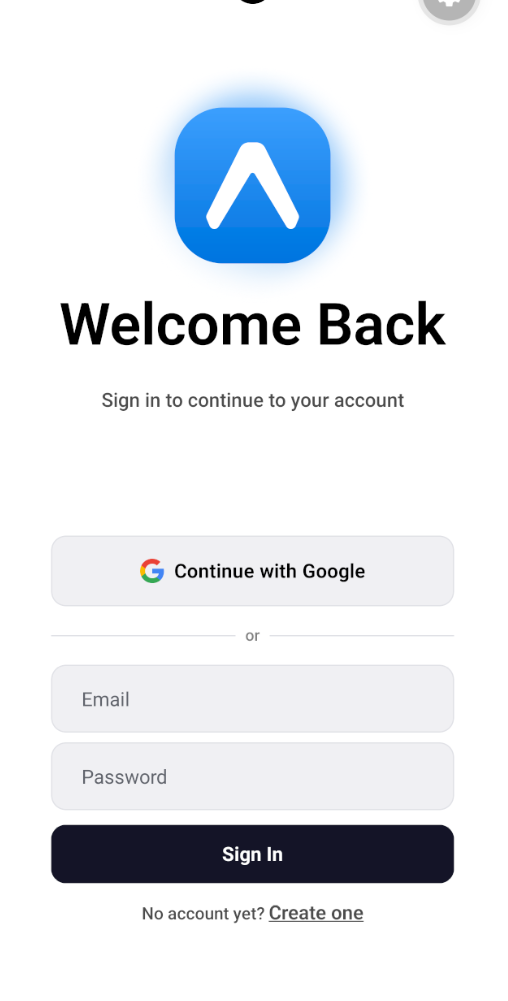
The sign-in screen is the index screen which lives at src/app/index.tsx. If a session already exists when it mounts, it redirects straight to /home:
// src/app/index.tsx
import { Redirect, useRouter } from 'expo-router'
import { useState } from 'react'
import { ActivityIndicator, Pressable, TextInput } from 'react-native'
import { useAuth } from '@/components/AuthProvider'
import { signIn } from '@/lib/auth-client'
export default function SignInScreen() {
  const router = useRouter()
  const { session, isPending, refetch } = useAuth()
  const [email, setEmail] = useState('')
  const [password, setPassword] = useState('')
  const [formError, setFormError] = useState<string | null>(null)
  const [submitting, setSubmitting] = useState(false)
  if (!isPending && session) {
    return <Redirect href='/home' />
  }
  const onSubmit = async () => {
    setFormError(null)
    const normalizedEmail = email.trim().toLowerCase()
    if (!normalizedEmail || !password) {
      setFormError('Email and password are required.')
      return
    }
    setSubmitting(true)
    const { error } = await signIn.email({
      email: normalizedEmail,
      password,
      rememberMe: true,
    })
    setSubmitting(false)
    if (error) {
      setFormError(error.message ?? 'Unable to sign in. Please try again.')
      return
    }
    await refetch()
    router.replace('/home')
  }
  // ... form JSX
}
A few things worth noting. The !isPending && session check prevents a flash of the sign-in screen while the session is still loading from SecureStore on app launch. The email is normalized to lowercase before being sent to avoid case-sensitivity mismatches between sign-up and sign-in. rememberMe: true tells Better Auth to issue a longer-lived session.
After a successful sign-in, we call refetch() before navigating. This pushes the updated session into the AuthProvider so every other screen in the tree has current data immediately.
The sign-up screen at src/app/sign-up.tsx follows the same shape. The main additions are a name field and a confirm password check before the network call:
// src/app/sign-up.tsx
import { signUp } from '@/lib/auth-client'
const onSubmit = async () => {
  setFormError(null)
  const normalizedEmail = email.trim().toLowerCase()
  const trimmedName = name.trim()
  if (!normalizedEmail || !password || !trimmedName) {
    setFormError('Name, email, and password are required.')
    return
  }
  if (password !== confirmPassword) {
    setFormError('Passwords do not match.')
    return
  }
  setSubmitting(true)
  const { error } = await signUp.email({
    name: trimmedName,
    email: normalizedEmail,
    password,
  })
  setSubmitting(false)
  if (error) {
    setFormError(error.message ?? 'Unable to sign up. Please try again.')
    return
  }
  await refetch()
  router.replace('/home')
}
The validation runs client-side first as a quick sanity check, but the real validation happens on the server. Better Auth returns structured errors and error.message contains a human-readable description you can surface directly in the UI without any extra mapping.
After sign-up, the user is signed in automatically and sent to /home. There is no separate email verification step unless you explicitly enable it. Better Auth supports that through emailAndPassword.requireEmailVerification in the server config. If you need more advanced form validation patterns beyond what Better Auth provides out of the box, consider a schema-driven approach to validation.
Google sign-in in this app uses Better Auth’s browser-based flow. When the user taps the sign-in button, Better Auth opens a browser session, the user authenticates with Google, and Google redirects back to the Better Auth server. The server then redirects the browser to the betterauthrn:// deep link, which the app intercepts to complete sign-in.
The credential you need for this is a Web Application credential, not an Android credential. The redirect URI (/api/auth/callback/google) is handled by your server, so Google needs to be able to reach your server, not the device. Even though the sign-in starts on the emulator, the OAuth handshake happens entirely between Google and your backend.
Google requires the redirect URI you register to exactly match the one your server sends. This creates a practical problem: you need a publicly reachable HTTPS URL for your local Better Auth server.
You might try pointing BETTER_AUTH_URL at http://localhost:8081. In a web browser on your machine that works, because the browser follows the redirect directly to your local server. On an Android emulator, it does not; the system browser inside the emulator treats localhost as the emulator’s own loopback address, not your host machine.
So http://localhost:8081/api/auth/callback/google leads nowhere.
Running Expo’s start command with the --tunnel flag is a common workaround:
npx expo start --tunnel
This uses Ngrok to give you a public HTTPS URL that Google can redirect to. My issue with this approach is that the URL changes every time you restart the dev server, which means you’ll frequently have to update the authorized URIs in Google Cloud Console.
I used Cloudflare Tunnel instead. Cloudflare Tunnel runs a lightweight daemon (cloudflared) on your machine that opens an outbound connection to Cloudflare’s network. This makes your local server publicly accessible through a subdomain on your own domain, and that subdomain stays fixed regardless of how many times you restart development.
Note: This requires a domain managed on Cloudflare. If you do not have one, you can add a domain for free and point its nameservers to Cloudflare.
To set it up, go to the Cloudflare Zero Trust dashboard and follow the steps on this page.
Your local server should now be reachable at https://devserver.yourdomain.com (or whatever subdomain you chose). Set that as BETTER_AUTH_URL in your .env file. You register the redirect URI in Google once and the URL stays the same for every dev session.
https://devserver.chinwike.space/api/auth/callback/google.env as GOOGLE_CLIENT_ID and GOOGLE_CLIENT_SECRET.Before testing Google sign-in, we need to solve a fundamental problem: how does the OAuth redirect from the browser get back into your app?
When the user finishes authenticating with Google in the system browser, Better Auth needs a URL to redirect the user somewhere else in your app. A regular https:// URL won’t work here. Instead, you need a URL that can be recognized by the OS. This is called a deep link, and it works just like a web URL, except instead of https://yoursite.com/path, you have betterauthrn://path and it points to your app.
betterauthrn:// here is your app’s custom scheme. It is to your app what HTTPS is to a website. When any app or browser on the device points to a URL starting yourappscheme://, the OS knows to launch your app and pass the rest of the URL as routing information. Other apps can link directly to specific screens inside your app this way. This is exactly what the OAuth callback needs.
To register this custom scheme, add it to app.json:
{
  "expo": {
    "scheme": "betterauthrn"
  }
}
This declares the scheme, but it does not actually make it recognized by your device yet. The scheme is only recognized by the OS after you compile a native build. During the build process, Expo writes the scheme into the platform-specific manifest files: AndroidManifest.xml on Android and Info.plist on iOS. Until that build happens, the OS has no idea what betterauthrn:// means.
Expo Go does not support custom schemes. It runs your code inside Expo’s own native shell, so every app in Expo Go shares the same exp:// scheme. This is the core reason you need a development build.
First, install expo-dev-client:
npx expo install expo-dev-client
Then build and install the app on your connected emulator:
npx expo run:android
# or
npx expo run:ios
Once installed, verify the deep link is registered:
npx uri-scheme open betterauthrn://home --android
If the app opens, the scheme is wired up correctly, and Better Auth has a native target to redirect to after OAuth sign-in.
On Windows, Android is the only local emulator option. iOS builds require macOS or a physical device with Apple developer provisioning.
With the dev build running, the GoogleSignInButton component triggers the OAuth flow:
// src/components/google-sign-in-button.tsx
const { error } = await authClient.signIn.social({
  provider: 'google',
  callbackURL: '/home',
})
The Expo plugin converts the relative callbackURL into a full deep link (betterauthrn:///home) before sending it to Better Auth. After Google completes the handshake, it redirects to your server’s callback URL. The server exchanges the code for tokens and then redirects the browser to betterauthrn:///home. The app intercepts that URL, expoClient() reads the session cookie, and writes it to SecureStore.
Better Auth also supports an idToken flow for Google, Apple, and Facebook. The browser flow shown here is simpler and does not require any platform-specific native SDK. If you need to secure your Next.js backend alongside this, using Next.js security headers is a practical complement to auth-layer protection.
With authentication in place, the last structural piece is making sure screens that require a session are actually protected.
The tab layout at src/app/(tabs)/_layout.tsx is the main guard for authenticated screens. It reads session and isPending from useAuth(). While the session is loading, it shows a spinner. If no session exists once loading completes, it redirects to the sign-in screen:
// src/app/(tabs)/_layout.tsx
import { Redirect, Tabs } from 'expo-router'
import { ActivityIndicator, View } from 'react-native'
import { useAuth } from '@/components/AuthProvider'
export default function TabLayout() {
  const { session, isPending } = useAuth()
  if (isPending) {
    return (
      <View style={{ flex: 1, alignItems: 'center', justifyContent: 'center' }}>
        <ActivityIndicator />
      </View>
    )
  }
  if (!session) {
    return <Redirect href='/' />
  }
  return (
    <Tabs>
      <Tabs.Screen name='home' options={{ title: 'Home' }} />
      <Tabs.Screen name='explore' options={{ title: 'Profile' }} />
    </Tabs>
  )
}
This uses Expo Router’s <Redirect> component rather than imperative navigation. Any screen nested under (tabs)/ inherits this guard automatically so you do not need to add a session check to each individual screen.
The home and explore screens can now safely read from useAuth(), knowing a session will always be present:
// src/app/(tabs)/home.tsx
const { session } = useAuth()
const displayName =
  session?.user?.name?.trim() || session?.user?.email || 'there'
Sign out is straightforward. Call signOut(), then call refetch() to clear the session from the AuthProvider, and navigate back to the sign-in screen:
// src/app/(tabs)/home.tsx
import { signOut } from '@/lib/auth-client'
const onLogout = async () => {
  setSubmitting(true)
  const { error: signOutError } = await signOut()
  setSubmitting(false)
  if (signOutError) {
    setError(signOutError.message ?? 'Unable to log out right now.')
    return
  }
  await refetch()
  router.replace('/')
}
On the server side, Better Auth invalidates the session token. On the device, expoClient() removes the session cookie from SecureStore. After refetch() completes, the AuthProvider reflects no session, and the tab layout’s <Redirect> sends the user back to sign in. To understand how session state interacts with React’s rendering model, it helps to be aware of how hooks like useEffect can affect async data flows in your components.
What you have now is a working Expo app with email/password sign-in, Google OAuth, session persistence, and protected routes, without handing any of it off to a hosted auth service.
Better Auth handles the heavy parts: session management, token storage, OAuth state, callback routing, and secure cookie handling on the device. The Expo plugin takes care of the mobile-specific concerns, particularly the deep link handshake that connects the browser OAuth flow back to the native app. Now you have full control over the database and the user experience. If you want to explore how auth integrates with a full backend stack, the CRUD REST API with Node.js, Express, and PostgreSQL guide is a useful reference for structuring server-side data flows.

LogRocket's Galileo AI watches sessions for you and and surfaces the technical and usability issues holding back your React Native apps.
LogRocket also helps you increase conversion rates and product usage by showing you exactly how users are interacting with your app. LogRocket's product analytics features surface the reasons why users don't complete a particular flow or don't adopt a new feature.
Start proactively monitoring your React Native apps — try LogRocket for free.

React 19.3 and modern CSS make several common patterns unnecessary. Here are 10 features that let you delete old React code and simplify your apps.

Explore the top AI agent frameworks in 2026 and compare how they handle tools, memory, structured output, streaming, and step limits.

Tailwind CSS component libraries provide pre-built components to streamline the process of developing aesthetic, user-friendly interfaces.

Jev is a TypeSafe AI decision model that classifies messages using typed questions. Learn how to use it for routing to reduce unnecessary LLM calls.
Would you be interested in joining LogRocket's developer community?
Join LogRocket’s Content Advisory Board. You’ll help inform the type of content we create and get access to exclusive meetups, social accreditation, and swag.
Sign up now

 Learn more →





