
Figma or Canva? Start with what you need to deliver. A reusable product interface, a campaign your marketing team can edit, and a working website ask different things of a design tool.
Figma remains a strong choice for detailed UI design, prototyping, and developer collaboration. Canva makes everyday visual communication accessible through templates and a broad asset library. But that distinction now needs qualification: Figma Buzz brings templates to marketing teams, while Canva Code adds interactive experiences. Canva’s wider ecosystem also includes the separate Affinity app.
This comparison explains where each tool fits, what their current plans cost, and when using both makes sense.
Editor’s note: Updated in October 2026 to refresh pricing and cover Figma Make, Sites, and Buzz, Canva Code, and Affinity. Interface images are from Canva’s current product page and Figma’s current documentation, reviewed in October 2026.
Key Takeaways
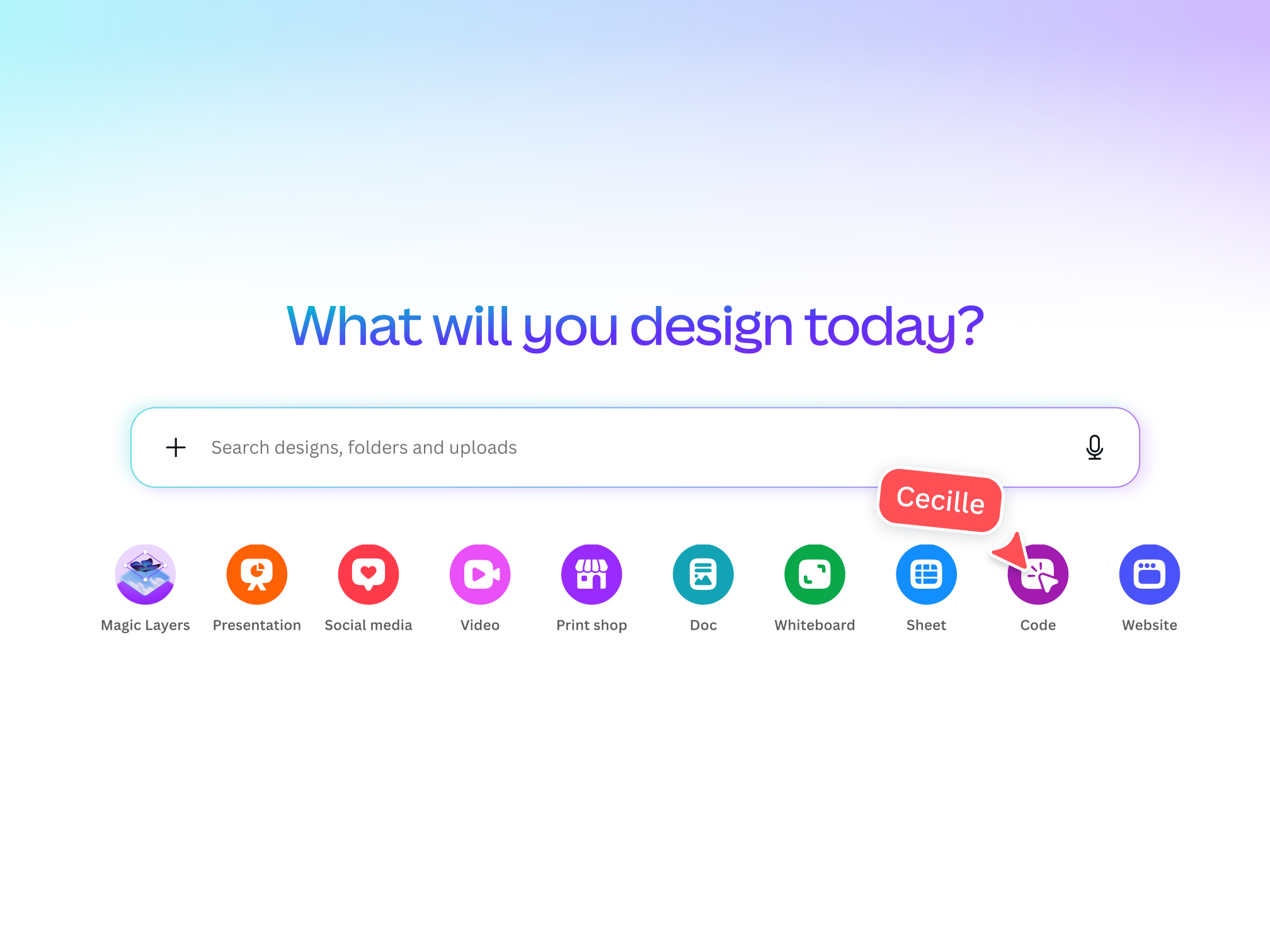
Canva is a visual communication platform for creating presentations, social graphics, documents, videos, websites, and other assets. Its templates and drag-and-drop editing reduce the setup needed to produce a useful design.
Figma Design gives product teams more direct control over interface structure, reusable components, layout behavior, and interaction states. That makes it particularly useful when a design must become part of a maintained software product.
The difference is the workflow you optimize. Canva helps people adapt finished visual patterns. Figma helps teams define and maintain those patterns for interfaces. Neither description captures every product in their expanding suites.
The original comparison paired Canva Teams with Figma Organization as though they were equivalent plans. They serve different needs, and those old prices no longer apply.
As checked in October 2026, the vendors list these US dollar prices with annual billing:
| Plan | Annual price | Who should consider it? |
|---|---|---|
| Figma Professional, Full seat | $16/month per seat; $192/year | Individuals or a single team needing ongoing design work |
| Figma Organization, Full seat | $55/month per seat; $660/year | Businesses coordinating resources across teams |
| Canva Pro | $144/year for one person | Individuals needing premium content and design tools |
| Canva Business | $250/year per person | Individuals and teams needing broader brand, collaboration, and marketing tools |
Sources: Figma pricing and Canva pricing. Both also offer free entry plans. Prices, taxes, regional offers, AI allowances, and feature access can change.
Figma has Full, Dev, and Collab seats, so not every contributor needs a Full seat. Count the roles and features your team actually needs before comparing totals. Canva Business is cheaper than Organization Full at these rates, but Figma Professional may be the more relevant starting point for a small product team.
Best fit: Choose the lowest plan that covers the workflow, then compare the total team cost. A lower subscription price will not save money if the team must rebuild every deliverable elsewhere.
Canva is usually easier to approach for a familiar task such as editing a presentation or making a social graphic. A template supplies a starting structure, so someone can change text and imagery without first learning how to build a layout system.
Figma asks more of someone creating reusable interface components or responsive layouts. That learning pays off when the same rules must work across many screens. The relevant question is how easily the next person can make a safe change, not how quickly you can draw your first rectangle.
Best fit: Canva for occasional content creators; Figma for teams building repeatable interface workflows.
For a one-off event graphic or presentation, Canva can reduce time spent sourcing assets and arranging a page. For a product UI already backed by a component library, Figma may be faster because designers can reuse established patterns.
Figma Buzz complicates the old claim that all marketing work is faster in Canva. With a well-prepared template, a team can create branded assets within the Figma ecosystem too. Measure the complete process: creation, review, stakeholder edits, and export.
Best fit: Canva for broad everyday content needs; Figma and Buzz when existing design assets and templates already support the work.
Figma is the stronger default for detailed UI work that needs reusable components, variants, shared styles, and controlled interaction states. Its value grows as the product and team grow, because consistent rules become more valuable than individual screens.
It is too broad to say that a polished logo or professional graphic is impossible in Canva. The right choice depends on the required precision, editable source files, and licensing. For specialist vector, photo, and page-layout work, assess Affinity separately from Canva’s browser editor.
Best fit: Figma for product interface systems; Canva for adaptable communication assets; Affinity when specialist graphic production is the requirement.
Figma’s Dev Mode supports a dedicated design-to-development workflow. Designers can give engineers structured specifications and resources rather than a flattened image.
Canva Code can generate code that can be copied for external use, so saying Canva has no code capability is outdated. That is still a different workflow from handing off a maintained UI system. Agree on component behavior, responsive rules, loading and error states, and acceptance criteria with developers.
Best fit: Figma for ongoing product design and engineering collaboration. Generated code from either ecosystem still needs engineering review.
Both platforms support collaborative work and feedback. The deciding factor is what people need to collaborate on: product decisions and components, or campaigns, decks, and brand assets.
Try a realistic review cycle before buying. Can a stakeholder comment without an unnecessary paid seat? Can a marketer update approved content without changing the layout? Who can publish, manage shared assets, and approve the final result? Plan names alone do not answer those questions.
Best fit: The platform that lets your actual contributors complete their responsibilities with clear permissions and less rework.
Figma Design remains useful for deliberately specifying and testing interface flows. Our guide to creating prototypes in Figma explains that workflow.
Canva is no longer limited to static output or simple links. Canva Code can generate interactive designs and elements such as calculators, quizzes, dashboards, and landing pages. Interactive behavior works when viewed in Canva or published as a website; a static export is a different deliverable.
Best fit: Figma for controlled product flows; Canva Code for interactive communication and lightweight tools within a Canva workflow. Evaluate Figma Make when a functional, code-backed prototype is more useful than linked screens.
Comparing only Figma Design with Canva’s template editor now misses several options:
For more context, see our overview of Figma’s AI tools and comparison of AI wireframe generators.
The useful test is not whether AI can produce a convincing first screen. It is whether your team can revise the result, explain its behavior, and maintain it. Test keyboard navigation, mobile layouts, empty states, and failure paths before treating a working demo as ready to ship.
Choose Figma when the main deliverable is a product interface that must remain consistent across screens and move through a design-to-development process. Consider Make for functional exploration and Sites when the deliverable is a published website.
Choose Canva when people across the organization need to produce and adapt presentations, campaign graphics, documents, and other visual communication. Consider Code for interactive additions and Affinity for specialist editing outside the Canva editor.
Using both is reasonable when the work is different. A product team might maintain UI components in Figma while marketing creates launch assets in Canva. Define where approved logos, colors, and source files live so the team does not end up maintaining competing versions of the brand.
Before adding another subscription, run one representative task in each workflow. Include a stakeholder revision and the final delivery step. Record the rework as well as the creation time. If website publishing is your main need, our Framer vs. Figma comparison can help broaden the shortlist.
Figma is generally the stronger choice for detailed product interfaces, reusable components, controlled prototypes, and developer handoff. Canva can help communicate ideas and create supporting assets, but the choice depends on how the design will be tested, implemented, and maintained.
For template-based graphics and presentations, Canva usually offers an easier starting point. Figma requires more learning for systematic UI work. Beginners should choose a tool around their intended deliverable rather than assuming the easier first task makes it the better long-term fit.
Both have free plans. On the annual US pricing checked for this update, Canva Pro is $144 per person per year and Business is $250. Figma Professional Full is $192 per seat per year and Organization Full is $660. Compare the necessary features and seat mix before deciding which is cheaper for your team.
Both can turn prompts into interactive output. Make fits exploration within Figma’s product-design ecosystem; Canva Code fits interactive designs and elements within Canva’s visual communication workflow. Compare them using the same task, including revisions and testing, rather than judging only the first generated result.
No. Affinity belongs to Canva’s wider ecosystem but is a separate desktop application. Its vector, photo, and layout tools are distinct from Canva’s browser editing experience. A Canva account provides access to the free app, while eligible premium plans enable additional AI features.
Yes. A designer can use Figma for a product UI and Canva for a presentation or campaign asset. The practical decision is whether each tool reduces work across creation, review, and delivery while keeping shared brand assets consistent.
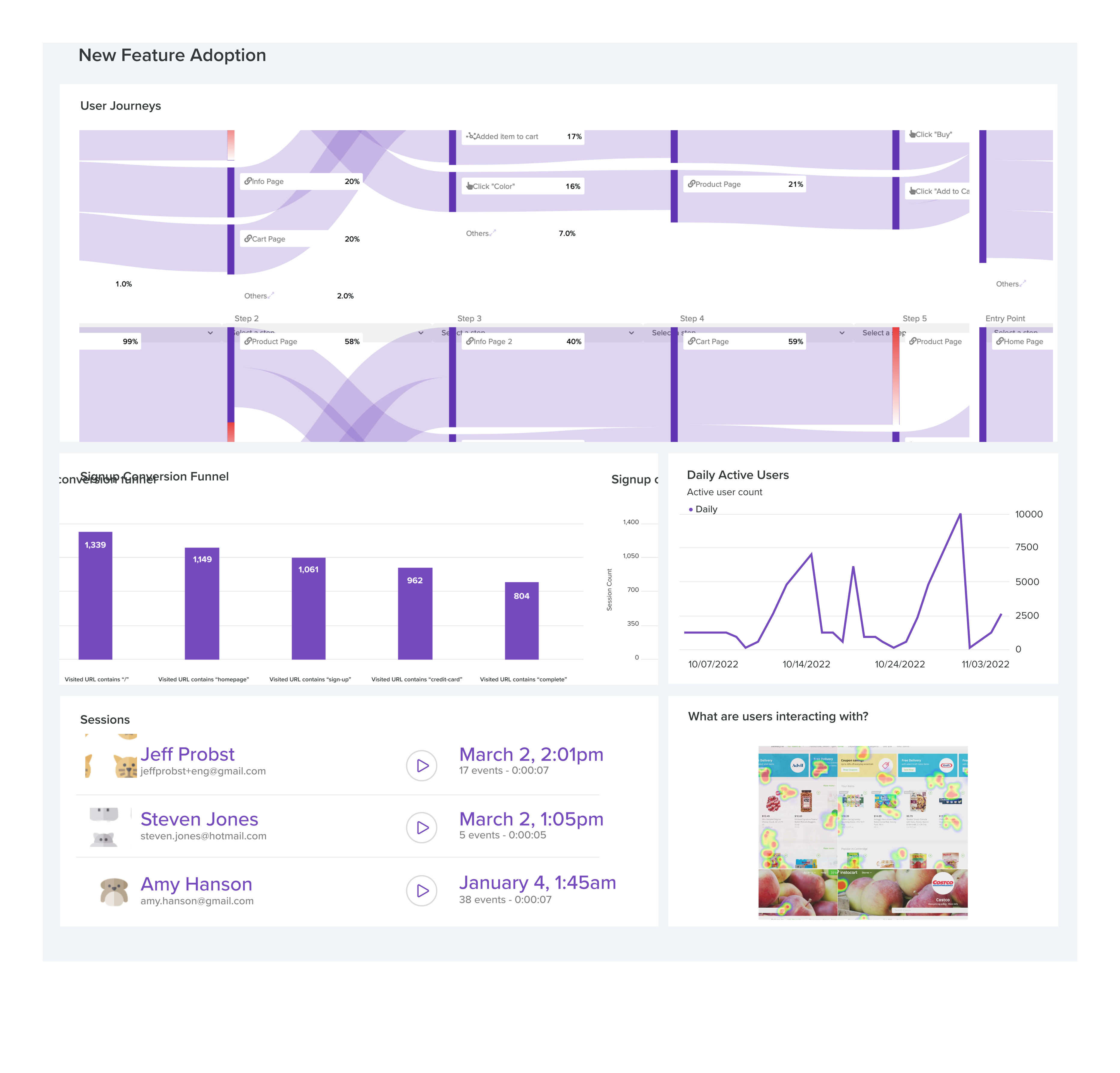
LogRocket's Galileo AI watches sessions and understands user feedback for you, automating the most time-intensive parts of your job and giving you more time to focus on great design.
See how design choices, interactions, and issues affect your users — get a demo of LogRocket today.
A design can look right and still fail in users’ hands. Learn how five kinds of prototype stress tests expose edge cases early, from awkward screen widths and real-world inputs to loading states, unexpected interactions, and accessibility.

Prepare your 2027 UX workflow with a practical guide to visualization tools, AI-assisted analytics, accessible charts, and a worked checkout example. Learn what to verify before acting on the data.

Explore how UX designers can use ADPList to find guidance and share experience, what to check before booking, and how its free and paid options compare with other mentorship platforms.

I redesigned a book library app with Apple’s HIG and AI. Revisit the lessons, plus a Liquid Glass follow-up covering navigation, materials, and accessibility checks.

 Learn more →