Figma has had quite the run lately, mostly owing to a significant number of AI features. In fact, finding a quiet moment to sit down and recap all of them has been literally impossible these last few months, but the recently released Claude-to-Figma integration is surely the season finale.
So, before Figma ships something else, let’s recap all of their AI tools, utilities, and features, briefly exploring what they do and their benefits.
Editor’s note: This blog was originally written by Bart Krawcyzk and was updated by Daniel Schwarz in April 2026 to reflect Figma’s rapidly expanding AI capabilities. Since the original 2024 version, Figma has introduced a wide range of AI-powered features — from content generation and image editing to UI drafting, code handoff, and full-site creation. We’ve refreshed this guide to cover these new tools, clarify how they fit into modern design workflows, and highlight where they still fall short of production-ready expectations.
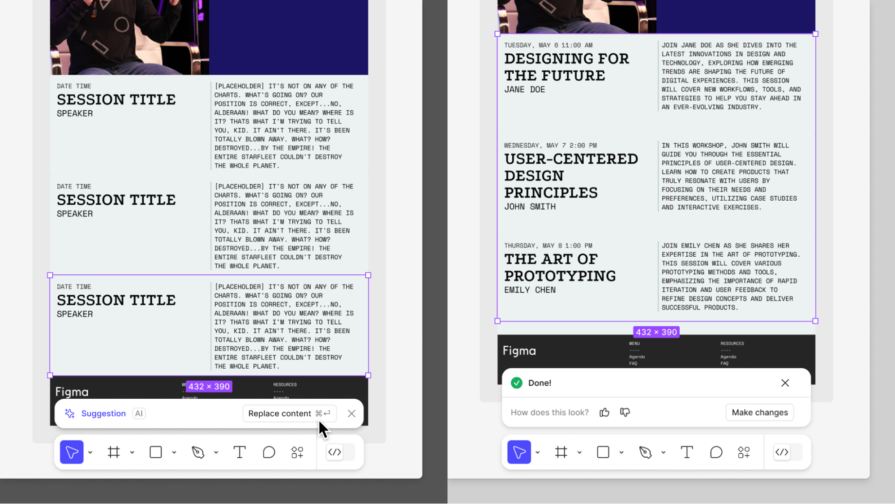
Replace content generates text content to replace placeholder content, duplicate content, or any text content, really. In response to your AI prompt, this populates your prototypes with realistic-looking text content, giving stakeholders and user testers a better idea of what the final product will be like.
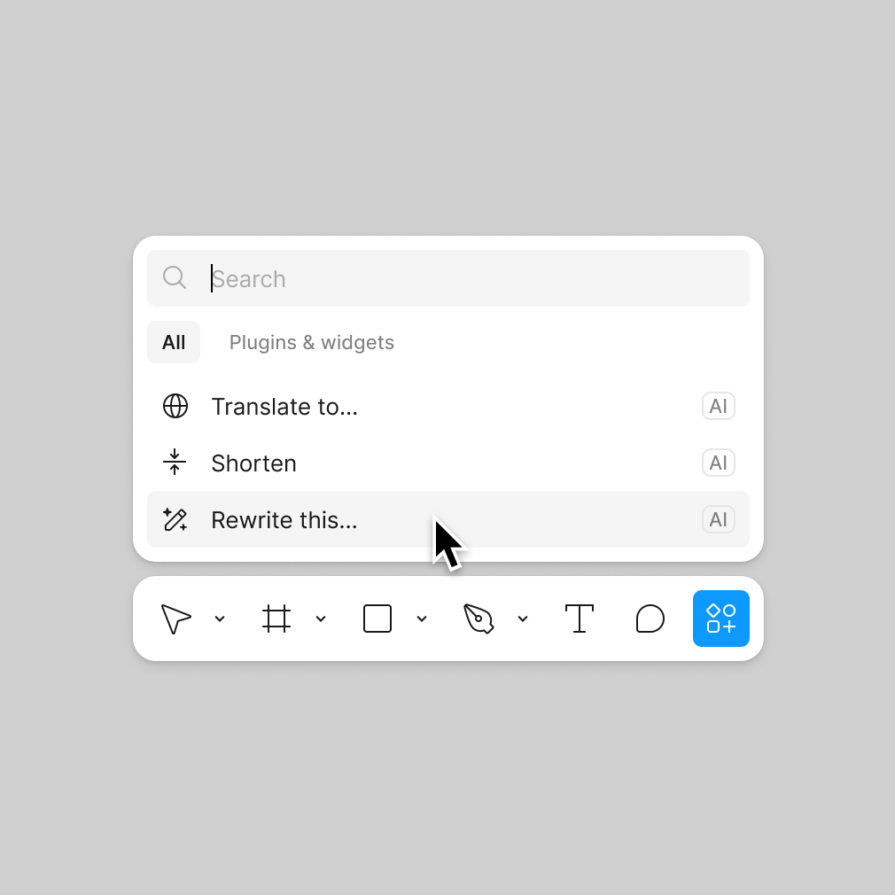
Shorten removes unnecessary words from text content and rewrites it to be more concise, which is useful for simplifying text content for better readability and shortening UX copy to meet size constraints.
Translate to… does exactly what it sounds like it does — it translates text content to another language.
Rewrite this… is supposed to rewrite text content in accordance with your prompt for a better tone (or something along those lines), but in practice it can be used to replace, shorten, or translate content. The UI even provides preset prompts for shortening and replacing, so while Figma doesn’t specify it, this tool is really just a UI for the other tools already mentioned.
In fact, both Replace content and Rewrite this… can be used to write or rewrite text content in any way that you ask it to.
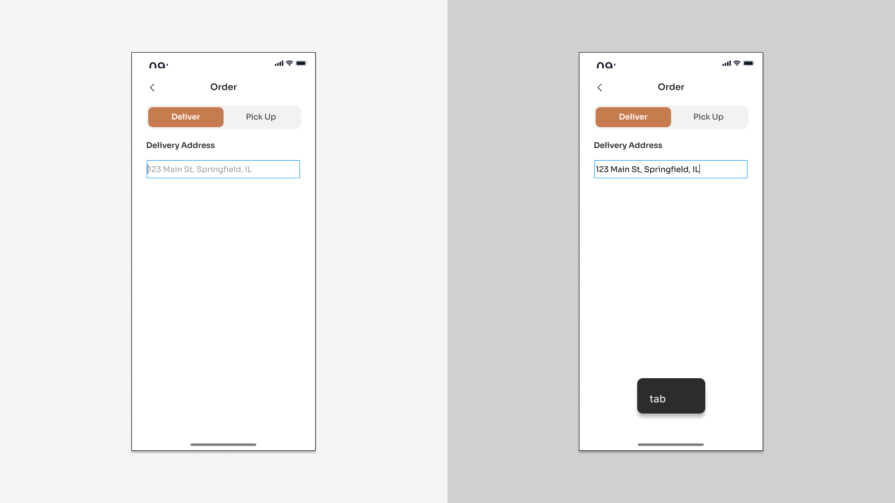
Text suggestions is a context-aware autocomplete feature for text content that self-activates while typing. You can press the right arrow key to accept the first word, the tab key to accept the entire suggestion, or just keep typing to ignore the autocomplete suggestion. This feature can reduce typing time significantly.
Within a selected shape or as a new shape, Make an image enables us to generate an image by prompting. There are various LLMs to choose from, and we can upload images for the LLM to use as a reference. Again, there are some presets to use, but these are more akin to example prompts.
We can refine the generated image as many times as is needed.
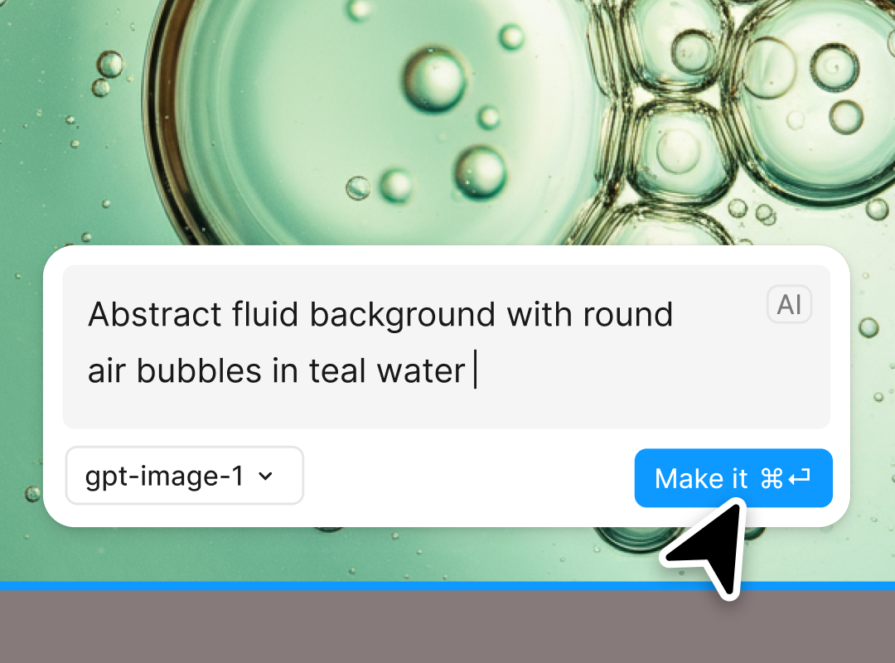
Edit image with prompt essentially facilitates the aforementioned image refinement process after the fact.
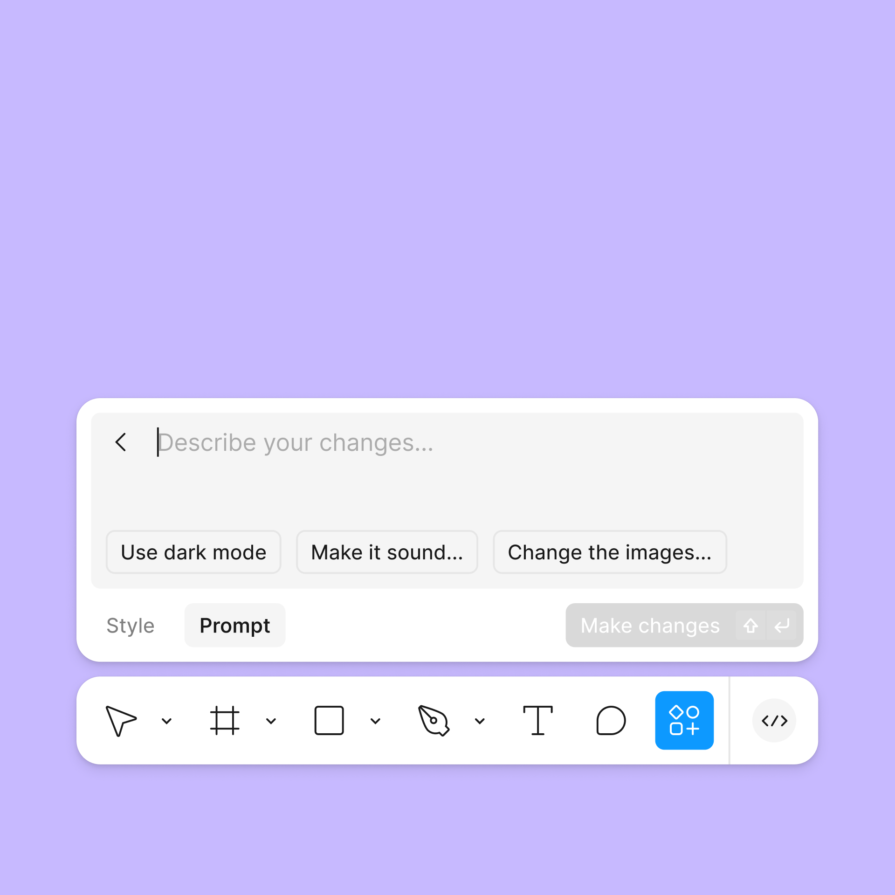
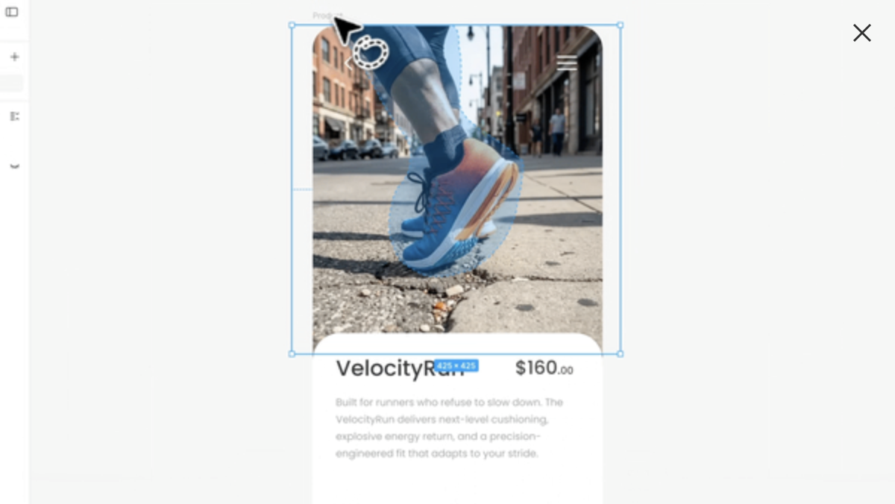
Select area is for intelligently selecting an object or specific area of an image, which we can then erase or use as a new image. After you manually cut out the area that you want to erase or isolate, AI is used to refine the selection, which is very difficult and time-consuming to do manually.
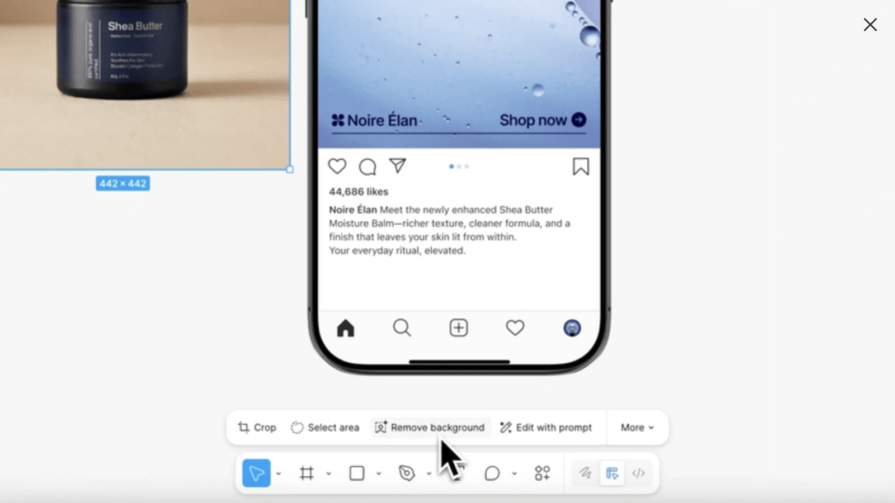
Similarly, Remove background makes the background transparent, leaving only the foreground objects.
Boost resolution makes images larger without losing quality.
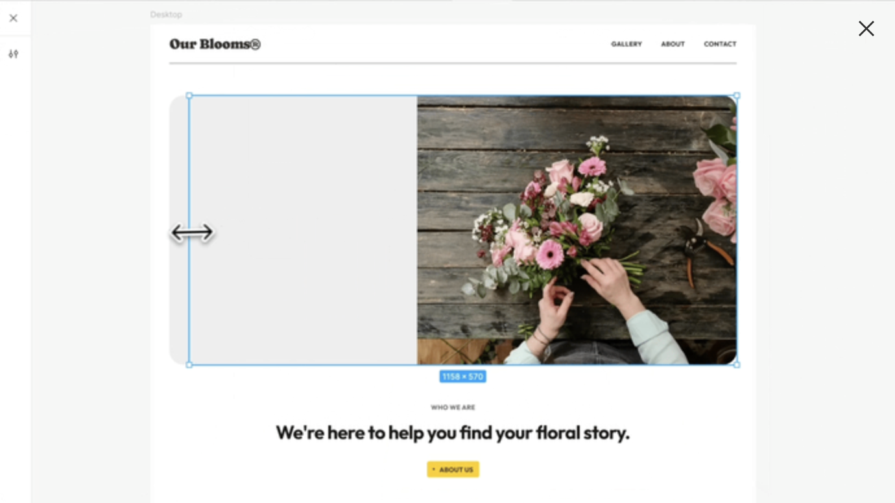
Expand image adds more to the image, not necessarily for the purpose of boosting resolution (although it can have that effect), but more so to change the focus, change the aspect ratio, or to allow space for complementary elements. How this feature works is that you resize the layer, and then AI fills in the blank spaces.
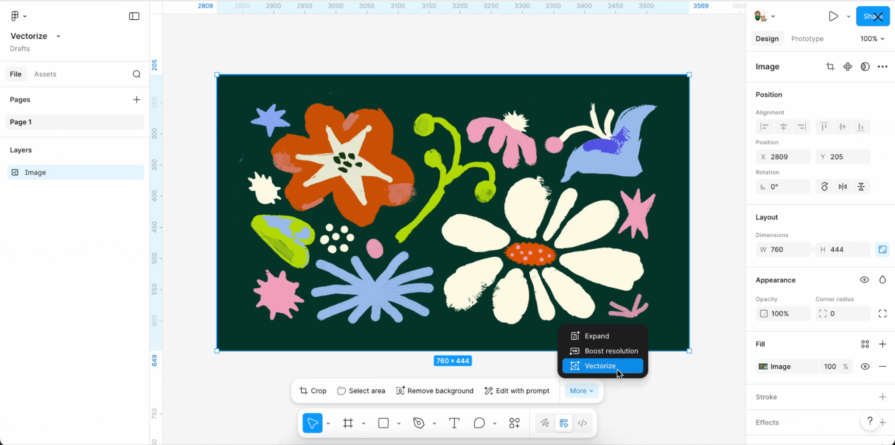
Vectorize converts raster images into editable vector layers. As has always been the case with this process, with or without AI, you’ll get better results with simpler images. That being said, using Remove background and Boost resolution first can improve results.
Renaming layers is the most difficult and most time-consuming part of UI design. I’m kidding of course (maybe?), but Rename layers nonetheless uses the layer’s content, surroundings, and relationship to other selected layers when renaming, helping to make files clear and organized. If duplicates of the layer exist in other top-level frames, Figma will rename those accordingly, ensuring that prototypes continue to function as intended.
Layers that have been renamed already will be left as-is, although there is a Rename anyway option if you’re sure. Figma will also ignore layers that are hidden, locked, nested within an instance (to rename those, do so manually or at the component-level), or individual vector shapes (not including rectangles).
Find more like enables us to select an object on the canvas and search for components from our organization that are similar to it, as well as files from our organization and the community.
From there, we can open or import the component/file.
Search with image or selection does the same thing as long as the selection has an image fill. This feature also accepts an image upload.
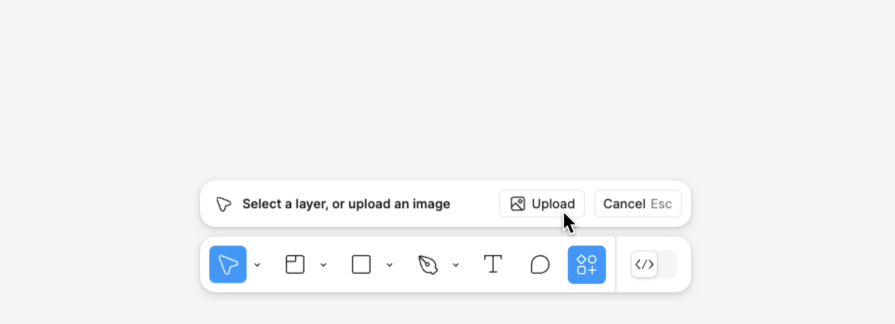
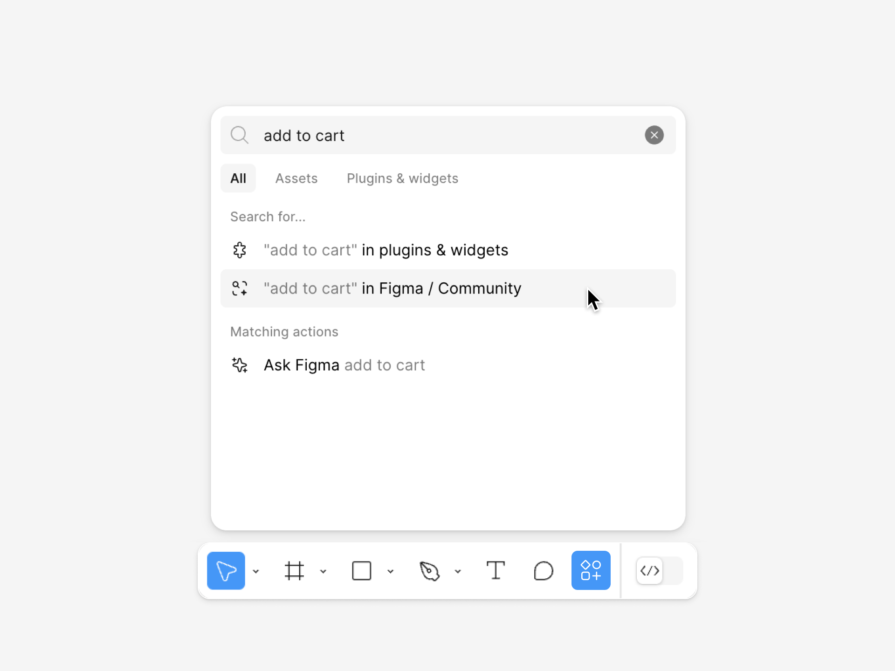
If you don’t have any kind of image to use as a reference, you can still search by keyword or description using the search bar in the actions menu or assets tab.
In any case, it’s ideal if what you’re looking for is aptly named, but if it’s not, the AI will still search based on its form and function, saving you a bucketload of time and energy.
First Draft (formerly, Make Designs) is a very interesting tool where you choose either a site wireframe, basic site, app wireframe, or basic app, and then describe what you want to draft in that style (“basic” means high-fidelity in this context). It’s for mocking up components, sections, and screens, but not whole apps or websites. Prototyping connections won’t be created, nor any code besides the basic Dev Mode code snippets.
The output is based on Figma’s own UI libraries, so you might have trouble with uncommon design patterns and you won’t be able to base the output on your own design system, but there are follow-up style controls and opportunities to iterate with more prompting.
In short, it’s a text-to-UI feature for speed and inspiration.
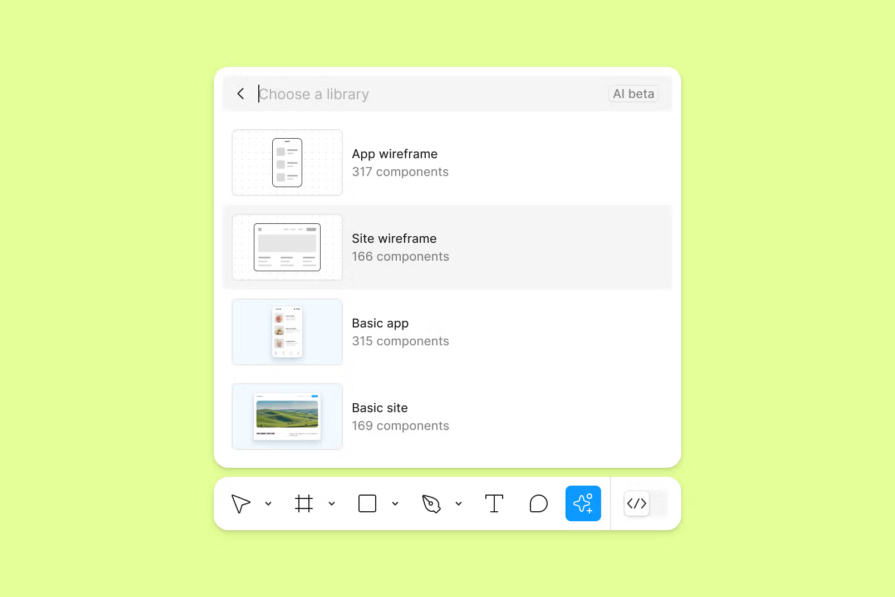
Add interactions is another interesting tool where you select any number of top-level frames that you want to connect, Figma AI determines how, and voilà — chunks of time saved.
Dev Mode is where Figma layers are expressed as HTML, CSS, Tailwind CSS, SwiftUI, UIKit, Compose, and XML code. It used to be that selected layers would be expressed as code without any context, but the AI upgrade to this ensures that the structure/overall layout is thought about, resulting in much better Flex and Grid code. By default, you should be able to copy some code snippets into your code projects, with variables/tokens intact.
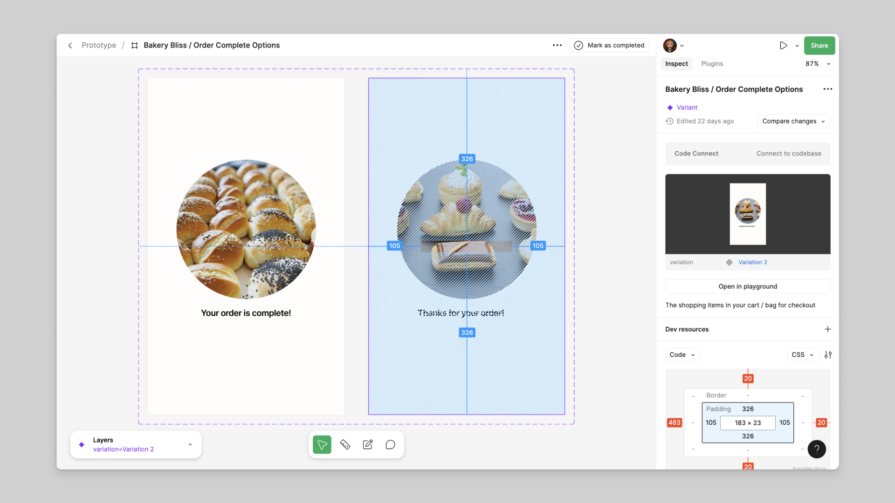
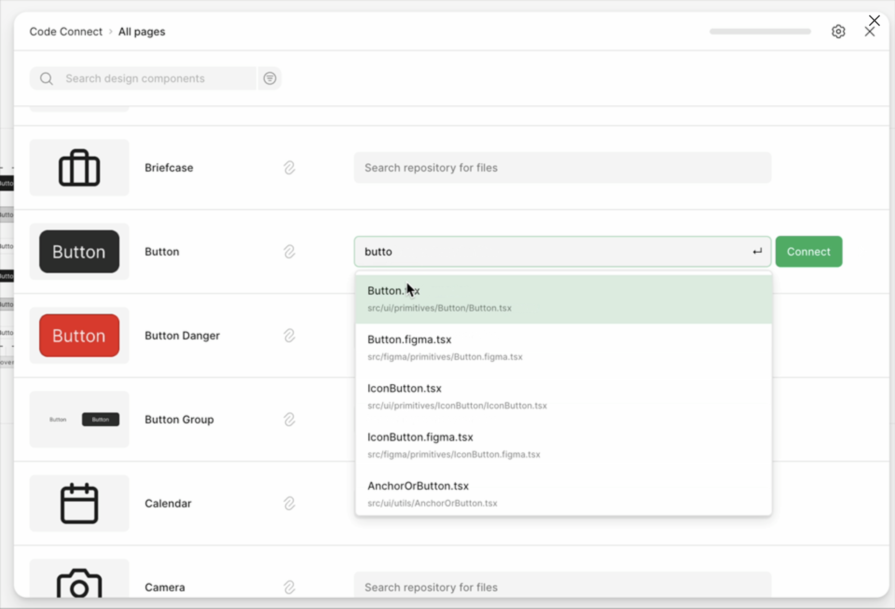
Code Connect connects Figma components to code components written with the languages mentioned above in addition to React and React Native, or stored in a repository such as Github or Storybook. You can also write a custom parser using JavaScript/TypeScript. This means that whenever AI handles a component, like it does in Dev Mode, it looks for a Code Connect-mapping before generating any code.
When using Code Connect CLI (as opposed to Code Connect UI in Figma), Code Connect supports slots and maps Figma properties to code “props” to support components that are more flexible and dynamic.
Figma MCP server acts as a translator between an AI agent and your Figma designs, translating (for example) prompts into secure API requests that can trigger very impressive workflows, such as:
Figma skills don’t enable additional functionalities; they’re simply rules written in markdown and bundled up as Figma skills to help AI deliver more robust outcomes. We can also write custom rules for AI to keep in mind, and all of this combined with Code Connect make Figma MCP-driven workflows work surprisingly well.
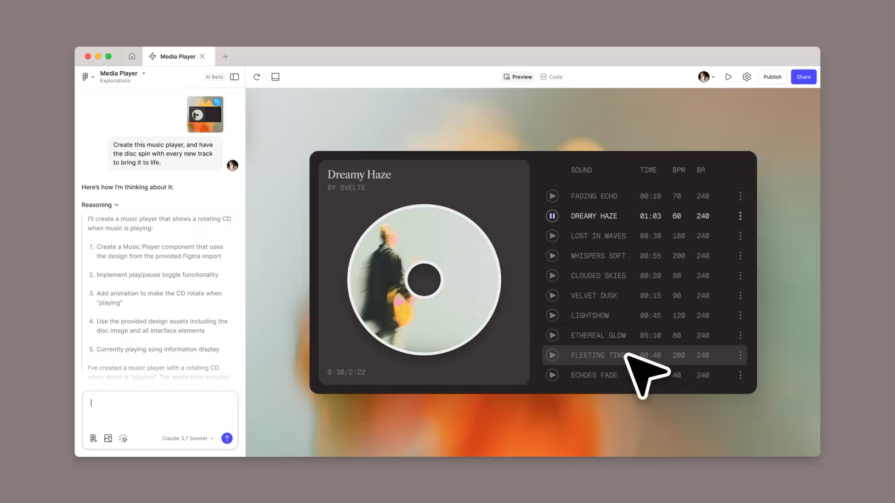
Figma Make is a separate tool similar to First Draft, except that it can:
I’ll be honest, though — it doesn’t produce production-ready code. It’s effective for inspiration, rapid iteration, and user testing ideas, but the designs look every bit AI-generated and the code is neither accessible, semantic, or clean. This is why the core Figma Design app leverages design systems, Code Connect, MCP server, and integrates with AI-powered IDEs; to help teams be faster at building robust products that are still human-engineered.
Figma Make does integrate with Code Connect, MCP server, and IDEs, and the output isn’t one giant blob of code, but it’s not inherently modular either. There’s a file explorer and you can prompt for those files to be modular and better overall (and edit those files directly if you wish), but it’s definitely a process that involves more prompting and less engineering than Figma Design, which significantly reduces the quality of the output.
Being able to import Figma designs into Figma Make solves the design quality problem, but is counterproductive if the overall objective is to build faster. It is, however, a fantastic way to preview your Figma designs as a “real” product (with a real backend and everything), and to be fair, this is how Figma touts Figma Make. While publishing to a custom domain is an option, it doesn’t include SEO or anything like that, but it’s understandable why so many people think that Figma Make is for building production apps and websites.
In short, Figma Sites is like Figma Design but specifically for production-ready websites. The best workflow is to build the design and/or design system in Figma Design, import it into Figma Sites, and then continue the workflow there. It has all of the necessary Figma Design features, including the AI ones, and is ultimately a no-code site builder akin to Webflow and Framer.
It includes SEO, image compression, responsive design, and additional AI tools to help facilitate all of that, if needed.
The output is native HTML/CSS, but it isn’t as semantic, as accessible, or frankly as good as it needs to be, even though you can use prompting to improve it in small ways. If using it, I highly recommend using the First Draft feature mentioned earlier, as Figma’s own UI libraries translate to code better.
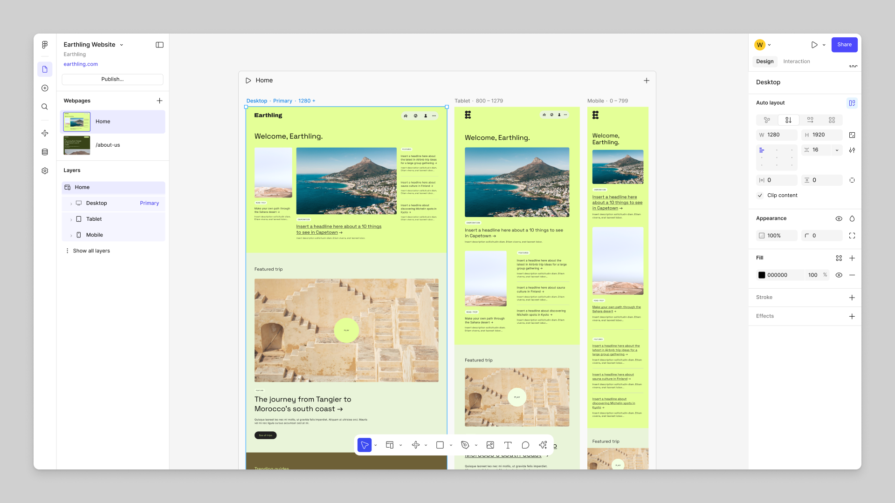
Figma is delivering some very interesting AI tools that will certainly improve the efficiency of UX designers and developers, but it’s too early to tell whether the most powerful but currently subpar ideas can be improved, or if they’re just a pipe dream.
One thing that seems certain, though, is that AI will never replace UX designers or developers. That being said, it does seem as if people who know how to use AI to be more efficient will replace those who don’t.
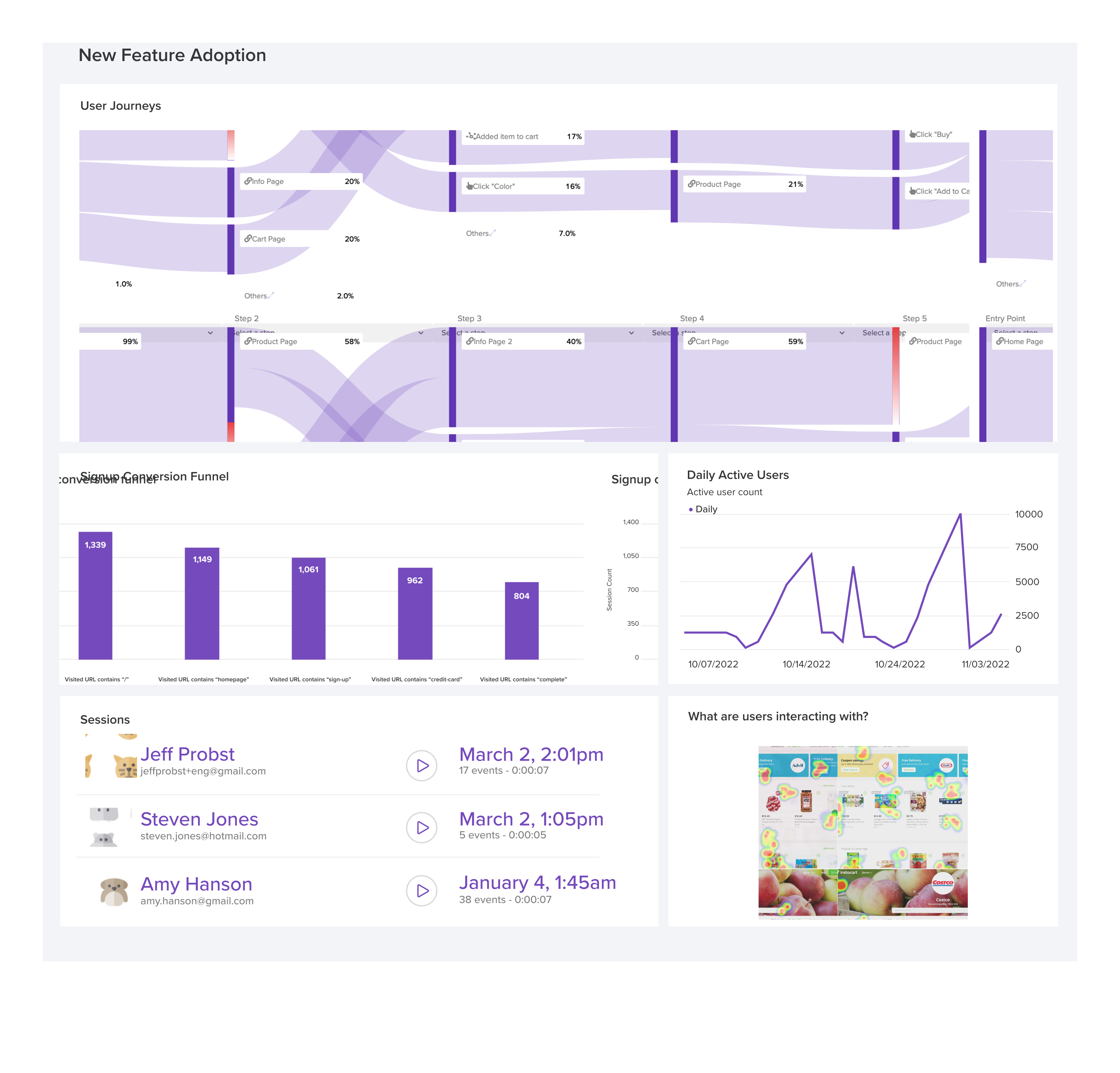
LogRocket's Galileo AI watches sessions and understands user feedback for you, automating the most time-intensive parts of your job and giving you more time to focus on great design.
See how design choices, interactions, and issues affect your users — get a demo of LogRocket today.

Fixed user flows still have a place, but AI is changing how products respond to user intent. Here’s what designers need to rethink when flows become dynamic.
Framer brings design, CMS, publishing, and AI into one workspace. Here’s how its 2026 workflow compares with Figma Sites, Relume, and Webflow—and when consolidation makes sense.

Three predictions for the next UX era, revisited against Liquid Glass, Material 3 Expressive, and spatial widgets—with a practical, conditional outlook for 2027.
AI-first helpdesks can answer questions and take action, but good UX depends on accurate information, clear approval limits, and human handoffs that preserve context.

 Learn more →