AI tools can quickly generate a working UI, but most production problems show up only after real users start interacting with it.

I learned this firsthand while building a product search feature for an e-commerce site. I used an AI coding assistant to generate the component, and at first glance, it looked ready to ship. The navbar was clean, the product cards looked polished, the category filters worked, and the loading state felt smooth. I pushed it to staging feeling confident.
Then I started using it like a real user.
In this article, I’ll walk through the bugs I found in that AI-generated React component, including the original code, how each bug appeared during normal use, and how I fixed it before production. I’ll also share a practical review checklist you can use to catch similar issues in your own AI-generated frontend code.
The feature I needed was a product search and filter widget embedded in a larger e-commerce page. Users needed to search products by name and filter by category: Electronics, Clothing, and Books.
I kept my prompt short and focused, as many developers do when using AI coding tools:
Build a React product search component. It should have a search input
that filters products in real time, filter buttons for All, Electronics,
Clothing, and Books, and a product list showing name, category, and price.

Use useState and useEffect. Fetch results from this async function.
Keep the code simple.
The AI generated a complete component in seconds. Here’s the core of what came back:
function App() {
  const [query, setQuery] = useState("");
  const [category, setCategory] = useState("All");
  const [products, setProducts] = useState([]);
  const [loading, setLoading] = useState(false);

  useEffect(() => {
    setLoading(true);

    fetchProducts(query, category).then((data) => {
      setProducts(data);
      setLoading(false);
    });
  }, [query, category]);

  return (
    // search input, filter buttons, product list
  );
}
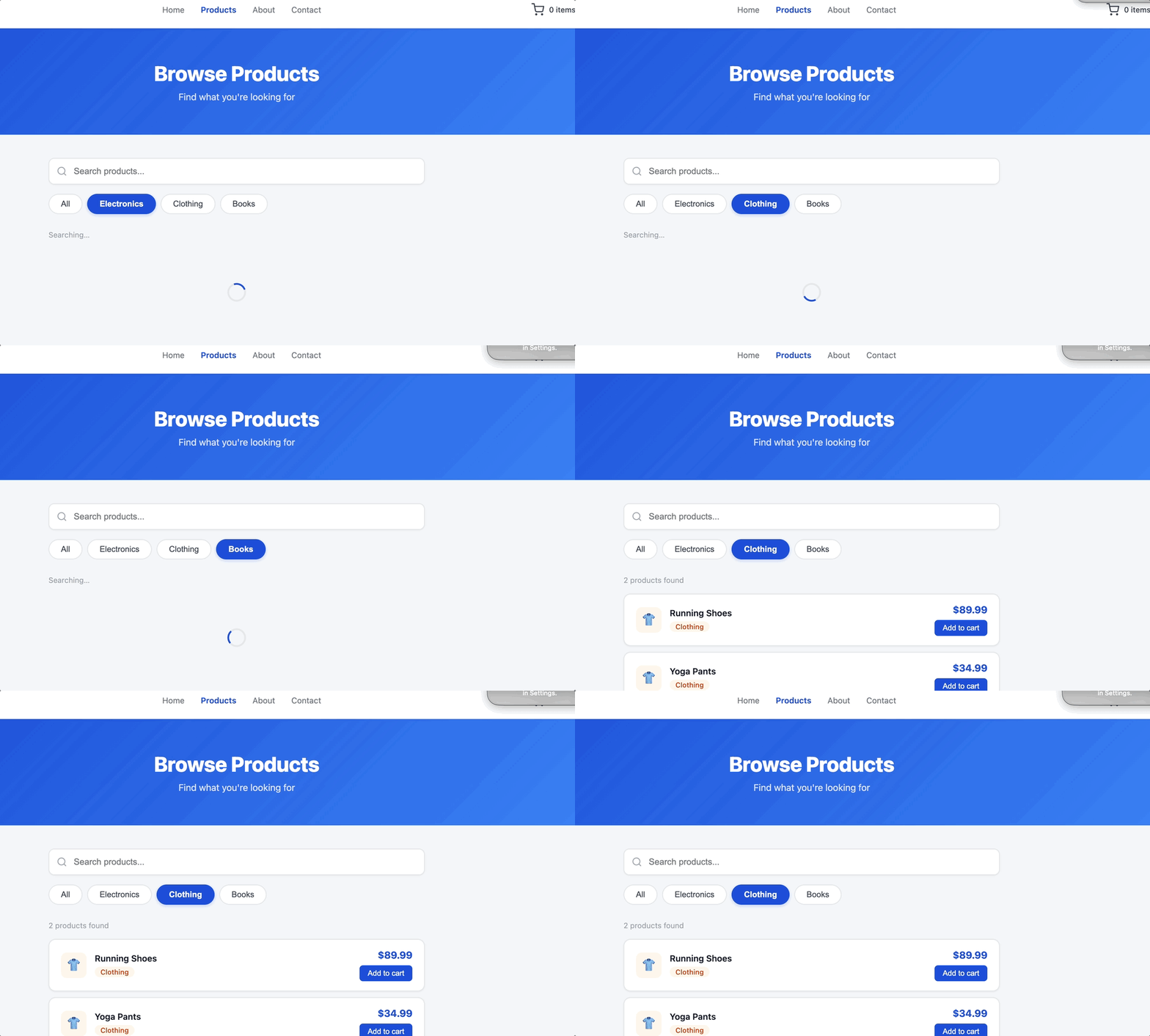
At first glance, everything looked fine. The state was organized, the effect used the right dependencies, and the loading flag worked. In a quick review, I might have approved it.
That was the problem.
The prompt shaped the output more than I expected. Asking for something “simple” encouraged the AI to produce basic happy-path code. If I had asked for “production-ready React components with error states, accessibility, request cancellation, and debounced search,” the initial output may have handled more of the issues below.
Before calling the feature finished, I ran a quick manual check. It was not a full QA process, just a five-minute review that can save hours of debugging later.
I looked at three things:
| Check | What I tested | What I found |
|---|---|---|
| Interaction behavior | Loaded the page, clicked filters, searched by product name | The happy path worked |
| State consistency | Typed quickly, deleted input mid-search, switched filters rapidly | Results flickered, and stale products appeared briefly |
| UI responsiveness | Searched for a product that did not exist | The list went blank with no empty state |
That short review revealed two issues immediately. After looking closer, I found two more.
useEffectThe first bug was a race condition inside the useEffect.
When I typed wire into the search input and then deleted it, two fetch requests fired: one for wire and one for the empty string. The empty-string request resolved first and showed all six products. Then the slower wire request resolved and overwrote the correct results with only Wireless Headphones, even though my input was already empty.
Both requests were valid when they started, but the older request finished last. React updated the UI with whichever response arrived last, not the response that matched the current input.
Here’s the original code responsible:
useEffect(() => {
  setLoading(true);

  fetchProducts(query, category).then((data) => {
    setProducts(data); // no stale check: any response can win
    setLoading(false);
  });
}, [query, category]);
There is no cleanup. Every time query or category changes, a new fetch fires. If a previous slow fetch resolves after a newer fast one, it calls setProducts with stale data.
Adding a cancelled flag inside the effect fixes the UI bug:
useEffect(() => {
  let cancelled = false;

  setLoading(true);

  fetchProducts(query, category).then((data) => {
    if (!cancelled) {
      setProducts(data);
      setLoading(false);
    }
  });

  return () => {
    cancelled = true;
  };
}, [query, category]);
Now, when the user types again or changes a filter, the cleanup function for the previous effect flips cancelled to true. If the stale request resolves later, it checks cancelled and exits. Only the current request updates the UI.
For production APIs, I would go further and use AbortController. The cancelled flag prevents stale UI updates, but the request still completes in the background. AbortController cancels the request itself, which can reduce unnecessary backend work:
useEffect(() => {
  const controller = new AbortController();

  setLoading(true);

  fetchProducts(query, category, controller.signal)
    .then((data) => {
      setProducts(data);
      setLoading(false);
    })
    .catch((err) => {
      if (err.name !== "AbortError") {
        // handle real errors here
      }
    });

  return () => controller.abort();
}, [query, category]);
This assumes fetchProducts accepts the signal and passes it to fetch. For a small mock function, the difference may not matter. For a real API in production, it does.
The second bug was simpler but just as visible to users: the component did not handle empty results.
When I searched for something that did not exist, the component rendered an empty <ul>. There was no message, explanation, or visual feedback. A user would see a blank section of the page and have no idea whether the search was still loading, broken, or complete.
Here’s what the original render looked like:
<ul style={{ listStyle: "none", padding: 0, margin: 0 }}>
  {products.map((product) => (
    <ProductCard key={product.id} product={product} />
  ))}
</ul>
When products is an empty array, .map() returns nothing. No error. No warning. Just silence.
The empty list was not the only missing path. There was no error state either. If fetchProducts failed because of a 500 response, network timeout, or malformed response, the user would not get a useful message. Depending on how the promise failed, the loading state could also become misleading.
I also caught a price formatting issue. The data included values like 59.99, but JavaScript does not guarantee two-decimal display by default. A price of 60 rendered as $60 instead of $60.00. That is not a crash, but on an e-commerce UI it looks unfinished.
I fixed all three issues in one pass: add an error state, handle failed requests, and render explicit loading, error, empty, and success paths.
const [error, setError] = useState(null);

useEffect(() => {
  let cancelled = false;

  setLoading(true);
  setError(null);

  fetchProducts(query, category)
    .then((data) => {
      if (!cancelled) {
        setProducts(data);
        setLoading(false);
      }
    })
    .catch(() => {
      if (!cancelled) {
        setError("Something went wrong. Please try again.");
        setLoading(false);
      }
    });

  return () => {
    cancelled = true;
  };
}, [query, category]);
Then in the render:
{error ? (
  <div style={{ textAlign: "center", padding: "60px 0", color: "#ef4444" }}>
    <div style={{ fontSize: "40px", marginBottom: "12px" }}>⚠️</div>
    <p style={{ margin: 0, fontSize: "15px" }}>{error}</p>
  </div>
) : products.length === 0 ? (
  <div style={{ textAlign: "center", padding: "60px 0", color: "#9ca3af" }}>
    <div style={{ fontSize: "40px", marginBottom: "12px" }}>🔍</div>
    <p style={{ margin: 0, fontSize: "15px" }}>No products match your search.</p>
    <p style={{ margin: "6px 0 0", fontSize: "13px" }}>
      Try a different keyword or category.
    </p>
  </div>
) : (
  <ul style={{ listStyle: "none", padding: 0, margin: 0 }}>
    {products.map((product) => (
      <ProductCard key={product.id} product={product} />
    ))}
  </ul>
)}
And in ProductCard:
<span style={{ fontWeight: 700, fontSize: "17px", color: "#1d4ed8" }}>
  ${product.price.toFixed(2)}
</span>
The AI-generated code skipped these cases because my prompt did not mention them, and the happy path never triggered them. The AI gave me what I asked for. The issue was that I did not ask for enough production behavior. If you want better initial output, learning how to prompt AI tools more effectively can significantly reduce the gap between what gets generated and what production actually requires.
This bug did not break the UI visually. The feature still worked. But when I dropped a quick console.log at the top of the App component and typed in the search box, I saw the problem immediately.
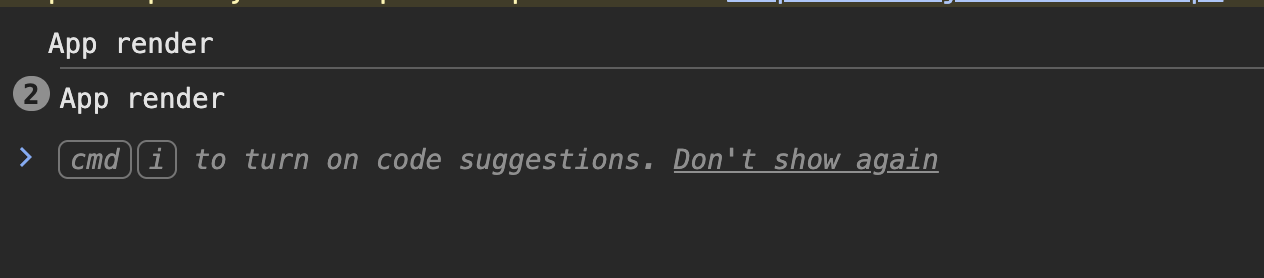
Every character fired a request to fetchProducts and triggered a full re-render of the component tree. On a mock dataset of six items, that is invisible. On a real API with real latency, it can make the app feel slow and increase backend traffic.
The AI did not add debouncing because I did not ask for it, and the happy path did not reveal it as a problem.
I split the input state into two values: the raw controlled input and a debounced query that triggers the fetch.
const [inputValue, setInputValue] = useState("");
const [query, setQuery] = useState("");

useEffect(() => {
  const timer = setTimeout(() => setQuery(inputValue), 300);

  return () => clearTimeout(timer);
}, [inputValue]);
The input still feels instant because it updates on every keystroke, but the fetch fires only 300ms after the user stops typing. The clearTimeout cleanup cancels the pending timer when the user types again.
For the fetch itself, I initially considered wrapping the logic in useCallback to give it a stable reference. But if loadProducts is not passed to child components as a prop, useCallback adds unnecessary overhead. Defining the logic directly inside the effect keeps the code cleaner and reduces the dependency surface area:
useEffect(() => {
  let cancelled = false;

  setLoading(true);

  fetchProducts(query, category).then((data) => {
    if (!cancelled) {
      setProducts(data);
      setLoading(false);
    }
  });

  return () => {
    cancelled = true;
  };
}, [query, category]);
One more thing stood out after these fixes: the App component now had five useState hooks and two useEffect hooks. It still worked, but it was starting to get crowded. The next refactor would be pulling the search logic into a custom hook:
function useProductSearch(query, category) {
  const [products, setProducts] = useState([]);
  const [loading, setLoading] = useState(false);
  const [error, setError] = useState(null);

  useEffect(() => {
    // all the fetch logic lives here
  }, [query, category]);

  return { products, loading, error };
}
Now the App component can call useProductSearch(query, category) and stay focused on rendering. The logic is also easier to test in isolation. This kind of component structure and rendering pattern is worth getting right early, since performance problems compound as your app grows.
I almost shipped the accessibility bug without noticing it. The feature looked good and worked fine with a mouse.
Then I tested it with a screen reader, and the experience fell apart.
The search input had no label. A screen reader announced it as an unlabeled text field, which gave the user no context for what to type.
<input
  type="text"
  placeholder="Search products..."
  value={query}
  onChange={(e) => setQuery(e.target.value)}
/>
Placeholders disappear as soon as the user starts typing. They are not a substitute for labels. This is a common accessibility mistake in generated form code: the placeholder communicates purpose visually, but it does not provide a durable programmatic label.
The filter buttons had a similar problem. The active button turned blue, but there was no aria-pressed attribute to communicate the active filter to assistive technology. A sighted user could see which filter was active; a screen reader user could not.
The results update also needed an announcement. A sighted user sees the product list change. A screen reader user needs a short status update, such as “Showing 4 products.”
There was also a semantic HTML improvement worth making. The original code wrapped the search input in a plain <div>. A <form> with role="search" gives the browser and assistive technology a clearer structure, and keyboard users expect search inputs to work naturally with Enter. These gaps are a good reminder that friction in the user experience is not always obvious until you test beyond the happy path.
<form onSubmit={(e) => e.preventDefault()} role="search">
  <label htmlFor="product-search">Search products</label>
  <input
    id="product-search"
    type="text"
    placeholder="Search products..."
    value={inputValue}
    onChange={(e) => setInputValue(e.target.value)}
  />
</form>

<div role="group" aria-label="Filter by category">
  {categories.map((cat) => (
    <button
      key={cat}
      onClick={() => setCategory(cat)}
      aria-pressed={category === cat}
    >
      {cat}
    </button>
  ))}
</div>

<p aria-live="polite" aria-atomic="true">
  {resultSummary}
</p>
Keep the aria-live region short. A status like “Showing 4 products” works well. Do not put the entire product list inside a live region, or the screen reader may read every result whenever the list changes.
Here’s the full App component logic before and after the four fixes.
function App() {
  const [query, setQuery] = useState("");
  const [category, setCategory] = useState("All");
  const [products, setProducts] = useState([]);
  const [loading, setLoading] = useState(false);

  useEffect(() => {
    setLoading(true);

    fetchProducts(query, category).then((data) => {
      setProducts(data);
      setLoading(false);
    });
  }, [query, category]);

  return (
    // no label, no ARIA attributes, no empty state,
    // no error state, no debounce
  );
}
function App() {
  const [inputValue, setInputValue] = useState("");
  const [query, setQuery] = useState("");
  const [category, setCategory] = useState("All");
  const [products, setProducts] = useState([]);
  const [loading, setLoading] = useState(false);
  const [error, setError] = useState(null);

  useEffect(() => {
    const timer = setTimeout(() => setQuery(inputValue), 300);

    return () => clearTimeout(timer);
  }, [inputValue]);

  useEffect(() => {
    let cancelled = false;

    setLoading(true);
    setError(null);

    fetchProducts(query, category)
      .then((data) => {
        if (!cancelled) {
          setProducts(data);
          setLoading(false);
        }
      })
      .catch(() => {
        if (!cancelled) {
          setError("Something went wrong. Please try again.");
          setLoading(false);
        }
      });

    return () => {
      cancelled = true;
    };
  }, [query, category]);

  return (
    // <form> wrapper, label, aria-pressed, aria-live, role="group",
    // error state, empty state message, and price.toFixed(2)
  );
}
The main changes were small, but they covered the paths real users are most likely to hit:
| Issue | Before | After |
|---|---|---|
| Race condition | No cleanup, so stale data could win | Cleanup flag ignores stale responses |
| Error state | Failed requests had no user-facing path | .catch() sets a helpful error message |
| Empty state | Blank list | Friendly “No products match your search” message |
| Price display | $60 |
$60.00 |
| Fetch behavior | Every keystroke fired a request | Search query is debounced by 300ms |
| Accessibility | No label or ARIA state | <form>, <label>, aria-pressed, and aria-live |
A practical review workflow for AI-generated frontend code
After this, I created a four-step checklist I now use before AI-generated components go near production. It takes about ten minutes and catches issues that the happy path misses.
Do not only check whether the feature works under ideal conditions. Try to break it. Type quickly, delete input mid-search, switch filters rapidly, and submit forms twice in a row. Real users will not use your UI exactly the way your prompt described it.
If the component makes async calls, ask what happens when two requests are active at the same time. What happens if the older request finishes last? What happens if the request fails? Drop a console.log inside the effect and watch how often it fires. Understanding how useEffect behaves with async data is especially important when your component deals with streamed or rapidly updating responses.
Add a console.log at the top of the component and count renders during normal use. Use React DevTools and the Profiler tab when needed. If a simple input triggers unnecessary network calls or expensive renders, check whether debouncing, memoization, or a custom hook would make the component easier to control.
Every form input needs a label. Every interactive state change needs a programmatic signal. Search inputs should use a <form> where appropriate. Spend one minute navigating by keyboard only: Tab, Enter, arrow keys. If you cannot use the full feature without a mouse, it is not ready.
The AI-generated code was not useless. It was incomplete.
It handled the exact scenario I asked for: a search widget that filters products and shows a loading state. Under perfect conditions, it worked. But production is not a perfect condition. Production is a user typing quickly on a slow connection, a request returning a 500, someone navigating by keyboard, or a price that needs to look like a real e-commerce price.
None of those details were in my prompt, so none of them made it into the code. That is not just a tooling problem. It is a workflow problem. AI assistants can accelerate implementation, but they do not automatically stress-test their own output, verify accessibility, or plan for network failure. Tools like the LogRocket MCP can help bridge that gap by giving AI agents visibility into how real users are actually experiencing your app in production.
The four issues I found — race conditions, missing edge cases, render overhead, and accessibility gaps — all had simple fixes. None required a rewrite. They required a developer to review the code beyond the happy path. Before you ship AI-generated frontend code, spend ten minutes testing it like a real user. It is much better to find those bugs yourself than to let users find them in production.

Compare five React toast libraries for features, bundle size, accessibility, performance, and React 19 compatibility.
See how Tecovas built a patching agent that turns LogRocket’s Galileo AI issue analysis into GitHub PRs, with a developer reviewing every fix before it ships.

Explore OctaneJS, a compiler-first alternative to React. Build a task dashboard and learn about rendering, hooks, asynchronous UI, and React compatibility.

Explore Vercel’s vgpu, a WebGPU library for AI agents. Learn to build a dynamic shader in Next.js and validate rendering output with headless testing in Node.js.
Hey there, want to help make our blog better?
Join LogRocket’s Content Advisory Board. You’ll help inform the type of content we create and get access to exclusive meetups, social accreditation, and swag.
Sign up now

 Learn more →