In 2026, AI-generated interfaces are no longer a novelty. They’re becoming a real part of how teams prototype, personalize, and even ship product experiences. But many generative UI approaches still rely on a brittle pattern: asking a model to output raw React or HTML as a string and hoping the result is valid, safe, and maintainable.

That works for demos. It is much harder to trust in production.
String-generated UI is difficult to validate, difficult to constrain, and easy to break. Even when the model gets the structure mostly right, you still have to worry about malformed markup, unsupported props, inconsistent composition, and the broader problem of letting a model define more of your rendering layer than it should.
Vercel’s JSON Render takes a different path. Instead of having the model generate arbitrary code, you let it generate structured JSON that maps to a predefined set of components. You control which components exist, what props they accept, and how interactions flow through the system. The model still helps compose the interface, but it does so inside boundaries you define.
That makes JSON Render appealing for teams exploring AI-generated UI without wanting to hand over the keys to the frontend. It gives you a way to combine model flexibility with schema validation, predictable rendering, and a much clearer security story.
In this guide, we’ll build a pet shelter app that streams its UI directly from an AI model using Vercel’s JSON Render. You’ll define a catalog of allowed components, connect them to real React implementations through a registry, and use Google’s Gemini model to generate a dynamic interface users can actually interact with.
The Replay is a weekly newsletter for dev and engineering leaders.
Delivered once a week, it's your curated guide to the most important conversations around frontend dev, emerging AI tools, and the state of modern software.
To follow along, you’ll need:
First, install the required dependencies:
npm install @json-render/core @json-render/react @ai-sdk/google ai zod
Here’s what each package does:
@json-render/core: provides the core logic for defining and processing the JSON spec@json-render/react: provides the React adapter for JSON Render@ai-sdk/google: integrates Google’s AI models into the appai: provides the Vercel AI SDK utilities for streaming model responseszod: defines and validates the schemas for your componentsNext, create a .env.local file in the root of your project and add your Google AI API key:
GOOGLE_API_KEY=your-api-key-here
Before writing code, it helps to understand the three main parts of JSON Render: the catalog, the registry, and the spec.
The catalog defines the components the model is allowed to use. You can think of it as a strict component vocabulary. For each component, you define its name, the props it accepts, the types of those props, and any events it can emit.
The registry connects those abstract component definitions to the real React components in your application. It is the bridge between the model’s structured output and your actual UI implementation.
The spec is the JSON object that describes the current interface. It is what the model generates and what the renderer consumes.
Taken together, these three pieces create a controlled loop: the model outputs a structured UI description, and your app renders it using only the components and behaviors you’ve explicitly allowed.
Now let’s use that architecture to build the pet shelter app.
We’ll build the app in layers, starting with a shared type for the spec, then adding the components, the catalog, the registry, and finally the renderer.
First, define a shared SpecType.
Create a types.ts file and add the following code:
import type { ActionBinding } from "@json-render/core";

export interface SpecType {
  root: string;
  elements: Record<
    string,
    {
      type: string;
      props: Record<string, unknown>;
      children?: string[];
      on?: Record<string, ActionBinding | ActionBinding[]>;
    }
  >;
  [key: string]: unknown;
}
This interface defines the overall shape of the JSON spec the model will generate.
Next, create the React components the renderer will use. These components receive AI-generated data through props and communicate user interactions back to the renderer through the emit function.
Create a components.tsx file with the following code:
import React from "react";

interface ComponentProps {
  props: Record<string, any>;
  emit?: (event: string) => void;
  children?: React.ReactNode;
}

export const PetCard = ({ props, emit }: ComponentProps) => (
  <div
    className="bg-white rounded-2xl shadow-md border p-5 cursor-pointer hover:border-amber-500 transition-all"
    onClick={() => emit?.("click")}
  >
    <h3 className="text-xl font-bold text-slate-800">{String(props.name)}</h3>
    <p className="text-sm text-slate-600">{props.breed} | {props.age}</p>
    <div className="flex flex-wrap gap-2 mt-3">
      {props.personality?.map((trait: string, i: number) => (
        <span key={i} className="text-xs bg-amber-50 text-amber-700 px-2 py-1 rounded-full border">
          {trait}
        </span>
      ))}
    </div>
  </div>
);

export const PetDetail = ({ props, emit }: ComponentProps) => (
  <div className="bg-white rounded-xl shadow-lg p-8">
    <button onClick={() => emit?.("back_to_grid")} className="text-amber-600 text-sm mb-4">← Back</button>
    <h1 className="text-4xl font-black mb-2">{props.name}</h1>
    <p className="text-slate-500 mb-6">{props.breed} • {props.age}</p>
    <p className="text-slate-700 leading-relaxed mb-8">{props.description}</p>
    <button onClick={() => emit?.("click")} className="w-full bg-amber-600 text-white py-4 rounded-xl font-bold">
      Adopt {props.name}
    </button>
  </div>
);

// Other helper components like Text, PetGrid, and Badge follow the same pattern
At this stage, the UI pieces exist as normal React components. The next step is to define the controlled system the model can work within.
The catalog is the source of truth for the UI your model can generate. It specifies which components exist, what props they accept, which events they can emit, and which actions the renderer can handle.
For this app, we need components such as PetGrid, PetCard, and PetDetail.
Create a catalog.ts file in the lib folder and add the following code:
import { defineCatalog } from "@json-render/core";
import { schema } from "@json-render/react/schema";
import { z } from "zod";

export const petCatalog = defineCatalog(schema, {
  components: {
    Container: {
      props: z.object({
        className: z.string().optional(),
      }),
      slots: ["default"],
      description: "A container component for grouping elements",
    },
    PetGrid: {
      props: z.object({
        columns: z.number().optional().default(3),
        className: z.string().optional(),
      }),
      slots: ["default"],
      description: "Grid layout for displaying multiple pets",
    },
    PetCard: {
      props: z.object({
        petId: z.string(),
        name: z.string(),
        breed: z.string(),
        age: z.string(),
        personality: z.array(z.string()).optional(),
      }),
      events: ["click"],
      description: "A card displaying pet adoption information. Use 'on: { click: { action: \"view_details\", params: { petId } } }' for interactions.",
    },
    PetDetail: {
      props: z.object({
        petId: z.string(),
        name: z.string(),
        breed: z.string(),
        age: z.string(),
        description: z.string().optional(),
        personality: z.array(z.string()).optional(),
        adoptionStatus: z.enum(["available", "pending", "adopted"]).optional(),
      }),
      events: ["click", "back_to_grid"],
      description: "Detailed view of a single pet",
    },
    Text: {
      props: z.object({
        content: z.string(),
        className: z.string().optional(),
        variant: z.enum(["h1", "h2", "h3", "p", "span", "label"]).optional(),
      }),
      description: "Text content component",
    },
    Badge: {
      props: z.object({
        label: z.string(),
        variant: z.enum(["primary", "secondary", "success", "warning"]).optional(),
        className: z.string().optional(),
      }),
      description: "A badge component for labels and tags",
    },
    Button: {
      props: z.object({
        label: z.string(),
        variant: z.enum(["primary", "secondary", "outline"]).optional(),
        className: z.string().optional(),
      }),
      events: ["click"],
      description: "A clickable button component. Use 'on: { click: { action: \"action_name\" } }' for interactions.",
    },
  },
  actions: {
    select_pet: {
      params: z.object({ petId: z.string() }),
      description: "Select a pet for adoption"
    },
    view_details: {
      params: z.object({ petId: z.string() }),
      description: "View detailed pet information"
    },
    adopt_pet: {
      params: z.object({ petId: z.string() }).optional(),
      description: "Initiate pet adoption"
    },
    filter_pets: {
      params: z.object({ breed: z.string().optional(), age: z.string().optional() }),
      description: "Filter pets by criteria"
    },
    back_to_grid: {
      description: "Return to pet grid view"
    },
  },
});

export type PetCatalog = typeof petCatalog;
We use defineCatalog to create a type-safe catalog. Inside the components object, each component declares its props with zod, along with any events it can emit and a description that helps guide model behavior.
Those descriptions are more important than they may look. They give the model practical hints about how to use each component, especially when a component should trigger an action or follow a certain interaction pattern.
The actions object defines the set of user-triggered behaviors the renderer can execute, such as viewing details, selecting a pet, or returning to the grid.
Once the catalog exists, the next step is the registry. This is where the abstract definitions from the catalog are connected to real React components and concrete action implementations.
Create a registry.ts file:
import { defineRegistry } from "@json-render/react";
import { petCatalog } from "./catalog";
import * as UI from "./components";

export const { registry } = defineRegistry(petCatalog, {
  components: {
    Container: UI.Container,
    PetGrid: UI.PetGrid,
    PetCard: UI.PetCard,
    PetDetail: UI.PetDetail,
    Text: UI.Text,
    Badge: UI.Badge,
    Button: UI.Button,
  },
  actions: {
    view_details: async (params: { petId: string } | undefined, setState: (path: string, value: any) => void) => {
      if (params && "petId" in params) {
        setState("/state/selectedPet", params.petId);
        setState("/state/view", "detail");
      }
    },
    back_to_grid: async (_params: undefined, setState: (path: string, value: any) => void) => {
      setState("/state/view", "grid");
      setState("/state/selectedPet", null);
    },
    select_pet: async (params: { petId: string } | undefined, setState: (path: string, value: any) => void) => {
      if (params && "petId" in params) {
        setState("/state/selectedPet", params.petId);
      }
    },
    adopt_pet: async (params: { petId: string } | undefined, setState: (path: string, value: any) => void) => {
      if (params && "petId" in params) {
        setState("/state/adoptedPets", (adopted: string[]) => [...adopted, params.petId]);
      }
    },
  }
});
defineRegistry binds the catalog to your actual UI layer.
The components mapping tells JSON Render which React component to use for each catalog entry. The actions mapping defines what should happen when the rendered UI emits an event. Those actions receive any relevant params along with a setState function you can use to update the app’s global state.
For example, the view_details action switches the current view to "detail" and stores the selected pet ID. That turns an abstract model-generated interaction into a real application state transition.
Now we can take the spec and the registry and actually render the UI.
Create a renderer.tsx file with the following code:
"use client";

import React from "react";
import {
  Renderer,
  StateProvider,
  VisibilityProvider,
  ActionProvider,
  ValidationProvider,
} from "@json-render/react";
import { registry } from "./registry";
import type { SpecType } from "./types";

export { type SpecType };

export function SpecRenderer({
  spec,
  loading,
}: {
  spec: SpecType;
  loading?: boolean;
}) {
  const sanitizedSpec = React.useMemo(() => sanitizeSpecProps(spec), [spec]);
  const initialState = (spec as any).state || {};

  return (
    <StateProvider initialState={initialState}>
      <VisibilityProvider>
        <ActionProvider>
          <ValidationProvider>
            <Renderer spec={sanitizedSpec} registry={registry} loading={loading} />
          </ValidationProvider>
        </ActionProvider>
      </VisibilityProvider>
    </StateProvider>
  );
}

function sanitizeSpecProps(spec: SpecType): SpecType {
  const newElements: SpecType["elements"] = {};
  for (const key in spec.elements) {
    if (Object.prototype.hasOwnProperty.call(spec.elements, key)) {
      const element = spec.elements[key];
      newElements[key] = {
        ...element,
        props: element.props ?? {},
      };
    }
  }
  return {
    ...spec,
    elements: newElements,
  };
}
The SpecRenderer component wraps the core Renderer with the providers needed for state, visibility, actions, and validation.
Each provider has a specific role:
StateProvider manages shared application stateVisibilityProvider handles conditional rendering logicActionProvider routes user interactions to the registered actionsValidationProvider ensures the spec remains consistent with the catalog schemaBefore rendering, we also sanitize the spec so every element has a props object. That small defensive step helps avoid runtime failures when model output is incomplete or uneven during streaming.
Next, we need a backend route that streams the UI from the model. Rather than generating a complete interface in one shot, we’ll stream JSONL patches over time.
Create a file at app/api/generate/route.ts:
import { google } from "@ai-sdk/google";
import { streamText } from "ai";
import { buildUserPrompt } from "@json-render/core";
import { petCatalog } from "@/lib/catalog";

const SYSTEM_PROMPT = petCatalog.prompt({
  customRules: [
    "You are a UI generator. Output ONLY raw JSONL patches.",
    "Use '/state/view' to navigate between 'grid' and 'detail'.",
    "Visibility: Use {\"visible\": {\"$state\": \"/state/view\", \"eq\": \"grid\"}}."
  ]
});

export async function POST(req: Request) {
  const { prompt, context } = await req.json();
  const result = streamText({
    model: google("gemini-1.5-flash"),
    system: SYSTEM_PROMPT,
    prompt: buildUserPrompt({ prompt, currentSpec: context?.previousSpec }),
  });
  return result.toTextStreamResponse();
}

// Full code in the codebase
This API route starts by generating a system prompt from petCatalog.prompt(). That prompt gives the model a constrained description of the UI system it is allowed to work within.
Inside the POST handler, streamText sends the request to Gemini and streams the result back to the client. The call to buildUserPrompt includes both the user’s current prompt and the previous spec, which allows the model to iteratively update an existing interface rather than regenerate everything from scratch each time.
That incremental approach is a better fit for interactive apps. It preserves context, reduces unnecessary churn in the UI, and makes the rendered experience feel more conversational.
Now let’s connect the streaming hook to the renderer on the frontend.
Create a PetShelterApp.tsx file with the following code:
"use client";

import React, { useState } from "react";
import { SpecRenderer, SpecType } from "@/lib/renderer";
import { useUIStream } from "@json-render/react";

export default function PetShelterApp() {
  const [messages, setMessages] = useState<any[]>([]);
  const [inputValue, setInputValue] = useState("");

  const { spec: streamedSpec, isStreaming, send } = useUIStream({
    api: "/api/generate",
    onComplete: (spec) => {
      setMessages(prev => [...prev, { role: "assistant", content: "UI Generated Successfully" }]);
    },
  });

  const handleSubmit = (e: React.FormEvent) => {
    e.preventDefault();
    if (!inputValue.trim() || isStreaming) return;
    setMessages(prev => [...prev, { role: "user", content: inputValue }]);
    send(inputValue, { previousSpec: streamedSpec as SpecType });
    setInputValue("");
  };

  return (
    <div className="flex h-screen bg-slate-50">
      <div className="w-96 bg-white border-r flex flex-col">
        <div className="p-4 bg-amber-600 text-white font-bold">Pet Adoption AI</div>
        <div className="flex-1 overflow-auto p-4 space-y-4">
          {messages.map((m, i) => (
            <div key={i} className={`p-3 rounded-lg ${m.role === "user" ? "bg-amber-100" : "bg-slate-100"}`}>
              {m.content}
            </div>
          ))}
        </div>
        <form onSubmit={handleSubmit} className="p-4 border-t">
          <input
            value={inputValue}
            onChange={e => setInputValue(e.target.value)}
            className="w-full p-3 border rounded-xl"
            placeholder="Search for a pet..."
          />
        </form>
      </div>
      <div className="flex-1 overflow-auto p-8">
        {streamedSpec && <SpecRenderer spec={streamedSpec as SpecType} loading={isStreaming} />}
      </div>
    </div>
  );
}

// Full code in the codebase
This component brings together the chat-style prompt flow and the streaming renderer.
The useUIStream hook handles spec updates from the backend. When the user submits a prompt, the app sends both the prompt and the current spec context, allowing the model to evolve the UI instead of starting over. The result is a system where interface generation feels iterative rather than one-off.
Once that is set up, update page.tsx to render PetShelterApp, then start your development server:
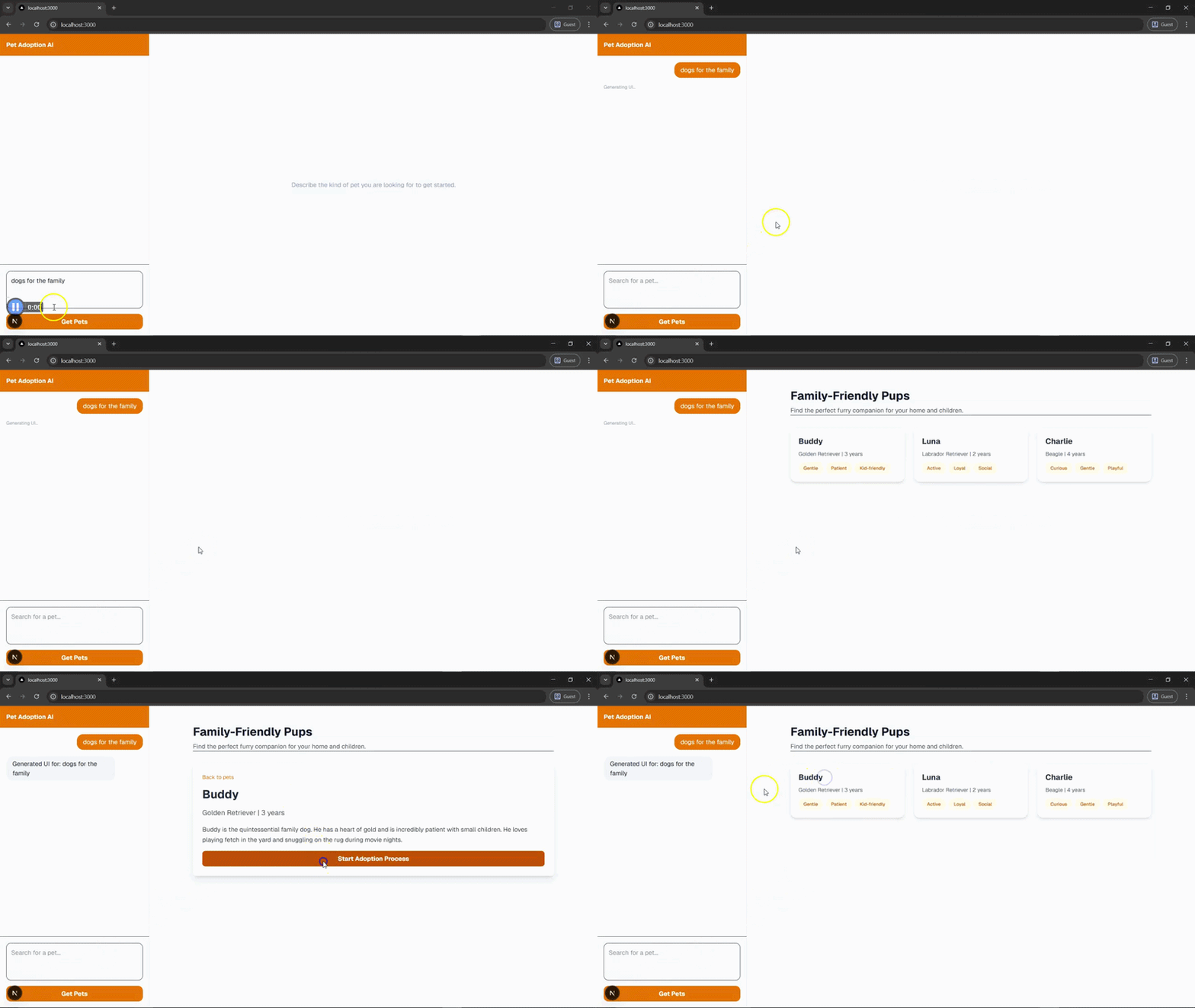
You can check out the demo codebase here.
Once the basic flow is working, you can expand the component vocabulary without changing the underlying architecture.
For example, you could add:
FilterBar for narrowing pets by breed or ageStatusBadge for showing adoption stateLoadingCard for streamed placeholder contentThat is one of JSON Render’s most practical strengths. The catalog defines the surface area the model can work with, while the registry and renderer stay stable as the system grows.
JSON Render is part of a broader category of AI UI tooling, but it solves a more specific problem than some of the alternatives it gets grouped with.
Two common comparisons are CopilotKit and A2UI Protocol. While all three are relevant to AI-driven interfaces, they sit at different layers of the stack:
| Tool | Best fit | What it emphasizes | Tradeoff to keep in mind |
|---|---|---|---|
| JSON Render | React apps that need safe, schema-constrained AI-generated UI | Controlled rendering from structured component definitions | Best when you already want to constrain the UI vocabulary tightly |
| CopilotKit | Apps where AI behavior and frontend state need to stay closely synchronized | Headless AI state management and UI coordination | Less focused on the rendering boundary itself |
| A2UI Protocol | Cross-platform systems that need a standardized agent-to-client UI protocol | Formal interoperability across clients and frameworks | More protocol-oriented than app-level rendering-oriented |
The main difference is where each tool draws the boundary.
JSON Render focuses on rendering control. It is most useful when your biggest concern is letting a model compose interfaces without letting it generate arbitrary code. You define the allowed building blocks, validate the output, and keep rendering predictable.
CopilotKit is more centered on state synchronization between AI and the interface. If your challenge is coordinating assistant state, UI updates, and user actions across a longer-running workflow, CopilotKit may be the better fit.
A2UI Protocol moves in a different direction. It is less about React-specific rendering and more about defining a standardized protocol that can send structured UI fragments across environments. That makes it more attractive for multi-client or cross-platform architectures.
If you need a practical rule of thumb:
That distinction matters because these tools are not interchangeable. They may all support AI-powered interfaces, but they optimize for different architectural constraints.
JSON Render is strongest when you want the model to help assemble UI without giving it direct control over your rendering layer.
That makes it a good fit for teams building:
It is less compelling if you want the model to invent arbitrary layouts, generate custom code freely, or operate across many frontend targets with minimal app-specific setup.
In other words, JSON Render works best when your problem is not “How do I let the model generate anything?” but “How do I let the model generate only what I can safely support?”
Vercel’s JSON Render offers a more production-minded approach to AI-generated UI.
Instead of asking a model to emit raw React or HTML, you define a catalog of allowed components, map those components to real React implementations through a registry, and render the resulting spec inside a validated runtime. The model still contributes to interface composition, but it does so within rules your application controls.
That is the real appeal of the pattern. It gives you a way to make generative UI useful without making it unpredictable.
For teams evaluating tools for AI-generated interfaces, the decision comes down to where you need control most. If your priority is safe rendering, strict component boundaries, and structured model output, JSON Render is a strong fit. If your priority is broader AI-state orchestration or cross-platform protocol design, other options may make more sense.
The pet shelter app in this tutorial is a simple demo, but the underlying pattern scales beyond demos. Once you separate the model’s role from the renderer’s responsibilities, you get a system that is easier to validate, easier to reason about, and easier to extend.
That is what makes JSON Render worth paying attention to. It is not just a way to generate UI from JSON. It is a practical answer to a bigger question many teams are now asking: how do you build dynamic AI interfaces without giving up control over the frontend?

Learn how inline props break React.memo, trigger unnecessary re-renders, and hurt React performance — plus how to fix them.

This article showcases a curated list of open source mobile applications for Flutter that will make your development learning journey faster.
Discover what’s new in The Replay, LogRocket’s newsletter for dev and engineering leaders, in the April 1st issue.
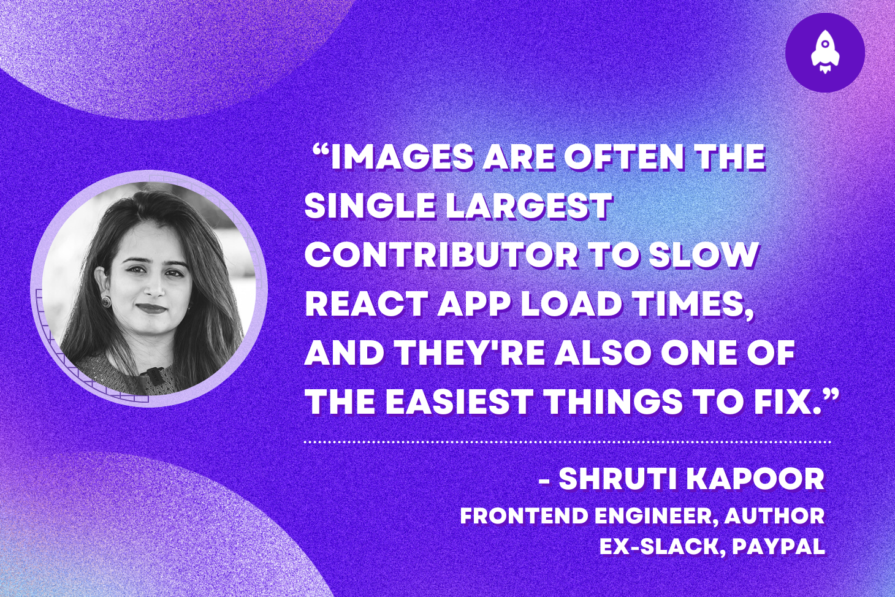
This post walks through a complete six-step image optimization strategy for React apps, demonstrating how the right combination of compression, CDN delivery, modern formats, and caching can slash LCP from 8.8 seconds to just 1.22 seconds.
Hey there, want to help make our blog better?
Join LogRocket’s Content Advisory Board. You’ll help inform the type of content we create and get access to exclusive meetups, social accreditation, and swag.
Sign up now


 Learn more →