For a long time, I wanted to build small, specific apps for personal use. But I’m a designer, not a developer. I could have learned to code, but honestly, I was never particularly interested in doing that. I also experimented with no-code tools like Glide and Bubble. I built a few things, but I still felt limited. Then AI coding tools arrived, and the barrier became much lower.
Designers can now go surprisingly far without writing an application from scratch. Instead of translating every idea into code yourself, you can describe what you want in plain language, give an AI tool visual references or designs, and iterate on the code it generates.
That doesn’t make development expertise obsolete. But for small tools, prototypes, plugins, and personal apps, it means designers can build things that previously might have remained Figma prototypes — or never been built at all.
In this article, I’ll show you two Chrome extensions I built for my own workflow using vibe coding, walk through how I built them, and share what I learned about where this approach works — and where it starts to break down.
Editor’s note: This article was updated in August 2026 to reflect how vibe coding has evolved and what it means for designers today. We expanded the discussion of where vibe coding works best, added practical lessons from building AI-assisted tools, updated the current tool landscape, and clarified the limitations of using AI-generated code for larger or more sensitive projects.
Vibe coding is an AI-assisted way of building software in which you describe what you want in natural language, let an AI model generate or modify the code, test the result, and keep prompting your way toward a working product.
The term was coined by Andrej Karpathy in 2025 to describe a workflow where you increasingly “give in to the vibes”: rather than manually writing and inspecting every line of code, you tell the AI what you want, run what it produces, notice what works or breaks, and ask it to make changes.
That distinction matters. Using AI to help write code isn’t automatically vibe coding. The “vibe” part comes from letting the model handle much of the implementation while you steer the outcome through instructions and testing.
For designers, the interesting part of vibe coding isn’t that it turns us into developers. It’s that it changes which ideas we can explore independently.
Previously, if I wanted to move beyond a Figma prototype, I often needed development time — even for a small internal tool, experiment, or interaction. Today, tools like Figma Make, Cursor, and Lovable can help turn a design or plain-language description into something functional much earlier in the process.
That makes vibe coding particularly useful for work that might never justify dedicated engineering resources: a small workflow tool, an interactive prototype, a Figma plugin, or an app built specifically for your own needs.
But there’s an important boundary. Generating working code isn’t the same as knowing that code is secure, scalable, maintainable, or production-ready. Throughout this article, I’m primarily talking about small tools, prototypes, plugins, and personal projects. Production applications, especially those handling sensitive data, introduce engineering considerations that AI-generated code doesn’t eliminate.
I’ve found two areas where vibe coding can be particularly useful in a designer’s day-to-day work:
The projects that convinced me of vibe coding’s value weren’t ambitious apps. They were tiny tools built around annoyingly specific problems in my own workflow.
One helps me fill out repetitive forms. The other turns the filters I repeatedly use to research topics on X into a one-click search.
Neither problem was important enough that I would have hired a developer to solve it. But both happened often enough to waste my time. That makes them exactly the kind of problems I think vibe coding is good at solving.
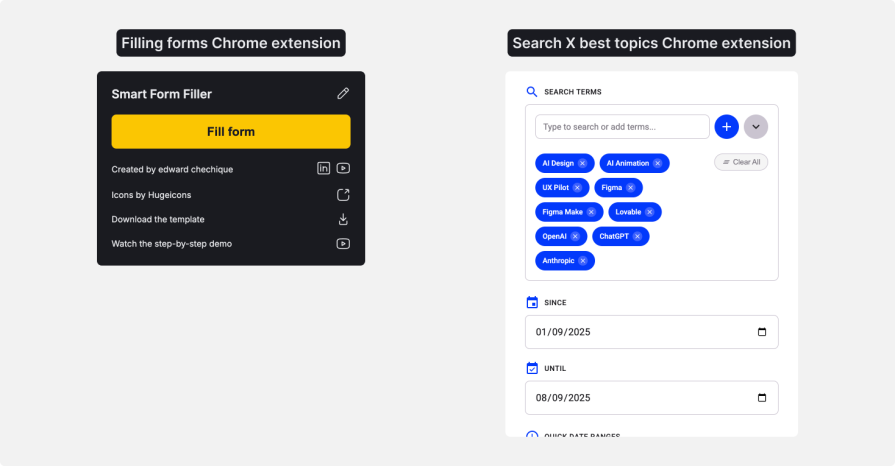
Chrome extensions and Figma plugins can also be good starting points for vibe coding because you’re building on top of an existing platform. For a personal tool, you can often run what you’ve built locally without setting up and hosting a separate application. If you decide to publish it for other people, you’ll need to meet the platform’s requirements and go through its review process.
While searching for a job, I kept running into the same annoying task: filling out forms with my name, LinkedIn profile, and other information I had already entered dozens of times.
I wanted a way to fill those fields with one click. Existing tools could do something similar, but I also saw this as a good opportunity to experiment with vibe coding. The problem was small, specific, and easy to test.
I decided the extension needed to do two things:
I also made an important scope decision early: I didn’t want the extension to require a database.
Storing people’s information remotely would introduce additional privacy, security, and technical considerations that this small tool didn’t need. So instead of asking, “How do I build the backend?” I asked myself, “Can I design this so I don’t need a backend at all?”
Because I’m a designer, I started where I was most comfortable: Figma. I created basic wireframes and then moved into higher-fidelity designs.
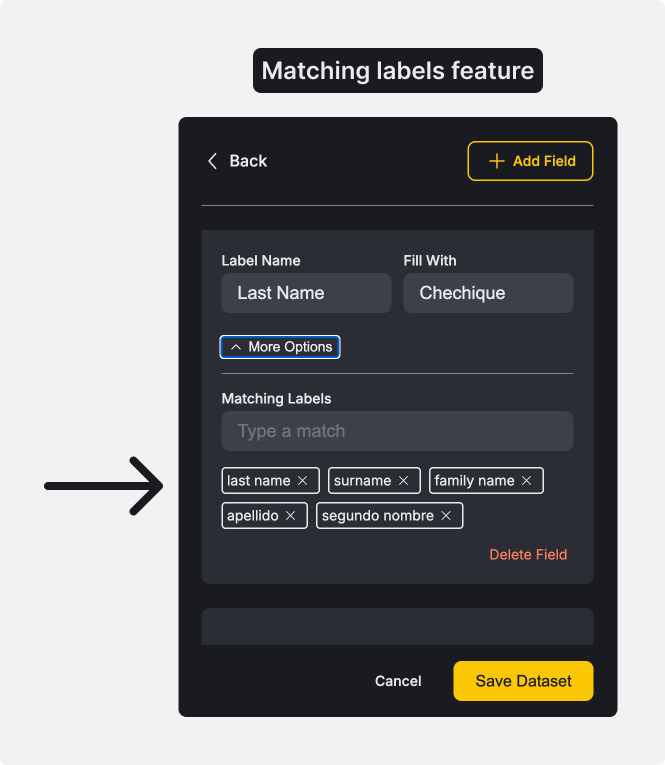
The extension needed to let users define a field, enter the value that should populate it, and specify alternative labels the extension should recognize. Because everything had to fit inside a Chrome extension popup, I kept the interface short and simple.
Once I knew how I wanted the extension to work, I needed to figure out where that information would live. Since I had already decided against using a database, I looked for a simpler option: a CSV file.
Users download a CSV template containing the field name, the value they want entered, and any alternative labels that should map to that field. Once they fill it out, they can import the file into the extension.
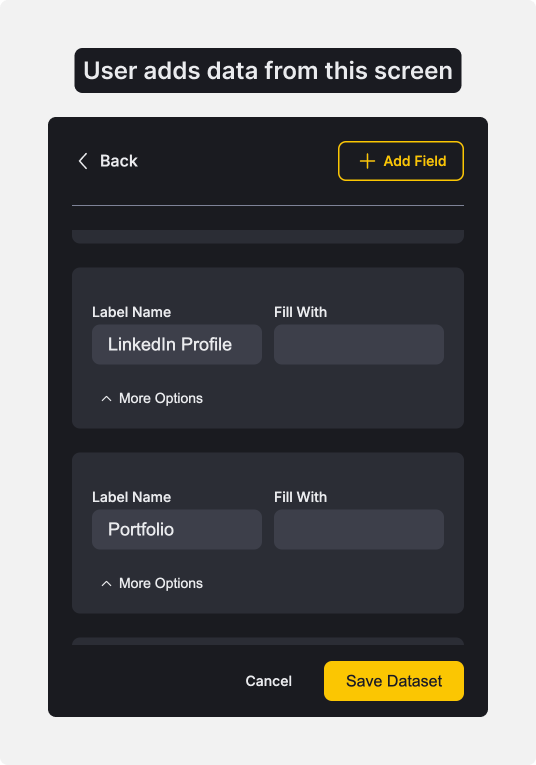
For my use case, this kept the architecture intentionally simple. I didn’t need user accounts or a remote database just to solve a repetitive form-filling problem.
Once I had the interface designed, I moved into Cursor. I deliberately separated the build into two stages: first getting the interface close to my design, then implementing the functionality.
I started by giving Cursor an image of the Figma design and describing what I wanted it to build. Today, I could also use MCP to give an AI coding tool structured access to the Figma file, but that workflow wasn’t available to me when I originally built the extension.
The first output wasn’t perfect. I ran into CSS issues, which I fixed manually because I’m comfortable with CSS. If you’re not, you can continue prompting the AI to adjust things like spacing, sizing, layout, and styling.
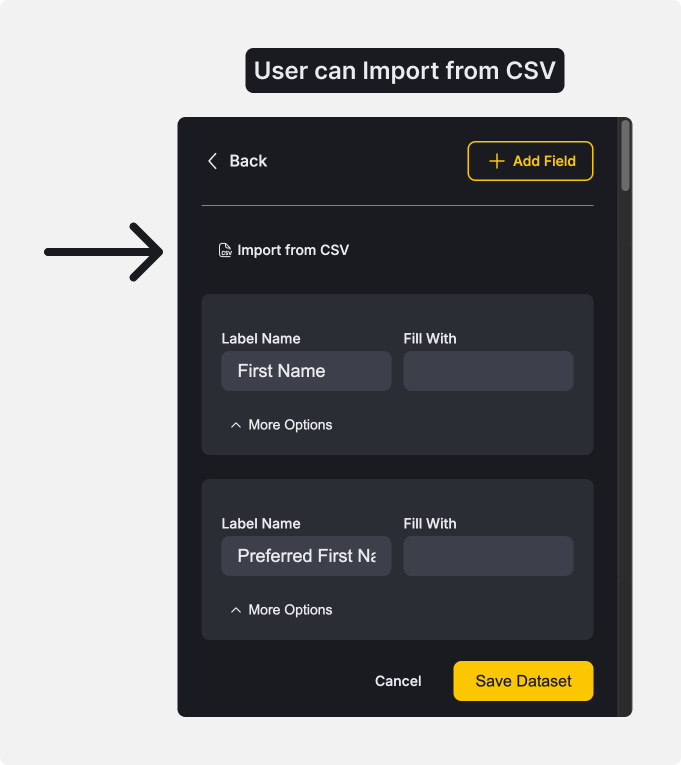
After fixing the styles, I moved on to the logic. One thing I learned quickly was not to ask Cursor to implement everything at once. I got better results when I broke the functionality into smaller, focused tasks and tested each one before moving on.
My process was:
Once the logic was ready, I tested. I loaded the extension locally on Chrome and tried it on different types of forms. Some worked right away, but others didn’t.
Whenever I found a form that didn’t work, I gave Cursor the problematic example, asked it to identify and fix the issue, and tested the extension again. I repeated that process across more than 30 different forms until it worked consistently across the ones I tested.
Once everything seemed stable, I shared the extension with a friend. He tested it and found one issue. The CSV file wasn’t matching the fields correctly. I took his file, debugged the problem in Cursor, and fixed it. After fixing it, I asked him to test it again, and the issue was resolved.
Once everything worked well, I decided to publish the extension on the Chrome Web Store.
I chose to make the extension completely free. I wasn’t interested in monetizing it.
I first shared the extension with a few friends who support designers in their job searches. They passed it along to their communities, and gradually, more people started using it.
Today, about 50 people have installed it. It’s not a huge number, but that was never the goal. I wanted to solve a problem for myself, and the fact that it’s useful to other people is a bonus.
The second Chrome extension came from another repetitive part of my workflow: researching industry topics on X. I regularly searched for terms, applied the same filters for recency, likes, and reposts, and repeated the process whenever I wanted to research a new topic.
I built an extension that lets me enter a topic, choose filters for recency, minimum likes, and minimum reposts, and generate the X search query automatically.
Now, instead of clicking through a bunch of settings, I can run a full advanced search with just one click:
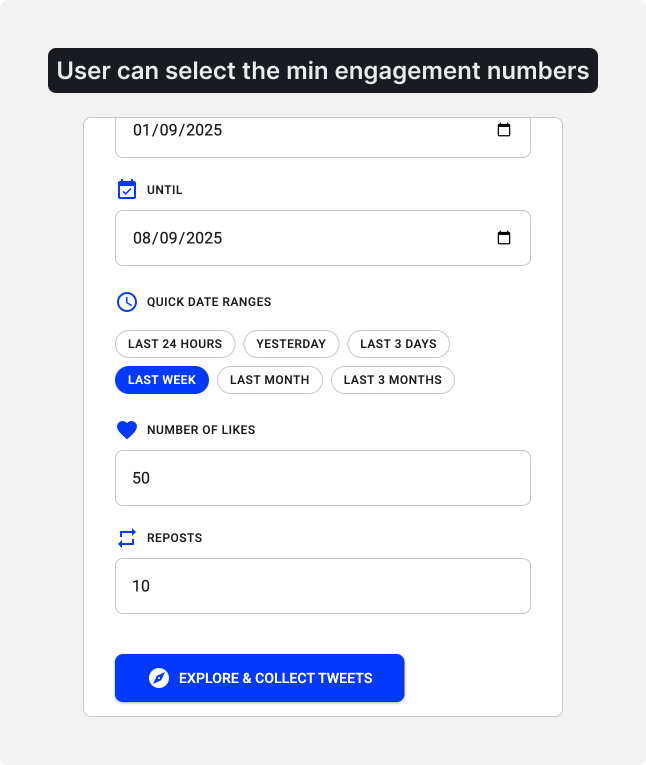
I also added defaults for the searches I run most often, including topics like AI, Figma, and ChatGPT, along with my usual engagement and time filters. I can still add custom topics or change the filters whenever I need to.
Since I’d already built one extension, I followed the same basic process: design it in Figma, recreate the UI in Cursor, and then add the functionality.
This time, though, I was more deliberate about structure. I added tokens and reusable components to the code files, which made building the extension easier and more scalable. For example, the “likes” and “reposts” fields use the same reusable input component. If I change that component, both fields can inherit the update.
This level of structure made the app easier to maintain and evolve, especially compared to quick one-off tools where things are often built without much planning.
I built this extension purely for myself, so I never published it to the Chrome Web Store. It was designed specifically around my workflow, and I didn’t want the additional responsibility of maintaining it for other users.
But that’s exactly the point. Not every tool needs to be public. I installed it locally, and it does exactly what I need. Not every idea needs to become a product. If a small tool solves a recurring problem in your own workflow, that’s already valuable.
There are several ways to vibe code today, but for designers, I find it useful to think about the tools in three broad categories:
The simplest place to start is an AI assistant that can generate interactive experiences or code directly from a conversation. Depending on the tool, you might use Gemini Canvas, Claude Artifacts, or another similar environment to describe what you want and iterate on the result.
These tools are useful when you want to quickly experiment with an idea without setting up a full development environment. For example, you might use one to create a simple calculator or interactive utility from a prompt.
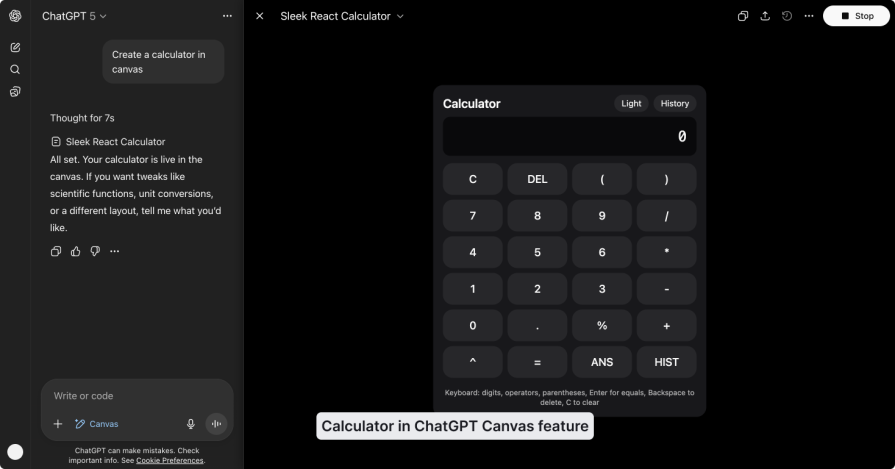
The second category is browser-based builders such as Figma Make, Lovable, v0, and Bolt. You describe what you want, and the tool generates a working application that you can continue refining through prompts and, depending on the platform, visual or code edits.
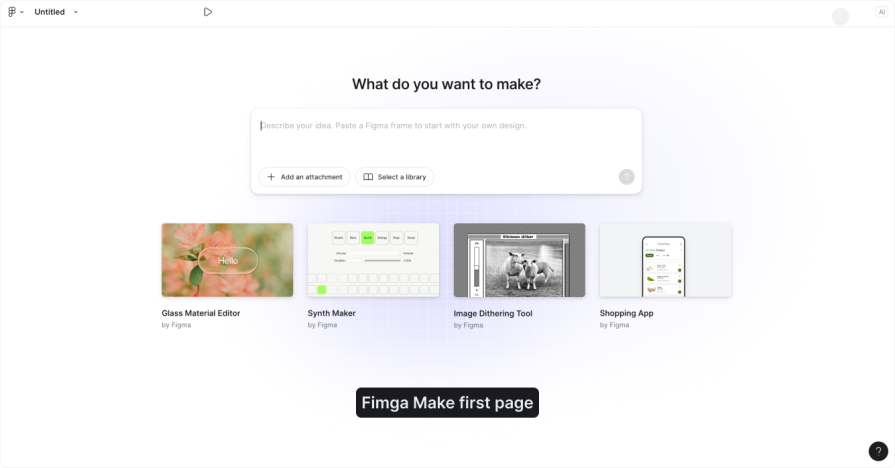
These tools provide a more structured environment for building an application than a general-purpose AI assistant. Depending on the tool, you can work with individual files, edit code, visually select parts of the interface, or connect other services as your project becomes more complex.
If you’re new to vibe coding, this category can be a good starting point because you can build and iterate without spending much time setting up a traditional development environment.
The third category includes AI coding environments like Cursor and Windsurf. These give you more direct access to the underlying codebase, so there’s a steeper learning curve, but they also give you more control.
I’m not a developer, but I like using this type of tool because of that flexibility. I can ask the AI to write or modify code directly inside the project while still accessing the files myself when I need to.
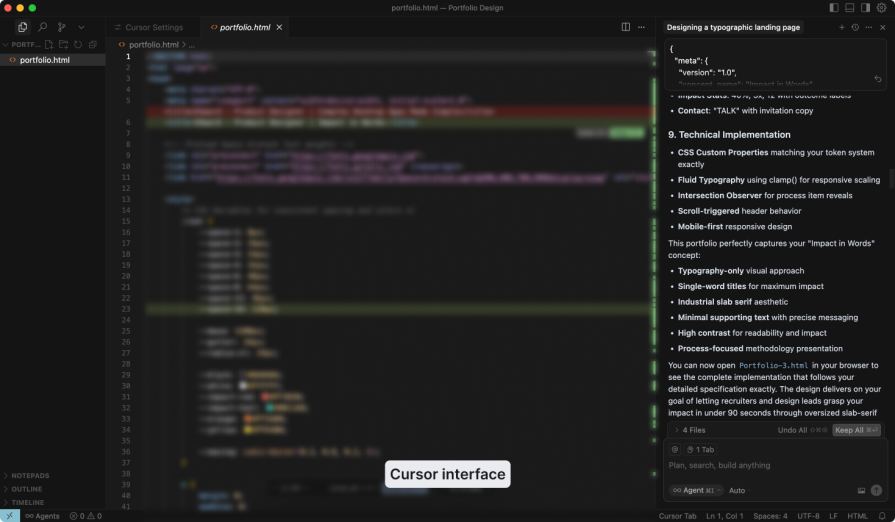
You don’t need to become a developer to experiment with these tools, but being comfortable looking at code and understanding the structure of a project becomes increasingly useful as the project gets more complex.
So to sum it up:
Vibe coding has opened up a new category of projects for me, but that doesn’t mean I’d use it for everything.
For small tools, prototypes, plugins, and personal projects, it can dramatically shorten the distance between having an idea and actually trying it. Both of the extensions I built started with problems that were too small and specific to justify a traditional development project. With AI coding tools, I could solve them myself.
The boundary becomes more important as the stakes increase. The more users, sensitive data, integrations, and security requirements a project has, the more important engineering expertise becomes. AI can generate code, but it doesn’t remove the need to understand, test, secure, and maintain what you’ve built.
For me, that’s the real value of vibe coding. It isn’t about replacing developers or turning every designer into one. It’s about being able to look at a small problem in your own workflow and think, “I could probably build something for that.”
LogRocket's Galileo AI watches sessions and understands user feedback for you, automating the most time-intensive parts of your job and giving you more time to focus on great design.
See how design choices, interactions, and issues affect your users — get a demo of LogRocket today.

Fixed user flows still have a place, but AI is changing how products respond to user intent. Here’s what designers need to rethink when flows become dynamic.
Framer brings design, CMS, publishing, and AI into one workspace. Here’s how its 2026 workflow compares with Figma Sites, Relume, and Webflow—and when consolidation makes sense.
Three predictions for the next UX era, revisited against Liquid Glass, Material 3 Expressive, and spatial widgets—with a practical, conditional outlook for 2027.
AI-first helpdesks can answer questions and take action, but good UX depends on accurate information, clear approval limits, and human handoffs that preserve context.

 Learn more →