

WebGPU enables graphics and compute execution inside modern web browsers with near-native performance. However, raw WebGPU requires manually configuring pipeline layouts, bind groups, buffer allocations, and render passes. Vercel’s vgpu is a library that simplifies working with WebGPU. It abstracts low-level WebGPU mechanics into concepts like GPU contexts, reactive bindings, effects, and frame loops.
This article covers how to configure vgpu, set up a shader on a React canvas, and validate the rendering output headlessly and through the browser.
To follow along with this guide, you will need:
Writing raw WebGPU code requires verbose setup before rendering a basic shape or shader.
Creating pipeline states, defining vertex buffer layouts, and binding uniform buffers manually demands considerable setup code per draw call.
vgpu simplifies this process through:
await init().set(), which removes manual buffer layout and offset calculations@vgpu/adapter-node to verify pixel data directlyInstall vgpu using your package manager:
npm install vgpu
There is also vgpu doctor tool that verifies whether the host machine (developer’s workstation, a headless Linux server, a Docker container, or a CI/CD pipeline) is properly configured to execute WebGPU code.
You can run it with this command:
npx vgpu doctor
Before building our application, let’s break down the foundational building blocks of VGPU.
The gpu object manages WebGPU adapters, device states, and resource lifetimes. It is initialized via await init().
Shaders in vgpu are defined as WGSL strings or imported from .wgsl files. The library reflects the uniforms, structs, and attributes from the shader source code automatically.
A draw operation maps pipeline states and uniform bindings to target surfaces. Single-pass fragment operations execute via effect.draw(), while vertex and 3D mesh drawing use draw().
The library compiles shaders on demand. Invoking compile(gpu, shader) warms up pipeline states in advance of rendering.
The effect() function simplifies post-processing and 2D canvas fragment shaders by handling full-screen quad creation and canvas-aligned texture mappings automatically.
Draw calls are organized into passes. The frame.pass() method manages render command encoder setup and completion.
The frameLoop() function manages continuous execution cycles. Combined with clock(gpu), it tracks delta time, elapsed time, and frame counts.
For high-frequency operations, renderBundle() records command buffers for reuse across multiple frames to reduce CPU invocation overhead.
We will build a dynamic Nebula shader inside a Next.js application to demonstrate vgpu in practice.
This demonstration includes three files:
nebula.wgsl that computes fractal Brownian motion field noisenebula.ts file that handles GPU resource initialization, reactive bindings, and the frame looppage.tsx that renders the canvas and handles lifecycle cleanupFirst, here is the WGSL code inside nebula.wgsl, which renders the nebula:
import { fbmPerlin3d } from "@vgpu/wgsl-std/noise/perlin";
import { remap, saturate } from "@vgpu/wgsl-std/math";

struct Params {
  time: f32,
  texel: vec2f,
}
@group(0) @binding(0) var<uniform> params: Params;

@fragment
fn fs_main(@location(0) uv: vec2f) -> @location(0) vec4f {
  let field = fbmPerlin3d(
    vec3f(uv * vec2f(3.0, 1.8), params.time * 0.12),
    5,
    2.17,
    0.55
  );

  let veil = fbmPerlin3d(
    vec3f(uv * vec2f(7.0, 4.0) + vec2f(params.time * 0.03, 0.0), params.time * 0.2),
    3, 2.0, 0.5
  );

  let density = saturate(remap(-0.6, 0.8, 1.0, 0.0, field));
  let glow = saturate(remap(-0.5, 0.9, 0.0, 1.0, veil));

  let base = vec3f(0.02, 0.03, 0.10);
  let violet = vec3f(0.36, 0.14, 0.68);
  let warm = vec3f(0.98, 0.52, 0.30);

  var color = mix(base, violet, density);
  color = mix(color, warm, glow * glow * 0.55);
  color += vec3f(0.10, 0.06, 0.16) * (1.0 - uv.y);

  return vec4f(color, 1.0);
}
In the WGSL shader code above, we imported fbmPerlin3d from the @vgpu/wgsl-std/noise/perlin module and the standard math utilities remap and saturate. Under WebGPU, you would need to manually write or bundle noise algorithms. Here, vgpu compiles these standard assets natively.
The Params struct defines our uniform buffer fields, where time acts as our temporal offset and texel represents the canvas pixel dimensions. In our primary fs_main fragment function, we receive normalized @location(0) uv coordinates from the rasterizer.
Next, we call fbmPerlin3d twice with distinct scaling parameters to generate overlapping noise patterns for field and veil.
Finally, we use mix to blend our base, violet, and warm color vectors based on these generated noise strengths, returning the merged color vector for our nebula.
The next step is configuring the WebGPU pipeline and binding the uniforms. First, here is the code for nebula.ts:
import { clock, effect, frameLoop, init, surface } from "vgpu";
import type { FrameLoopHandle } from "vgpu";
import shader from "./nebula.wgsl";

export function startNebula(
  canvas: HTMLCanvasElement,
  onError?: (error: unknown) => void,): () => void {
  let disposed = false;
  let loop: FrameLoopHandle | undefined;
  let gpu: Awaited<ReturnType<typeof init>> | undefined;

  void (async () => {
    try {
      gpu = await init();
    } catch (err) {
      onError?.(err);
      return;
    }
    if (disposed) return gpu.dispose();

    const heroSurface = surface(gpu, canvas, { dpr: [1, 2] });
    const nebula = effect(gpu, shader, {
      label: "nebula",
      set: { params: { time: 0, texel: heroSurface.texelSize } },
    });

    heroSurface.onResize(() =>
      nebula.set({ params: { texel: heroSurface.texelSize } }),
    );

    await nebula.compile({ colors: [heroSurface.format] });
    if (disposed) return gpu.dispose();

    const time = clock(gpu);
    loop = frameLoop(gpu, (frame) => {
      nebula.set({ params: { time: time.time } });
      frame.pass(heroSurface, nebula);
    });
  return () => {
    disposed = true;
    loop?.stop();
    gpu?.dispose();
  };
}
In the script above, we imported the core canvas lifecycles and runtime utilities from vgpu.
Our startNebula function acts as the controller for the GPU setup. First, we call init() to configure the logical GPU device and acquire the execution context.
Next, we bind our canvas element using surface(gpu, canvas), which handles device pixel ratio setting. We then initialize our post-processing shader with effect(gpu, shader). Notice the set parameter: we bind our params uniform struct simply by passing matching configuration keys as a standard object. To support custom viewport scaling, we call the onResize listener to update the uniform texel properties whenever the browser window resizes.
Finally, we execute frameLoop() on every display refresh. On each update frame, we query our clock instance and set our elapsed duration in our params uniform before executing frame.pass() to render.
The next step is rendering the interface container in React.
Open page.tsx to see the component setup:
"use client";

import { useEffect, useRef, useState } from "react";
import { startNebula } from "./nebula";

export default function Home() {
  const canvasRef = useRef<HTMLCanvasElement>(null);
  const [failed, setFailed] = useState(false);

  useEffect(() => {
    const canvas = canvasRef.current;
    if (!canvas) return;
    return startNebula(canvas, () => setFailed(true));
  }, []);

  return (
    <main className="hero">
      <canvas ref={canvasRef} className="hero-canvas" />
      <div className="hero-content">
        <h1 className="hero-title">Nebula</h1>
        <p className="hero-subtitle">WebGPU Shader</p>
        {failed && (
          <p className="hero-error">
            WebGPU is not supported in this environment.
          </p>
        )}
      </div>
    </main>
  );
}
In the above Next.js page, we import our React hooks and the startNebula controller we created earlier. Inside our Home component, we use useRef to track our raw canvas instance directly in the DOM.
When the component mounts, our useEffect hook calls the startNebula() function, passing in our retrieved canvas element and setting a failed state if an error is caught.
Finally, we return the cleanup function from startNebula().
This terminates our main request render frame queue and disposes of logical GPU device structures when the user navigates away, which prevents persistent memory leaks in the browser.
One of vgpu‘s primary advantages is its native support for headless execution in Node.js environments. Unlike WebGPU, which requires a browser DOM canvas, vgpu allows you to compile WGSL shaders, render to offscreen targets, and inspect pixel data directly in continuous integration (CI) environments or automated scripts.
Below is the test script:
import { fileURLToPath } from "node:url";
import { init, effect, target } from "vgpu/node";
import { resolveShader } from "@vgpu/wgsl/runtime";

async function main() {
  const resolved = await resolveShader({
    entry: fileURLToPath(new URL("../src/app/nebula.wgsl", import.meta.url)),
  });

  const width = 640;
  const height = 360;
  const gpu = await init();
  const colorTarget = target(gpu, { size: [width, height] });

  const nebula = effect(gpu, resolved.wgsl, {
    label: "nebula-render-check",
    set: { params: { time: 4.0, texel: [1 / width, 1 / height] } },
  });
  nebula.draw(colorTarget);

  const pixels = await colorTarget.color.read({ mipLevel: 0, region: "all" });

  let min = 255;
  let max = 0;
  for (let i = 0; i < pixels.length; i += 4) {
    const lum = (pixels[i] + pixels[i + 1] + pixels[i + 2]) / 3;
    if (lum < min) min = lum;
    if (lum > max) max = lum;
  }

  if (max - min < 10) {
    throw new Error(`Flat render output detected: luminance range ${min}-${max}`);
  }

  console.log(`Render check passed (luminance range: ${min.toFixed(1)}-${max.toFixed(1)})`);
  gpu.dispose();
}

main().catch((err) => {
  console.error(err);
  process.exit(1);
});
In the script above, we import init, effect, and target from vgpu/node. Then, we resolve our WGSL shader source file using resolveShader().
Next, we call init() to create our headless GPU context and construct an offscreen render target with target(gpu, { size: [width, height] }). We then invoke nebula.draw(colorTarget) to execute a single-pass render directly to memory without opening a browser window.
Finally, we query colorTarget.color.read() to retrieve the raw RGBA pixel buffer, calculate the minimum and maximum pixel luminance, and verify that our shader rendered dynamic visual output rather than a blank frame.
Execute the headless render check script using tsx:
npx tsx scripts/render-check.mts
Check the output:

And this is it running in the browser:
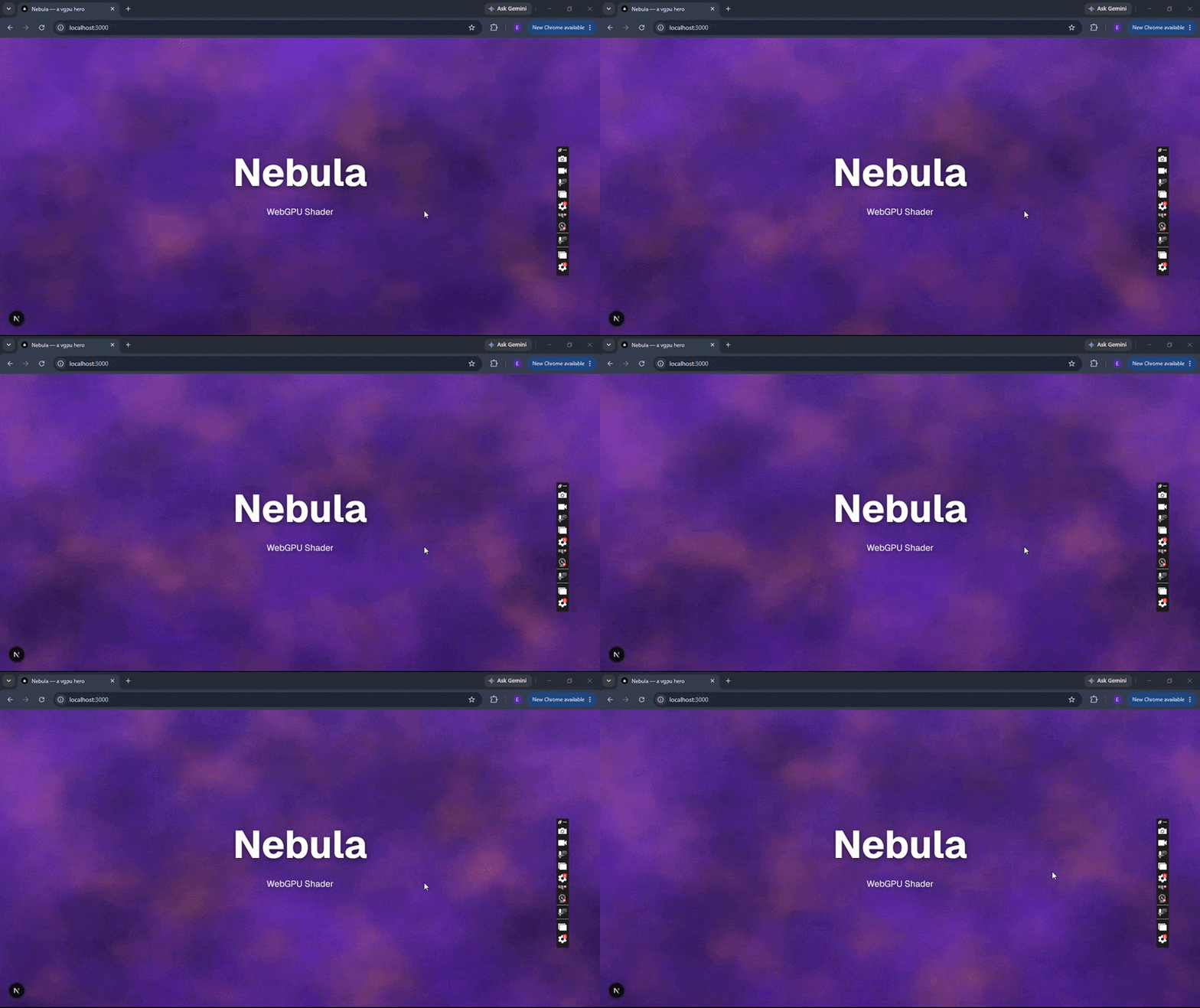
Raw WebGPU, Three.js, and vgpu solve different problems and operate at different levels of abstraction. So it helps to understand where VGPU sits in the WebGPU ecosystem.
| Metric / Feature | Raw WebGPU | Three.js (WebGPURenderer) | Vercel vgpu |
|---|---|---|---|
| Boilerplate Code | High (100+ lines for initial setup) | Moderate (Scene/Camera object graph) | Minimal (1 line init()) |
| Learning Curve | Steep (requires low-level GPU knowledge) | Moderate (3D scene graph mental model) | Low (Direct WGSL with reactive bindings) |
| Headless Node Support | Complex (requires custom Dawn bindings) | Limited (requires Virtual DOM/Canvas mocks) | Native (@vgpu/adapter-node) |
| Agent / LLM Suitability | Low (prone to layout binding errors) | Moderate (large API surface) | Excellent (Bundled docs CLI & explicit schema) |
| Primary Use Case | Custom engine development | Complex 3D games & scenes | Shaders, UI effects, agent workflows |
Choosing the right abstraction layer depends on your application’s architecture and performance requirements.
In this guide, we explored how Vercel’s vgpu simplifies WebGPU development by abstracting low-level graphics mechanics into intuitive, reactive building blocks.
We built a dynamic Nebula shader in Next.js using native WGSL noise functions, orchestrated GPU surfaces and frame loops, and validated the pixel output headlessly in Node.js using vgpu.

Explore how looping Transformers reuse layers and compare with traditional GPT models in reasoning tasks.

Learn how one solo developer used multiple Grok Bot AI agents to test, report bugs, fix code, and monitor deployments — hands-free, on a $30/month plan.

Compare the top AI development tools and models of October 2026. View updated rankings, feature breakdowns, and find the best fit for you.
Can AI agents debug React bugs across browsers? I tested Chrome, Safari, and Firefox debugging MCPs on four bugs to compare their findings, workflows, and effectiveness.
Would you be interested in joining LogRocket's developer community?
Join LogRocket’s Content Advisory Board. You’ll help inform the type of content we create and get access to exclusive meetups, social accreditation, and swag.
Sign up now
 Learn more →