Rendering performance in web applications is often limited by server work that cannot be completed instantly. Data fetching, personalization, and backend aggregation all take time. In many applications, this work blocks the entire page, leaving users with a blank screen until everything finishes.

Next.js has traditionally handled this through a static-by-default model. A route is either static or dynamic, and that decision applies to the entire page. This works well for simple cases, but it becomes restrictive as applications grow. Most real pages combine predictable data with request-specific data, yet they are forced into a single rendering mode.
Next.js 16 introduces Cache Components to address this limitation. Cache Components operate at the component level and build on top of Partial Pre-Rendering. Partial Pre-Rendering allows a page shell to render immediately while slower sections are deferred. Cache Components extend this model by giving you control over which parts of the page can be reused without blocking the rest.
In this article, we look at how Cache Components fit into the Next.js rendering pipeline and how they change the way static and dynamic content coexist on the same page.
The Replay is a weekly newsletter for dev and engineering leaders.
Delivered once a week, it's your curated guide to the most important conversations around frontend dev, emerging AI tools, and the state of modern software.
Modern pages rarely deal with just one kind of data. Navigation and layout are often predictable, catalog or content data changes occasionally, and personalization or session data must be computed on every request. When all of this work is handled in a single render pass, the slowest operation determines when anything can be shown.
Partial Pre-Rendering avoids this by allowing the page to render in stages. A static shell is sent first to establish structure, while dynamic sections are wrapped in Suspense boundaries and rendered independently:
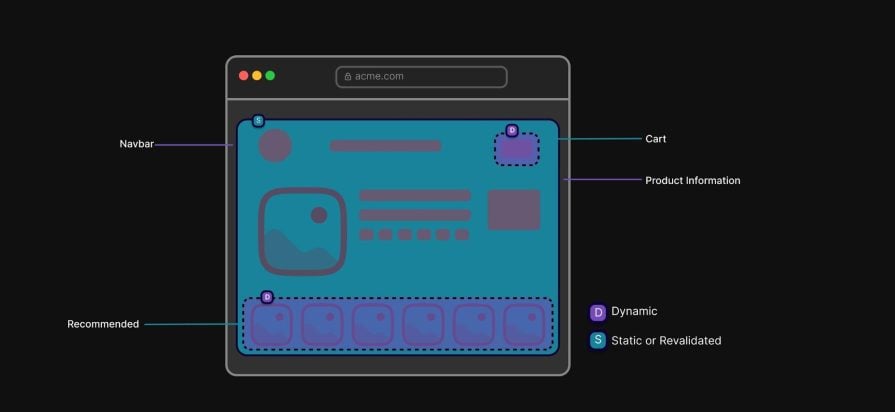
As those sections finish rendering, they are streamed to the client without blocking the rest of the page. Users see progress instead of a blank screen.
Partial Pre-Rendering improves how pages are delivered, but it does not decide how often server work should run or whether its result can be reused. That limitation is what makes Cache Components necessary.
Even though Partial Pre-Rendering improves how pages are delivered, it does not change what happens on the server. Dynamic sections still run when a request comes in. If a section fetches the same data on every request, that work is repeated even when the result is identical.
This is the gap Cache Components are meant to address. With Cache Components, caching decisions move to the component level. Instead of treating an entire route as static or dynamic, you mark specific parts of the UI as cacheable and leave the rest dynamic. This makes it possible to reuse predictable server-rendered output without affecting request-specific sections:
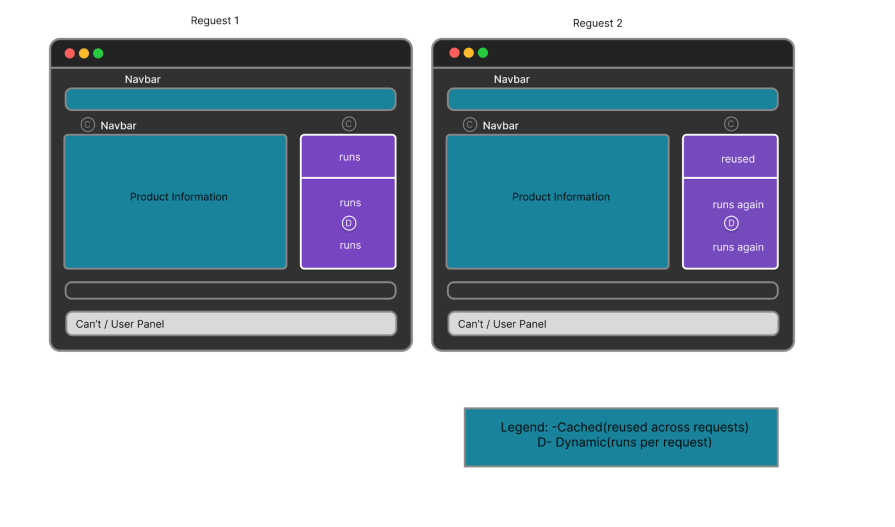
The diagram shows the same page being rendered across two separate requests:
Request 1 represents the first time the page is rendered. All sections run on the server. Components marked C are eligible for caching, so their output is computed and stored. Components marked D are dynamic and run as part of the request.
Request 2 represents a later request for the same page. Cached components do not run again. Their previously rendered output is reused. Dynamic components still run on the server because they depend on request-specific data.
The layout of the page does not change between requests. What changes is the lifecycle of each section. Cache Components allow predictable parts of the page to be reused across requests, while dynamic parts continue to run every time.
To fully demonstrate Cache Components, it helps to first see how a page behaves without them. For this reason, I built an app that uses the traditional way. You can find GitHub repository for this here.
This version does not use Cache Components in any form. Everything happens in one server render. You can confirm that in the next.config.ts:
// next.config.ts
import type { NextConfig } from "next";
const nextConfig: NextConfig = {
  /* config options here */
};
export default nextConfig;
On the page itself, dynamic rendering is explicitly forced. This ensures that every request runs fresh server logic and nothing is reused.
import ProductGrid from '@/components/product-grid';        // 2 seconds
import Recommendations from '@/components/recommendations'; // 3 seconds
import Orders from '@/components/orders';                   // 2 seconds
You’ll notice that there are three independent data sources:
Because these calls are awaited one after the other, the total server wait time is roughly seven seconds. More importantly, the return statement only runs after the final request completes. Until then, React has nothing to render. To confirm this, start the app by running the command:
npm run dev
Navigate to http://localhost:3000. The first thing you notice is the absence of anything. There is no header. No layout. No loading state. The browser is blank:
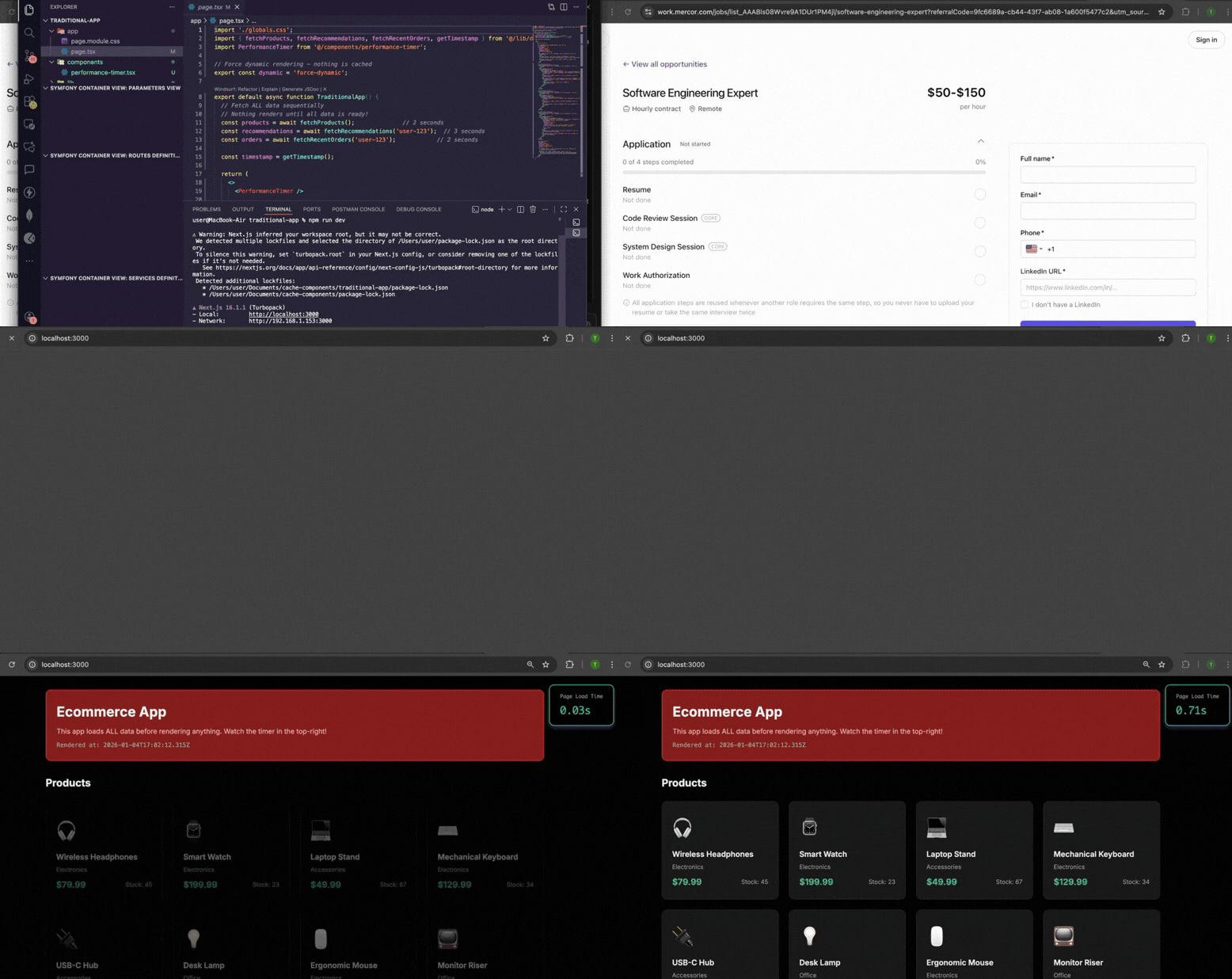
When the page eventually renders, it does so around the seven-second mark. That delay exists because the page is structured to wait for the slowest piece of data before rendering anything. In practice, most of the UI does not need to wait. The header, footer, and any other parts of the page that do not depend on slow data can render immediately.
This is where Partial Pre-Rendering comes in. Partial Pre-Rendering allows a page to render a static shell first, while slower sections are deferred. It lets you mix rendering types on the same page. However, it has a limitation. While deferred sections can be streamed, they are still recomputed on every request. Partial Pre-Rendering improves delivery, but it does not allow those dynamic sections to be cached. That limitation is what leads us to Cache Components.
Let’s now configure cache components.
First, we’ll need to configure cache components in order to enable them, since they are still in the experimental phase. Open next.config.ts and update it as follows:
import type { NextConfig } from 'next';
const nextConfig: NextConfig = {
  experimental: {
    useCache: true,
  },
};
export default nextConfig;
This flag enables the use cache directive and tells Next.js to allow caching at the component level.
Next, we need a place to define how long cached data should live. In the app, every request refetches everything. We want to change that with Cache Components so we can have explicit control over freshness.
Create a new file atlib/cache-config.ts:
export const cacheProfiles = {
  products: {
    stale: 3600,      // 1 hour
    revalidate: 7200, // 2 hours
    expire: 86400,    // 24 hours
  },
};
It’s important to note that this file does not change behavior by itself. It just centralizes cache policy so it can be reused across components.
Open components/product-grid.tsx and replace its contents with the cached version below:
'use cache';
import { fetchProducts } from '@/lib/demo-data';
import { cacheProfiles } from '@/lib/cache-config';
export async function cacheLife() {
 return cacheProfiles.products;
}
export default async function ProductGrid() {
 const products = await fetchProducts();
 return (
   <section style={{ marginBottom: '3rem' }}>
     <div style={{ display: 'flex', justifyContent: 'space-between', alignItems: 'center', marginBottom: '1.5rem' }}>
       <h2 style={{ fontSize: '1.5rem', fontWeight: 'bold' }}>Products</h2>
     </div>
     <div className="grid grid-4">
       {products.map(product => (
         <div key={product.id} className="card fade-in">
           <div style={{ fontSize: '3rem', marginBottom: '0.5rem' }}>{product.image}</div>
           <h3 style={{ fontSize: '1.125rem', fontWeight: '600', marginBottom: '0.25rem' }}>
             {product.name}
           </h3>
           <p style={{ color: '#888', fontSize: '0.875rem', marginBottom: '0.5rem' }}>
             {product.category}
           </p>
           <div style={{ display: 'flex', justifyContent: 'space-between', alignItems: 'center' }}>
             <span style={{ fontSize: '1.25rem', fontWeight: 'bold', color: '#10b981' }}>
               ${product.price}
             </span>
             <span style={{ fontSize: '0.875rem', color: '#888' }}>
               Stock: {product.stock}
             </span>
           </div>
         </div>
       ))}
     </div>
   </section>
 );
}
At the top of the file is the 'use cache'signal, which tells Next.js that this component is allowed to be reused instead of recomputed on every request. Without it, the component behaves exactly as it did before and runs each time the page is rendered.
We also added the cacheLife() function, which is where we decide how long the product grid should stick around. Since products do not change on every request, it makes sense to reuse them for a period of time rather than refetching them constantly. Instead of caching the entire page, this approach lets us be deliberate and cache only the section that benefits from it.
After caching the product grid, the next goal is to let the page render as soon as it can, while only the sections that depend on slow data are allowed to wait. That is where Suspense comes in. It lets us mark parts of the page that can load later, so while those sections are still resolving on the server, React can send the rest of the page to the browser and fill in the gaps afterward.
To make that delay visible, we need something to show in place of the real content.
Create a new file at components/loading-skeleton.tsx:
export default function LoadingSkeleton({ count = 4 }: { count?: number }) {
  return (
    <div className="grid grid-4">
      {Array.from({ length: count }).map((_, i) => (
        <div key={i} className="card skeleton" />
      ))}
    </div>
  );
}
The code above outputs a small grid of cards that roughly match the shape of the product tiles in the UI, so the page doesn’t feel empty while we wait for the real data to arrive.
Now open app/page.tsxand replace its contents with the following:
import './globals.css';
import { Suspense } from 'react';
import { getTimestamp } from '@/lib/demo-data';
import LoadingSkeleton from '@/components/loading-skeleton';
import ProductGrid from '@/components/product-grid';
import Recommendations from '@/components/recommendations';
import Orders from '@/components/orders';
export const dynamic = 'force-dynamic';
export default function CacheApp() {
  const timestamp = getTimestamp();
  return (
    <>
      <div className="container" style={{ padding: '2rem 1rem' }}>
        {/* Header Banner */}
        <div style={{
          marginBottom: '2rem',
          padding: '1.5rem',
          background: '#065f46',
          borderRadius: '12px',
          border: '2px solid #10b981'
        }}>
          <h1 style={{ fontSize: '2rem', fontWeight: 'bold', marginBottom: '0.5rem' }}>
            Ecommerce App
          </h1>
          <p style={{ fontSize: '1rem', color: '#86efac', marginBottom: '0.5rem' }}>
            Cached content renders immediately, while dynamic sections load progressively.
          </p>
          <p style={{ fontSize: '0.875rem', color: '#d1fae5', fontFamily: 'monospace' }}>
            Rendered at: {timestamp}
          </p>
        </div>
        <Suspense fallback={
          <section style={{ marginBottom: '3rem' }}>
            <div style={{ marginBottom: '1.5rem' }}>
              <h2 style={{ fontSize: '1.5rem', fontWeight: 'bold' }}>Products</h2>
              <p style={{ color: '#888', fontSize: '0.875rem' }}>Loading products...</p>
            </div>
            <LoadingSkeleton count={4} />
          </section>
        }>
          <ProductGrid />
        </Suspense>
        <Suspense fallback={
          <section style={{ marginBottom: '3rem' }}>
            <div style={{ marginBottom: '1.5rem' }}>
              <h2 style={{ fontSize: '1.5rem', fontWeight: 'bold' }}>Recommended for You</h2>
              <p style={{ color: '#888', fontSize: '0.875rem' }}>Loading personalized recommendations...</p>
            </div>
            <LoadingSkeleton count={3} />
          </section>
        }>
          <Recommendations userId="user-123" />
        </Suspense>
        <Suspense fallback={
          <section style={{ marginBottom: '3rem' }}>
            <div style={{ marginBottom: '1.5rem' }}>
              <h2 style={{ fontSize: '1.5rem', fontWeight: 'bold' }}>Recent Orders</h2>
              <p style={{ color: '#888', fontSize: '0.875rem' }}>Loading your orders...</p>
            </div>
            <LoadingSkeleton count={3} />
          </section>
        }>
          <Orders userId="user-123" />
        </Suspense>
        <div style={{
          padding: '2rem',
          background: '#1a1a1a',
          borderRadius: '12px',
          border: '1px solid #2a2a2a',
          textAlign: 'center'
        }}>
          <h3 style={{ fontSize: '1.25rem', marginBottom: '1rem', color: '#10b981' }}>
            Improved User Experience
          </h3>
          <p style={{ color: '#888', maxWidth: '600px', margin: '0 auto' }}>
            The page renders immediately with cached content, while user-specific sections
            load progressively without blocking the rest of the UI.
          </p>
        </div>
      </div>
    </>
  );
}
Now, the page is no longer forced to wait for every data source before rendering. The header shows up immediately, and each data-driven section is allowed to load at its own pace. The product grid is wrapped in Suspense so the page can render even on a cold load, while its cached output resolves instantly on subsequent requests. The recommendations and orders sections still run per request, but they no longer block the rest of the UI. Instead, placeholders appear first and are replaced as soon as the data is ready.

Restart the app and navigate to http://localhost:3000. This time, the header and product grid appear immediately, and the timer confirms that the first content renders almost instantly. Recommendations and orders no longer block the page. Their skeletons show up first, and the real content streams in as it becomes ready:
Users don’t experience architectures. They experience load time. The table below summarizes how the two versions behave during page load:
| Metric | Traditional app | Cache components |
|---|---|---|
| Time to First Content | ~7 seconds | < 100 ms |
| Initial Experience | Blank screen | Immediate UI |
| Total Server Blocking | ~7 seconds | Near zero |
| Product Catalog | Blocks render (~2s) | Cached, instant on reload |
| Recommendations | Blocks page (~3s) | Streams in |
| Orders | Blocks page (~2s) | Streams in |
| Rendering Model | All-or-nothing | Progressive |
| Perceived Load Time | Slow | Fast |
Cache Components are powerful, but they work best when applied deliberately. Below are some of the best practices when working with cache components:
Cache Components change how rendering decisions are made in Next.js. Instead of choosing between static and dynamic at the page level, you can decide at the component level which parts of the UI should be reused and which parts must remain request-specific.
In the example we walked through, the improvement did not come from rewriting the application or changing the data model. It came from separating predictable work from user-specific work and allowing each to render on its own timeline. Cached components reduced repeated server work, while Suspense ensured that slower sections no longer blocked the rest of the page.
For more details on cache components, partial pre-rendering, and the related APIs, see the official Next.js documentation.
Debugging Next applications can be difficult, especially when users experience issues that are difficult to reproduce. If you’re interested in monitoring and tracking state, automatically surfacing JavaScript errors, and tracking slow network requests and component load time, try LogRocket.
LogRocket captures console logs, errors, network requests, and pixel-perfect DOM recordings from user sessions and lets you replay them as users saw it, eliminating guesswork around why bugs happen — compatible with all frameworks.
LogRocket's Galileo AI watches sessions for you, instantly identifying and explaining user struggles with automated monitoring of your entire product experience.
The LogRocket Redux middleware package adds an extra layer of visibility into your user sessions. LogRocket logs all actions and state from your Redux stores.


Modernize how you debug your Next.js apps — start monitoring for free.

I had four weeks to build a complete app from scratch using AI tools like OpenCode and Claude Opus: here’s how it went.

Learn how to build a reusable Vue 3 table engine that powers tables, cards, and lists with shared sorting and pagination logic.

Compare the best React chart libraries for 2026, including Recharts, Nivo, visx, Apache ECharts, MUI X Charts, and more.

Claude Code vs. OpenCode in a real Next.js refactor: benchmark results, mistakes, prompts, and when to use each CLI agent.
Hey there, want to help make our blog better?
Join LogRocket’s Content Advisory Board. You’ll help inform the type of content we create and get access to exclusive meetups, social accreditation, and swag.
Sign up now


 Learn more →