The web is full of AI assistants that appear to understand application UIs, user data, and intent. In practice, however, most of these systems operate outside the application itself. When you try to build one from scratch, you quickly run into a core limitation: large language models have no native understanding of your React state, component hierarchy, or business logic.

CopilotKit bridges this gap with its Direct-to-LLM architecture, allowing you to expose your app’s state and actions directly to language models without building custom APIs or complex orchestration layers.
In this tutorial, we’ll build an AI-powered playlist builder to demonstrate how CopilotKit works in practice. You’ll learn how to make frontend state readable to an LLM, define actions the model can execute, and design natural language interfaces on top of existing React components. By the end, you’ll understand how to integrate CopilotKit into a React application and build agentic features that respond meaningfully to user intent.
To follow along, you’ll need:
The Replay is a weekly newsletter for dev and engineering leaders.
Delivered once a week, it's your curated guide to the most important conversations around frontend dev, emerging AI tools, and the state of modern software.
CopilotKit is a framework for building AI-powered features into React applications. Unlike AI chatbots that operate in isolation, CopilotKit integrates directly with your application’s state and logic, allowing the AI to read your app’s context and take actions.
CopilotKit provides three key capabilities:
Let’s go ahead and set it up.
Start by creating a new Next.js project with TypeScript and Tailwind CSS:
npx create-next-app@latest playlist-builder
Inside the project folder, install CopilotKit:
npm install @copilotkit/react-core @copilotkit/react-ui
Next, install the CopilotKit backend runtime:
npm install @copilotkit/runtime
Create a .env.local file in your project root and add your Google AI API key:
GOOGLE_API_KEY="your Api key here"
With the dependencies installed, set up the project structure. If you’re using Next.js, create the following folders inside the app directory:
componentsapiBefore building the frontend, create an API route that handles communication between CopilotKit and Google AI.
Inside the api folder, create a copilotkit folder. Then create a route.ts file inside it and add the following code:
import {
  CopilotRuntime,
  GoogleGenerativeAIAdapter,
  copilotRuntimeNextJSAppRouterEndpoint,
} from '@copilotkit/runtime';

import { NextRequest } from 'next/server';

const serviceAdapter = new GoogleGenerativeAIAdapter({ model: 'gemini-3-flash-preview' });
const runtime = new CopilotRuntime();

export const POST = async (req: NextRequest) => {
  const { handleRequest } = copilotRuntimeNextJSAppRouterEndpoint({
    runtime,
    serviceAdapter,
    endpoint: '/api/copilotkit',
  });

  return handleRequest(req);
};
This creates a serverless route that initializes a CopilotKit runtime and configures it to use the gemini-3-flash-preview model.
First, define the TypeScript types.
In the components folder, create a PlaylistBuilder.tsx file and add the following:
"use client";

import { useState } from "react";

interface Song {
  id: string;
  title: string;
  artist: string;
  duration: string;
  isFavorite: boolean;
}
This interface defines the shape of each song in the playlist. Each song has a unique ID, title, artist, duration, and an isFavorite flag.
Next, set up the PlaylistBuilder component:
export default function PlaylistBuilder() {
  const [songs, setSongs] = useState<Song[]>([]);
  const playlistName = "My Awesome Playlist";

  const [isFormOpen, setIsFormOpen] = useState(false);
  const [newSongTitle, setNewSongTitle] = useState("");
  const [newSongArtist, setNewSongArtist] = useState("");
  const [newSongDuration, setNewSongDuration] = useState("");

  const handleManualToggleFavorite = (id: string) => {
    setSongs((prev) =>
      prev.map((song) =>
        song.id === id ? { ...song, isFavorite: !song.isFavorite } : song
      )
    );
  };

  const handleManualRemove = (id: string) => {
    setSongs((prev) => prev.filter((song) => song.id !== id));
  };

  const handleManualAdd = (e: React.FormEvent) => {
    e.preventDefault();
    if (!newSongTitle.trim() || !newSongArtist.trim()) return;

    const newSong: Song = {
      id: Date.now().toString(),
      title: newSongTitle.trim(),
      artist: newSongArtist.trim(),
      duration: newSongDuration.trim() || "0:00",
      isFavorite: false,
    };

    setSongs((prev) => [...prev, newSong]);
    setNewSongTitle("");
    setNewSongArtist("");
    setNewSongDuration("");
    setIsFormOpen(false);
  };
This code initializes component state using React’s useState hook to manage playlist songs and the visibility of the add-song form. It also defines handlers for manually adding, removing, and favoriting songs.
The return statement for PlaylistBuilder is shown below:
return (
  <>
    ...
  </>
);
In this JSX, we render the playlist header, a list of songs with controls for favoriting and removing items, and an empty state when no songs are present. We also add a floating button that opens a form, allowing users to manually add songs to the playlist.
Now for the exciting part: integrating CopilotKit to enable natural language interactions.
Update layout.tsx to wrap your app with the CopilotKit provider:
import type { Metadata } from "next";
import { CopilotKit } from "@copilotkit/react-core";
import "@copilotkit/react-ui/styles.css";
import "./globals.css";

export const metadata: Metadata = {
  title: "Playlist Builder",
  description: "Build playlists with AI assistance",
};

export default function RootLayout({
  children,
}: Readonly<{
  children: React.ReactNode;
}>) {
  return (
    <html lang="en">
      <body>
        <CopilotKit runtimeUrl="/api/copilotkit">
          {children}
        </CopilotKit>
      </body>
    </html>
  );
}
The CopilotKit component wraps your application and connects it to the backend runtime. The runtimeUrl points to the API route created earlier.
Next, update app/page.tsx to render the playlist and the CopilotKit chat interface:
"use client";

import PlaylistBuilder from "./components/PlaylistBuilder";
import { CopilotPopup } from "@copilotkit/react-ui";

export default function Home() {
  return (
    <main className="min-h-screen bg-gradient-to-br from-zinc-50 to-zinc-100 dark:from-zinc-900 dark:to-zinc-800 py-12">
      <PlaylistBuilder />
      <CopilotPopup
        instructions="You are an AI assistant helping users manage their music playlist. Be concise and helpful."
        labels={{
          title: "Playlist Assistant",
          initial: "Hi! I can help you manage your playlist. Try saying 'add a song' or 'remove the first song'.",
        }}
      />
    </main>
  );
}
The CopilotPopup component adds a chat interface to your app. The instructions prop provides role context for the AI, while labels customizes the UI text.
Before the AI can help manage the playlist, it needs to understand the current state. CopilotKit provides the useCopilotReadable hook for this purpose.
Update the imports in PlaylistBuilder.tsx:
import { useCopilotReadable, useCopilotAction } from "@copilotkit/react-core";
Then add the readable state hook inside the component, right after the state declarations:
useCopilotReadable({
  description: "The current playlist state including all songs, their order, and favorites",
  value: {
    playlistName,
    songs: songs.map((song, index) => ({
      position: index + 1,
      id: song.id,
      title: song.title,
      artist: song.artist,
      duration: song.duration,
      isFavorite: song.isFavorite,
    })),
    totalSongs: songs.length,
  },
});
This exposes the playlist’s current state to the AI. The description provides context, while the value contains the actual data.
Next, define actions the AI can execute. All code in this section is added to PlaylistBuilder.tsx.
useCopilotAction({
  name: "addSong",
  description: "Add a new song to the playlist. Use this when the user wants to add a song with title, artist, and duration.",
  parameters: [
    { name: "title", type: "string", description: "The title of the song", required: true },
    { name: "artist", type: "string", description: "The artist or band name", required: true },
    { name: "duration", type: "string", description: "The duration in MM:SS format (e.g., '3:45')", required: false },
  ],
  handler: async ({ title, artist, duration = "0:00" }) => {
    const newSong: Song = {
      id: Date.now().toString(),
      title,
      artist,
      duration,
      isFavorite: false,
    };
    setSongs((prev) => [...prev, newSong]);
    return `Added "${title}" by ${artist} to the playlist`;
  },
});
This action defines how the AI adds songs to the playlist, including the required parameters and execution logic.
useCopilotAction({
  name: "removeSong",
  description: "Remove a song from the playlist by its title, artist, or position number",
  parameters: [
    {
      name: "identifier",
      type: "string",
      description: "The song title, artist name, or position number (e.g., 'first', '1', 'Bohemian Rhapsody')",
      required: true,
    },
  ],
  handler: async ({ identifier }) => {
    ...
  },
});
This action lets the AI remove songs using flexible identifiers such as position, title, or artist.
useCopilotAction({
  name: "reorderSong",
  description: "Move a song to a different position in the playlist",
  parameters: [
    { name: "fromPosition", type: "number", description: "The current position of the song (1-indexed)", required: true },
    { name: "toPosition", type: "number", description: "The target position for the song (1-indexed)", required: true },
  ],
  handler: async ({ fromPosition, toPosition }) => {
    ...
  },
});
This action moves a song from one position to another using array splicing, with validation to ensure positions are in range.
useCopilotAction({
  name: "toggleFavorite",
  description: "Mark or unmark a song as favorite",
  parameters: [
    {
      name: "identifier",
      type: "string",
      description: "The song title, artist, or position number",
      required: true,
    },
  ],
  handler: async ({ identifier }) => {
    ...
  },
});
This action toggles the isFavorite flag for a song, using the same flexible identification logic as the remove action.
Let’s test it in the browser:

Notice how the AI assistant adds songs to the playlist using natural language. You can find the full demo codebase in the linked GitHub repository.
In this guide, we built an AI-powered playlist manager using CopilotKit to illustrate what it means to design agentic frontend applications. You saw how useCopilotReadable makes live application state available to a language model, and how useCopilotAction turns existing business logic into executable capabilities the model can invoke.
Together, these patterns shift AI from a passive chat layer into an active participant in your UI. Instead of bolting a chatbot onto your app, you give the model structured access to state and intent, enabling it to reason, act, and adapt in real time. The techniques covered here form a practical foundation for building the next generation of AI-powered frontend applications that are genuinely context-aware and user-driven.

Learn how inline props break React.memo, trigger unnecessary re-renders, and hurt React performance — plus how to fix them.

This article showcases a curated list of open source mobile applications for Flutter that will make your development learning journey faster.
Discover what’s new in The Replay, LogRocket’s newsletter for dev and engineering leaders, in the April 1st issue.
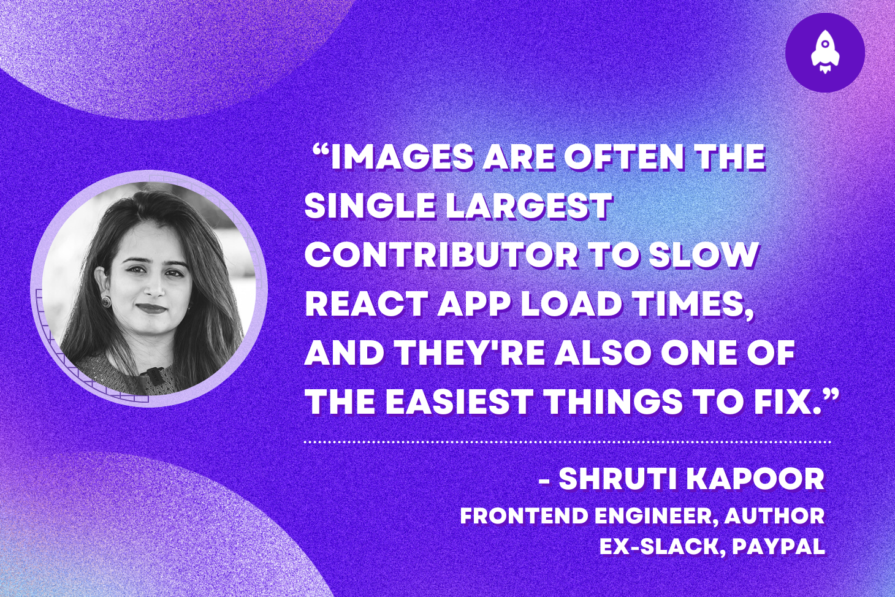
This post walks through a complete six-step image optimization strategy for React apps, demonstrating how the right combination of compression, CDN delivery, modern formats, and caching can slash LCP from 8.8 seconds to just 1.22 seconds.
Would you be interested in joining LogRocket's developer community?
Join LogRocket’s Content Advisory Board. You’ll help inform the type of content we create and get access to exclusive meetups, social accreditation, and swag.
Sign up now